The Excel SORT function returns a sorted copy of a range. The original data stays as it is, and the sorted results update automatically.
array |
The range to sort. |
|---|---|
sort_index optional |
Which column to sort by, counting from 1. Default is 1. |
sort_order optional |
1 for ascending (default), -1 for descending. |
by_col optional |
FALSE to sort rows (default), TRUE to sort columns. |
Table of Contents
Basic example
To sort the sales from highest to lowest, sort by the 3rd column in descending order:
=SORT(B3:D10,3,-1) 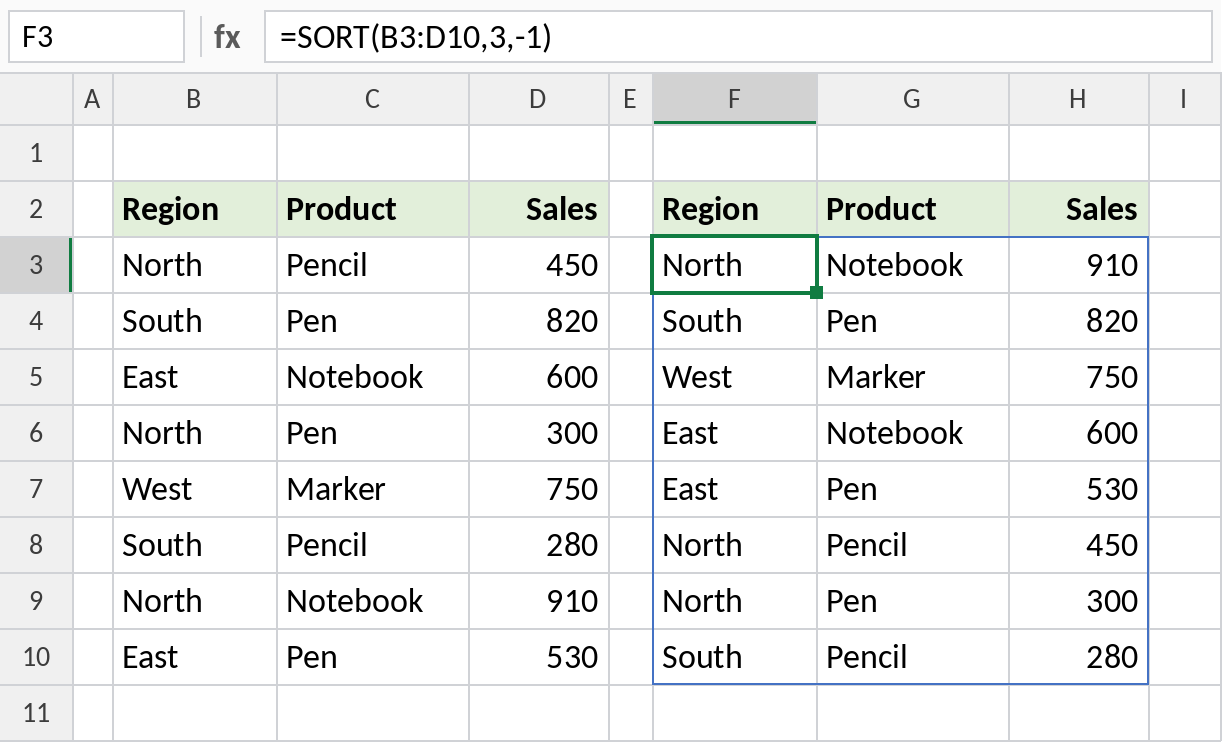
All 8 rows spill into F3:H10, with 910 at the top and 280 at the bottom. Change any sale in column D and the order updates.
Sort by two columns
Give sort_index and sort_order as lists in curly braces. This sorts by Region A to Z, then by Sales from highest to lowest within each region:
=SORT(B3:D10,{1,3},{1,-1}) 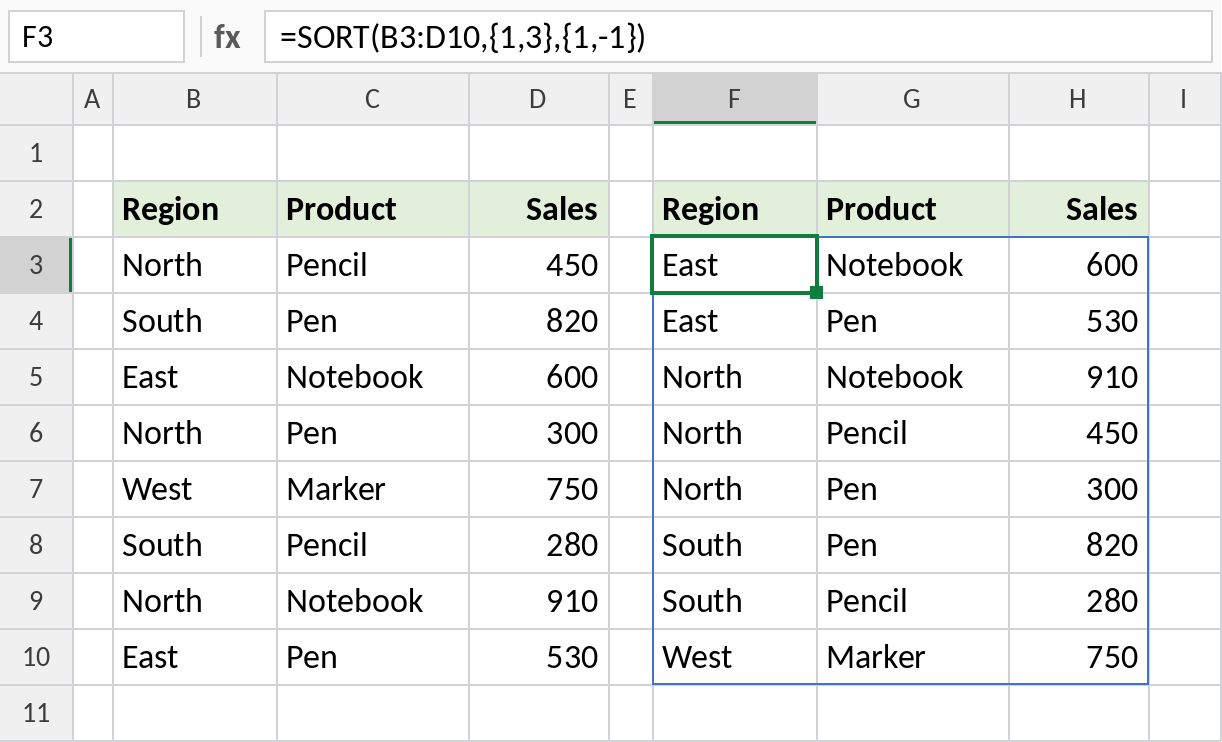
East comes first, and inside East, 600 comes before 530. Inside North, 910, 450 and 300 are in order from highest to lowest.
Sort filtered results
Wrap SORT around FILTER to filter and sort in one formula:
=SORT(FILTER(B3:D10,B3:B10="North"),3,-1) 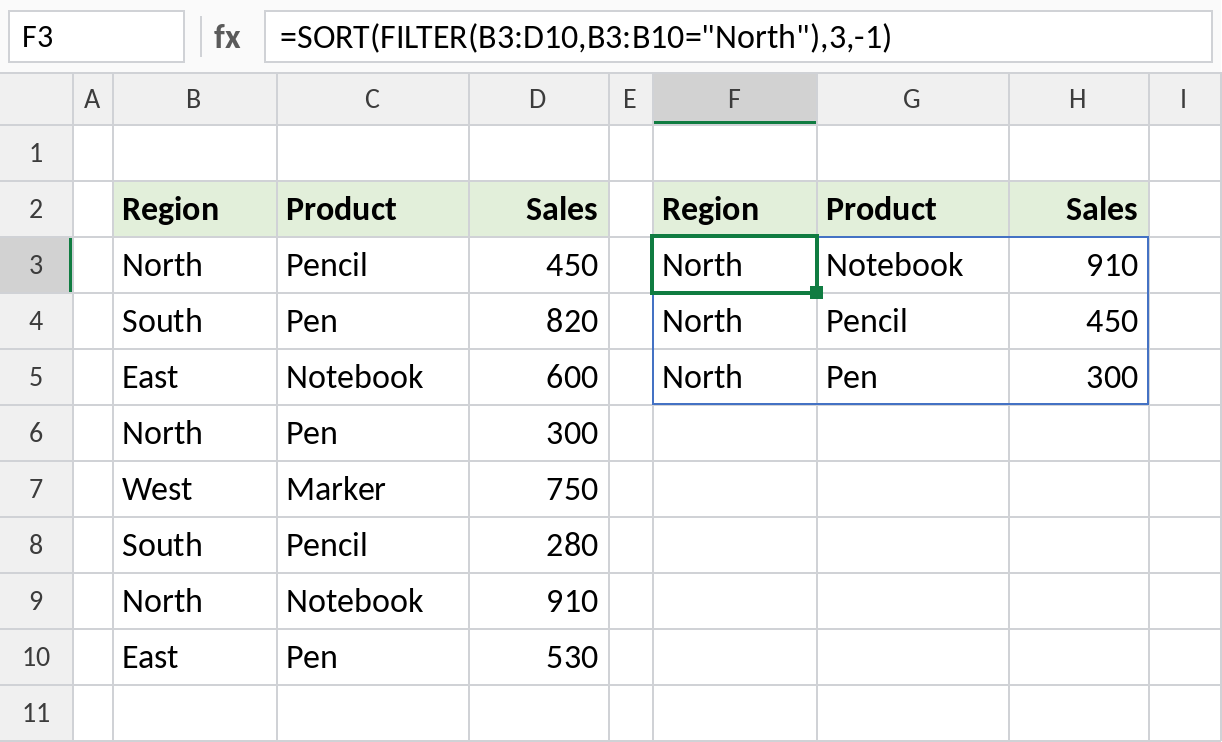
FILTER keeps the 3 North rows, and SORT orders them by sales: Notebook 910, Pencil 450, Pen 300.
SORT vs SORTBY
| SORT | SORTBY | |
|---|---|---|
| Sort by | A column number inside the range | Any range, even one not returned |
| Example | =SORT(B3:D10,3,-1) |
=SORTBY(B3:C10,D3:D10,-1) |
| Survives inserted columns | No, the number is fixed | Yes |
SORTBY is handy when you want to return only some columns but sort by another. =SORTBY(B3:C10,D3:D10,-1) returns just Region and Product, sorted by Sales.
Notes
- SORT doesn’t change the original data. It returns a sorted copy that spills.
- Keep the spill area empty, or you’ll see
#SPILL!. - Text sorts A to Z, numbers smallest to largest, and dates oldest to newest when
sort_orderis 1. - To take only the top few rows, wrap it in TAKE:
=TAKE(SORT(B3:D10,3,-1),3).
Common errors
| Problem | Cause | Fix |
|---|---|---|
#SPILL! |
Cells in the spill range aren’t empty | Clear the cells, or move the formula |
#VALUE! |
sort_index is larger than the number of columns |
Use a column number inside the range |
| Headers end up sorted into the data | The range includes the header row | Start the range below the headers |
#NAME? |
Opened in Excel 2019 or earlier | Use Data → Sort, or upgrade |
Practice file
All three examples with working formulas (Excel 2021 or 365).