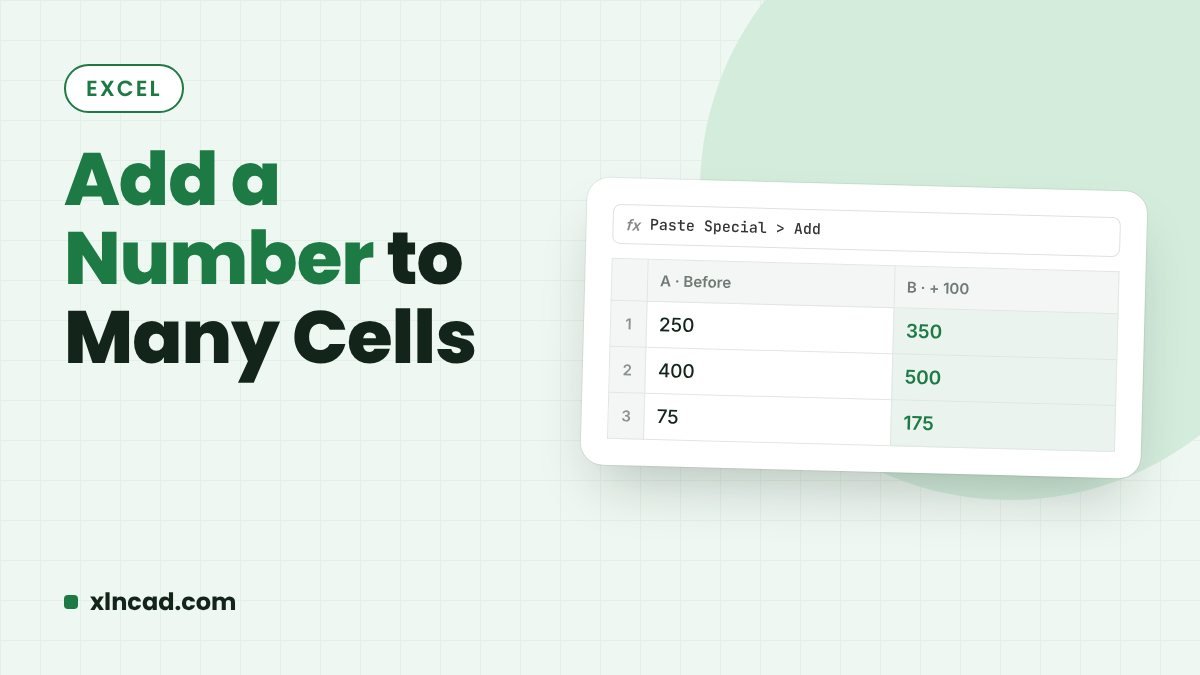
To add 10 to hundreds of cells, or raise every price by 5%, use Paste Special → Operation. It changes the values in place, even across separate ranges. A dynamic array formula gives the result in new cells instead.
In placePaste Special → Add, Subtract, Multiply, Divide
New cells=B2:F6+10
Works inAll versions (formula: Excel 365)
Table of Contents
Paste Special (changes the cells)
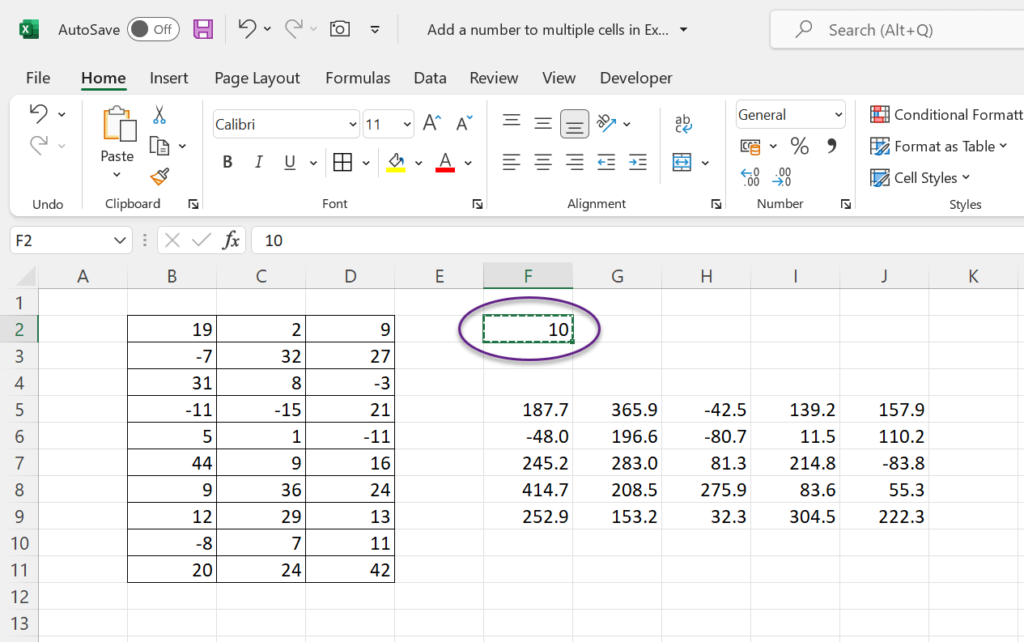
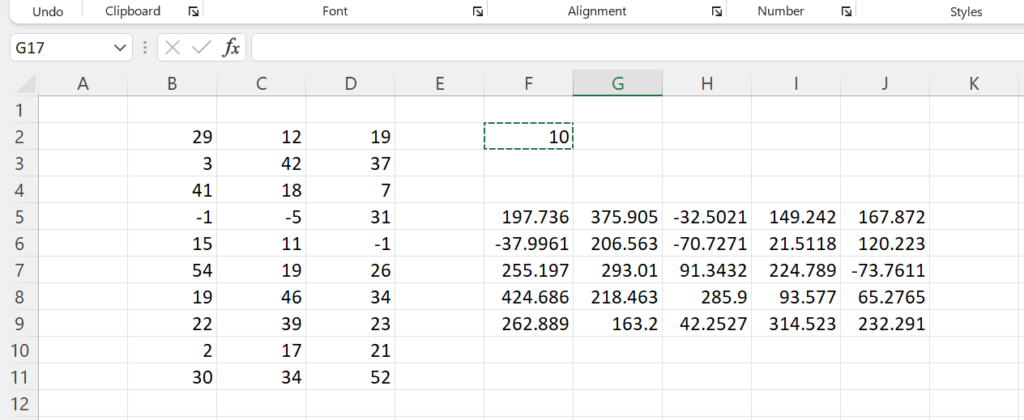
- Type the number, such as 10, in an empty cell and copy it.
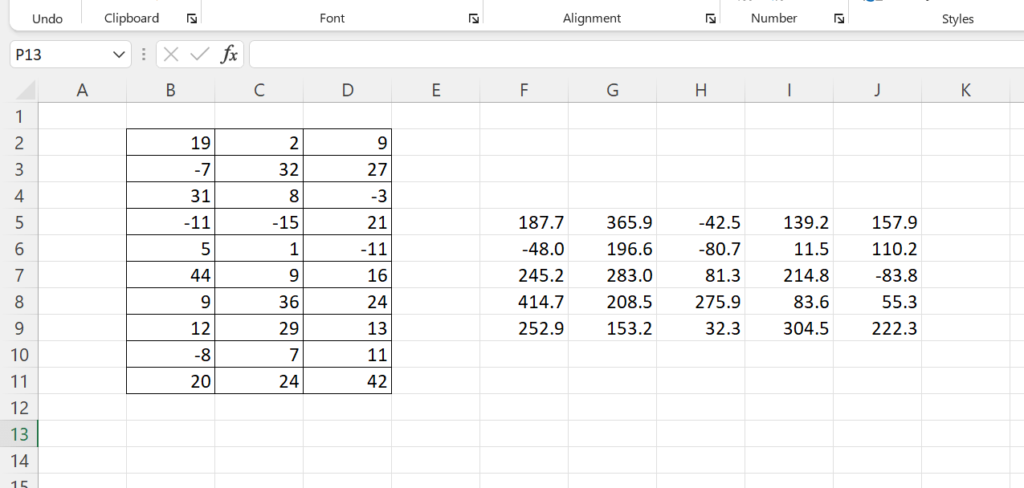
- Select the cells to change. Hold Ctrl to select separate ranges.
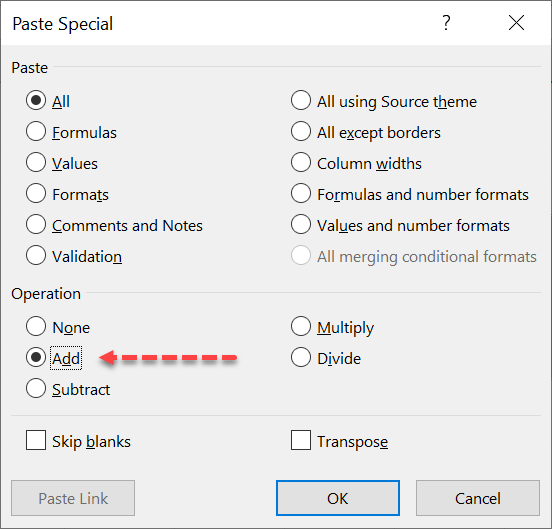
- Right-click → Paste Special (or Ctrl + Alt + V).
- Under Operation, choose Add and click OK.

| To | Copy | Operation |
|---|---|---|
| Add 10 | 10 | Add |
| Subtract 10 | 10 | Subtract |
| Increase by 5% | 1.05 | Multiply |
| Convert paise to rupees | 100 | Divide |
Tick Skip blanks to leave empty cells alone. If a cell has a formula, Excel edits the formula, for example =A1*2 becomes =(A1*2)+10.
Dynamic array formula (new cells)
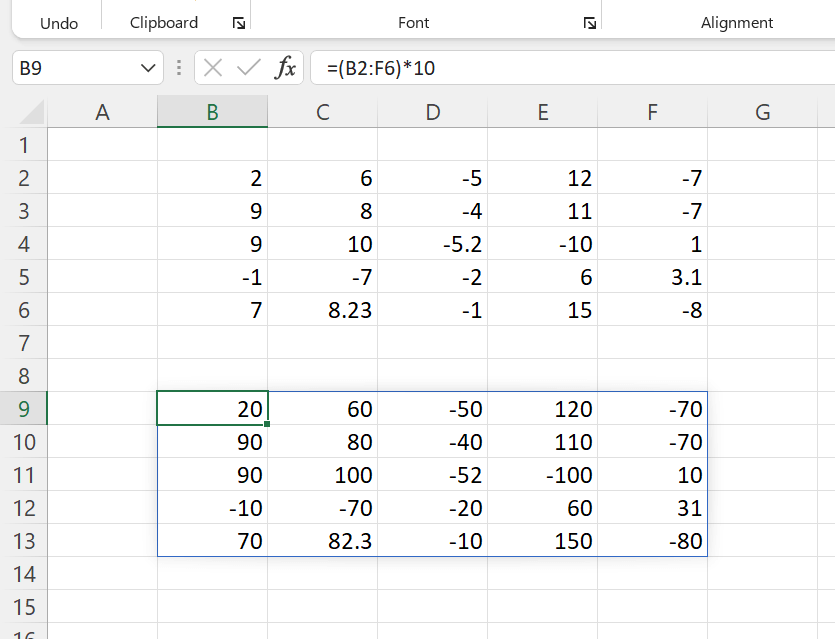
=B2:F6+10Returns all 25 results in one spill, and the originals stay unchanged. Use *, - or / in the same way.
Undo
Paste Special changes the values. If you notice a mistake later, repeat it with the opposite operation: Subtract after Add, Divide after Multiply.