The Excel AVERAGEIF function averages the cells that meet one condition. For example, the average sale for North, or the average of scores above zero.
range |
The cells to test. |
|---|---|
criteria |
The condition, such as "North" or ">500". |
average_range optional |
The cells to average. If left out, range is averaged. |
Table of Contents
Basic example
To find the average North sale, test the Region column and average the Sales column:
=AVERAGEIF(B3:B10,"North",D3:D10) 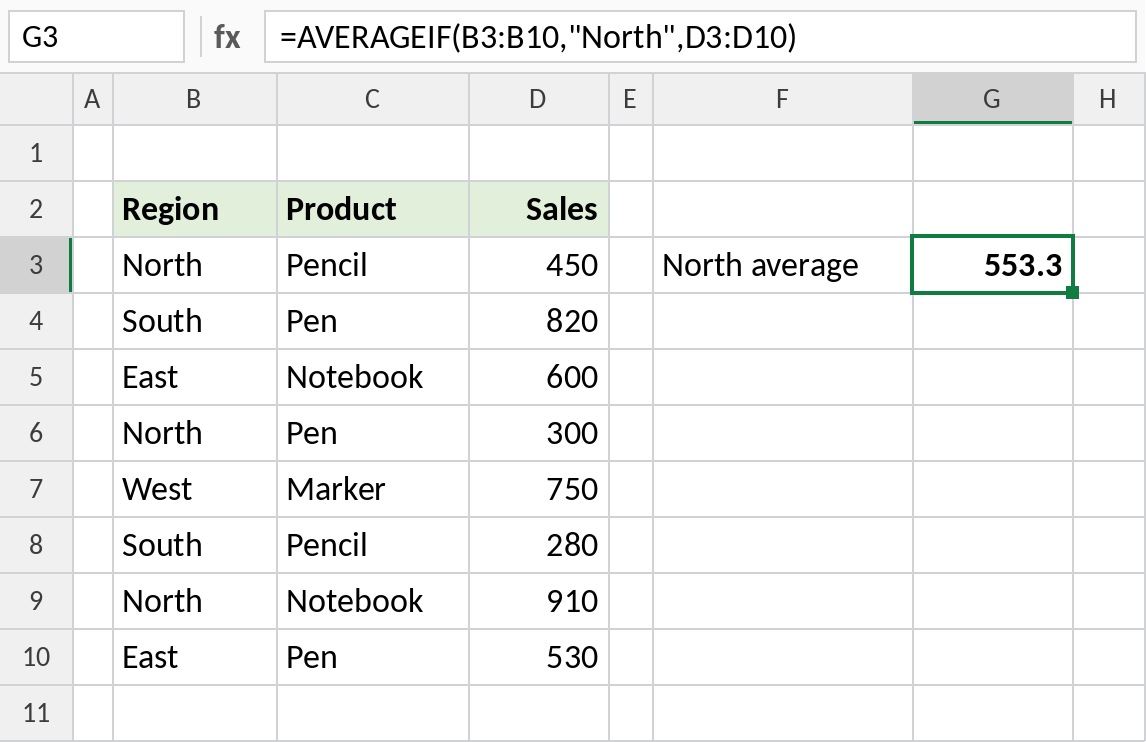
The three North sales are 450, 300 and 910. Their average is 553.3.
Average values above a number
When the test and the average use the same column, leave out average_range:
=AVERAGEIF(D3:D10,">500") 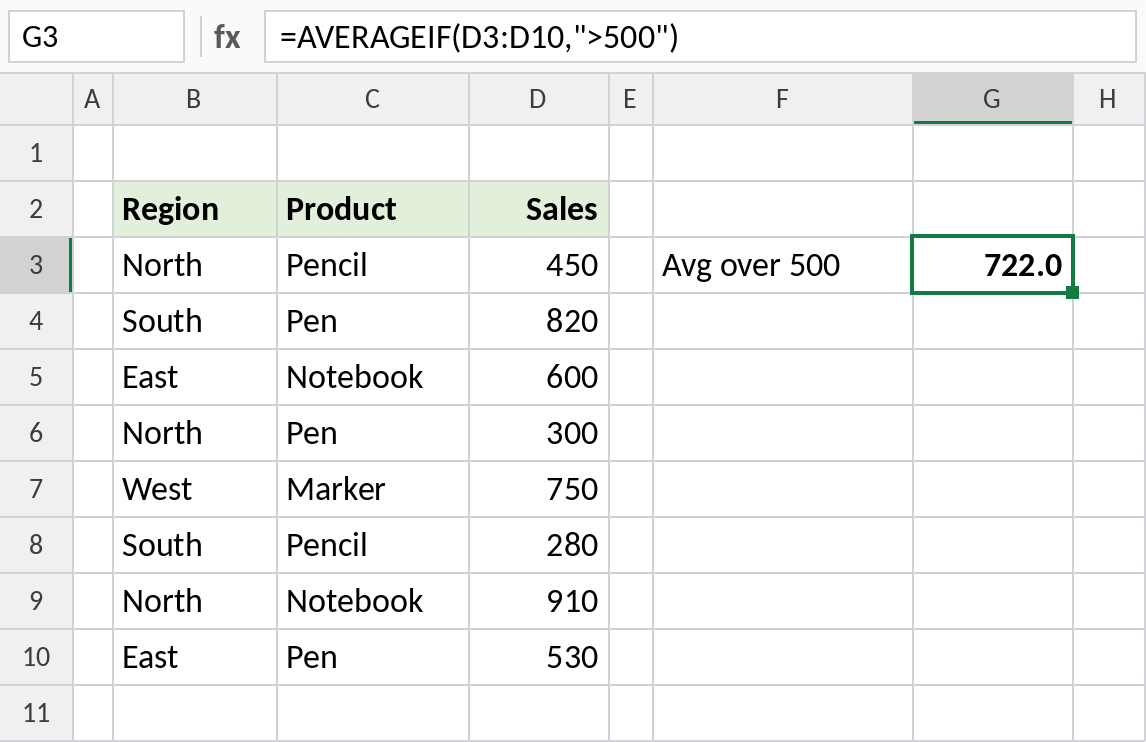
Five sales are above 500: 820, 600, 750, 910 and 530. Their average is 722.0.
Average without zeros
Rahul and Fatima were absent and have 0 entered. AVERAGE counts those zeros. AVERAGEIF with "<>0" skips them:
=AVERAGEIF(C3:C8,"<>0") 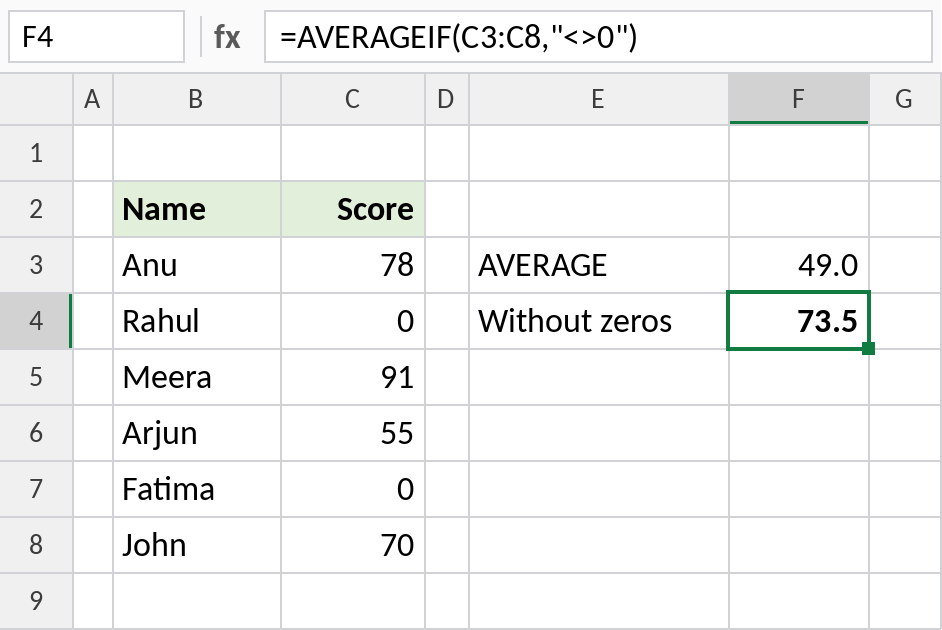
AVERAGE returns 49.0, dragged down by the zeros. AVERAGEIF averages only the four real scores: 73.5.
AVERAGEIF vs AVERAGEIFS
| AVERAGEIF | AVERAGEIFS | |
|---|---|---|
| Conditions | One | One to 127 |
| Range to average | Last argument, optional | First argument, required |
| Criteria rules | Same as SUMIF | Same as SUMIFS |
The criteria work exactly like the SUMIF criteria cheat sheet, including wildcards and cell references.
Notes
- If no cells match, AVERAGEIF returns
#DIV/0!. - Empty cells and text in
average_rangeare ignored. Zeros are included unless you exclude them. - For two or more conditions, use AVERAGEIFS.
- The result shows as many decimals as the cell format allows. Use ROUND if you need a rounded value.
Common errors
| Problem | Cause | Fix |
|---|---|---|
#DIV/0! |
No cells match the condition | Wrap with IFERROR(...,"") |
| Average too low | Zeros counted for missing values | Use "<>0", or leave missing values blank |
| Wrong average | range and average_range are different sizes |
Make both ranges cover the same rows |
Practice file
All three examples plus extra formulas in a cheat sheet.