The Excel COUNTIF function counts the cells in a range that meet one condition. For example, how many orders came from North, or how many sales are above 500.
range |
The cells to test and count. |
|---|---|
criteria |
The condition, such as "North", ">500" or a cell reference. |
Table of Contents
Basic example
To count the orders from the North region, test the Region column:
=COUNTIF(B3:B10,"North") 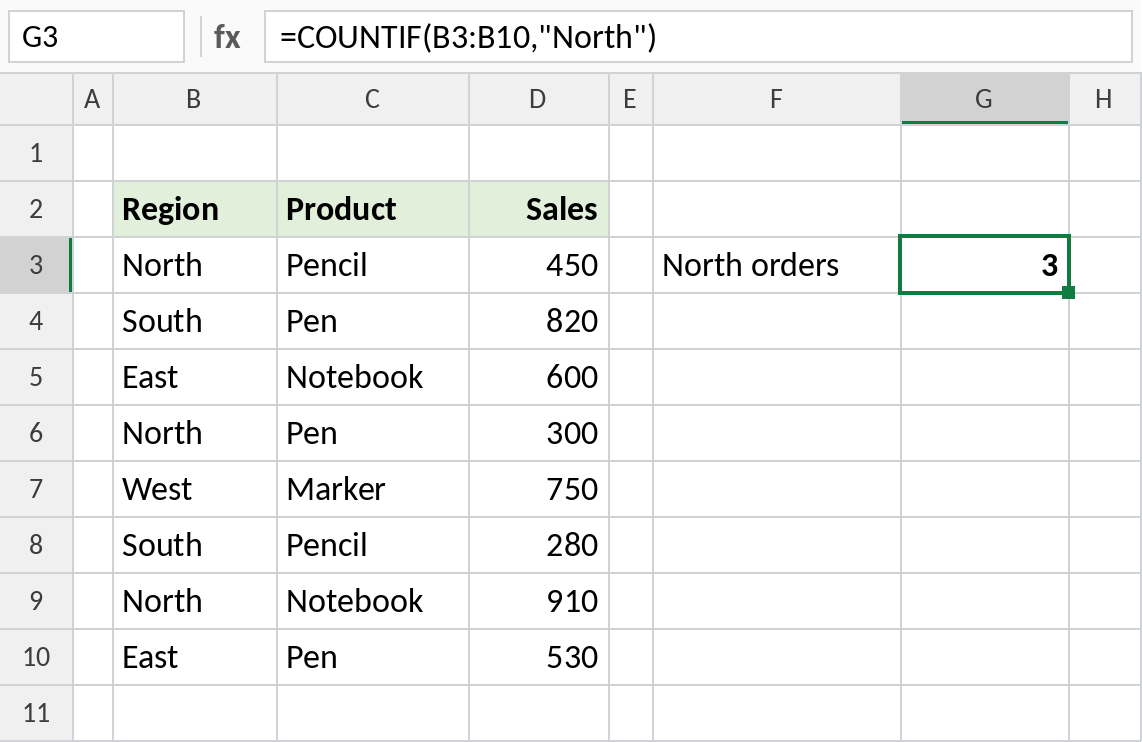
North appears in rows 3, 6 and 9, so the result is 3. Text criteria are not case-sensitive.
Count values greater than a number
Put the comparison operator inside quotes with the number:
=COUNTIF(D3:D10,">500") 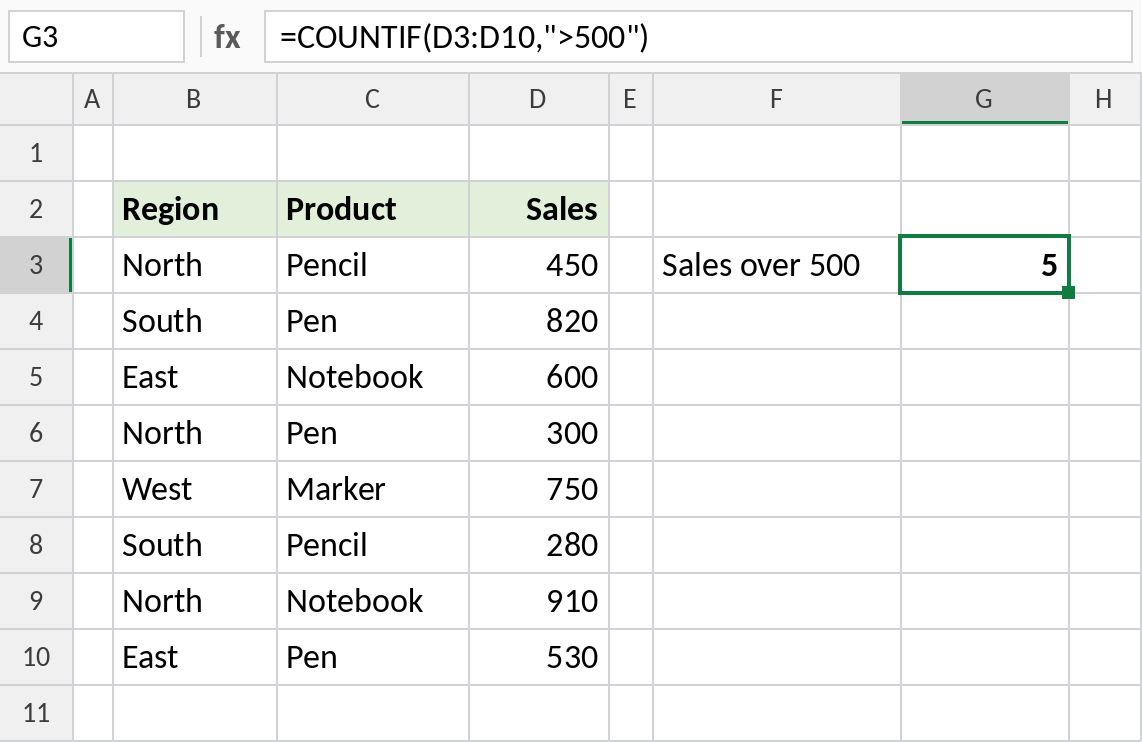
820, 600, 750, 910 and 530 are above 500, so COUNTIF returns 5. To use a limit from a cell, join it with &, as in ">"&G5.
Count with wildcards
An asterisk (*) matches any number of characters, and a question mark (?) matches one character:
=COUNTIF(C3:C10,"Pen*") 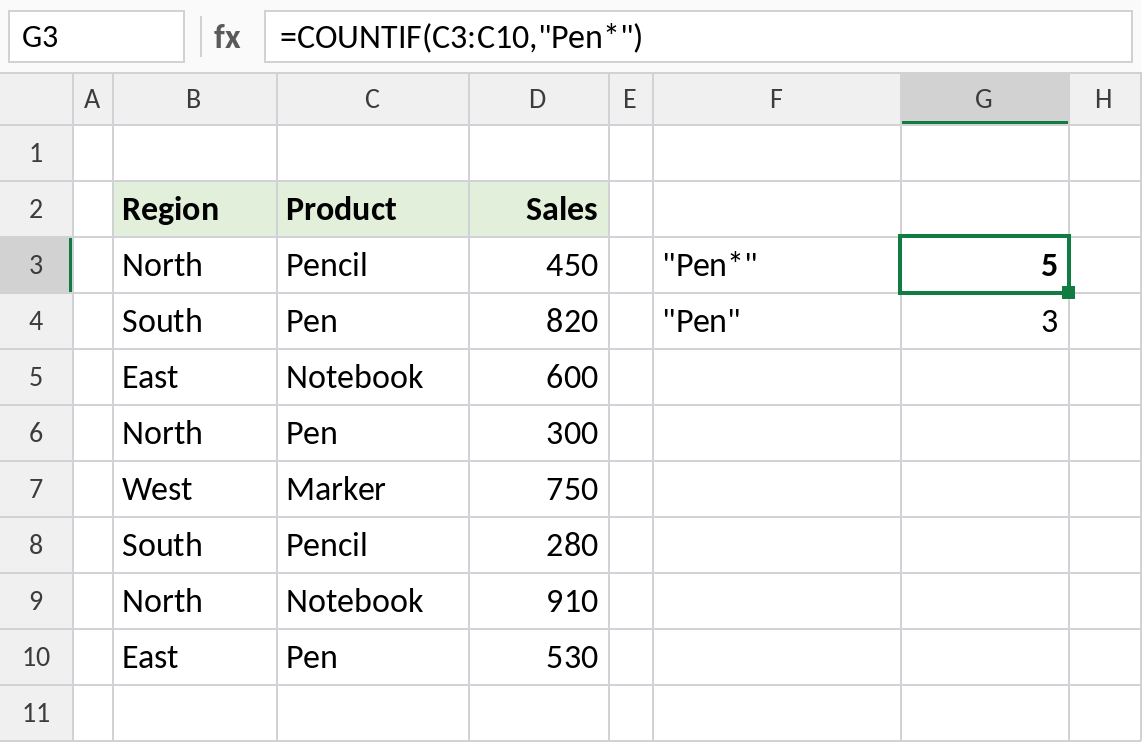
"Pen*" matches both Pen and Pencil, so the result is 5. Without the asterisk, "Pen" counts only exact matches: 3.
Find duplicates
Count each value against the whole column to see how often it appears. Lock the range with $ so it doesn’t move when you fill down:
=COUNTIF($B$3:$B$10,B3) 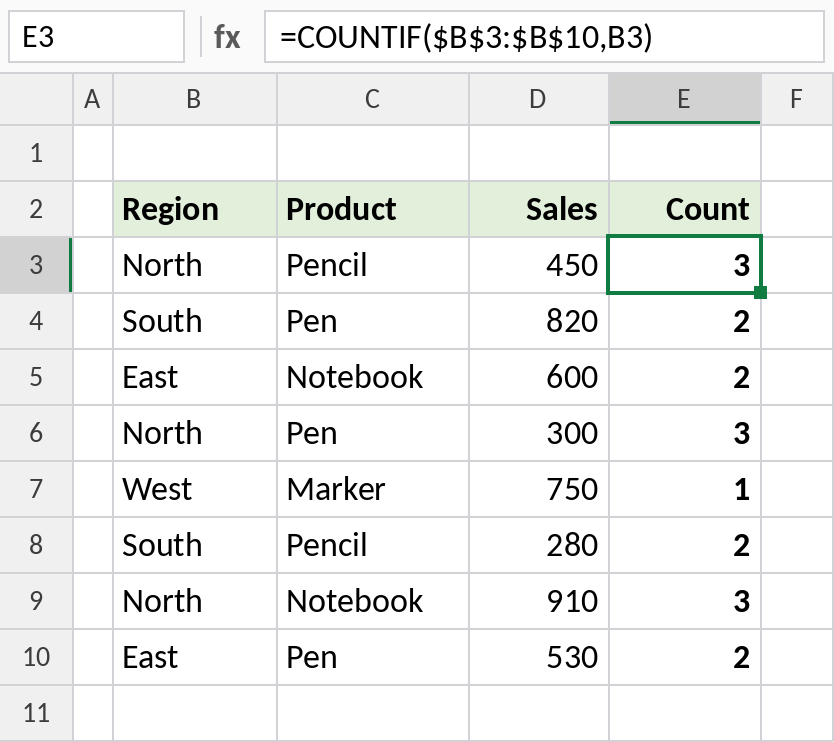
North appears 3 times and West only once. Any result above 1 is a duplicate. Use the same formula in conditional formatting to highlight duplicates automatically.
Useful COUNTIF formulas
| Formula | Result | Counts cells that… |
|---|---|---|
=COUNTIF(B3:B10,"<>North") |
5 | are anything except North |
=COUNTIF(D3:D10,">"&AVERAGE(D3:D10)) |
4 | are above the average |
=COUNTIF(C3:C10,"*") |
8 | contain any text |
=COUNTIF(D3:D10,">="&G3) |
— | meet a limit typed in G3 |
All the criteria rules are in the SUMIF criteria cheat sheet. For two or more conditions, use COUNTIFS.
Notes
- COUNTIF handles one condition. For more, use COUNTIFS.
- Text and comparison criteria go in double quotes. Numbers and cell references don’t need them.
- COUNTIF is not case-sensitive: “north” and “NORTH” match North.
- Criteria longer than 255 characters return
#VALUE!.
Common errors
| Problem | Cause | Fix |
|---|---|---|
| Count is 0 | Extra spaces in the data, or numbers stored as text | Clean text with TRIM, convert text to numbers |
| Formula not accepted | Operator typed without quotes, such as >500 |
Write ">500" |
| Wrong counts after filling down | Range not locked | Use $B$3:$B$10 |
#VALUE! |
Range points to a closed workbook | Open the source workbook |
Practice file
All four examples plus the extra formulas in a cheat sheet.