The Excel SUMPRODUCT function multiplies matching items in two or more ranges and adds up the results. With a test inside, it also sums or counts with conditions that SUMIFS can’t handle.
array1 |
The first range or array. |
|---|---|
array2, ... optional |
More ranges of the same size, up to 255. |
Table of Contents
Basic example
To get total revenue from quantities and prices, multiply each row and add the results, all in one formula:
=SUMPRODUCT(C3:C7,D3:D7) 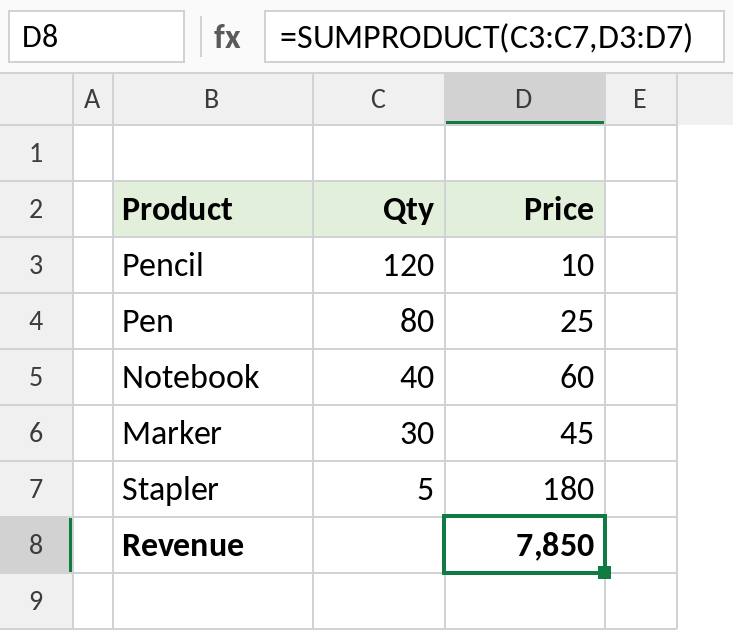
120 × 10 + 80 × 25 + 40 × 60 + 30 × 45 + 5 × 180 = 7,850. No helper column of row totals is needed.
Sum with a condition SUMIFS can't do
SUMIFS can’t test the month of a date directly, but SUMPRODUCT can. The test returns TRUE or FALSE for each row, and multiplying turns those into 1s and 0s:
=SUMPRODUCT((MONTH(B3:B14)=H3)*E3:E14)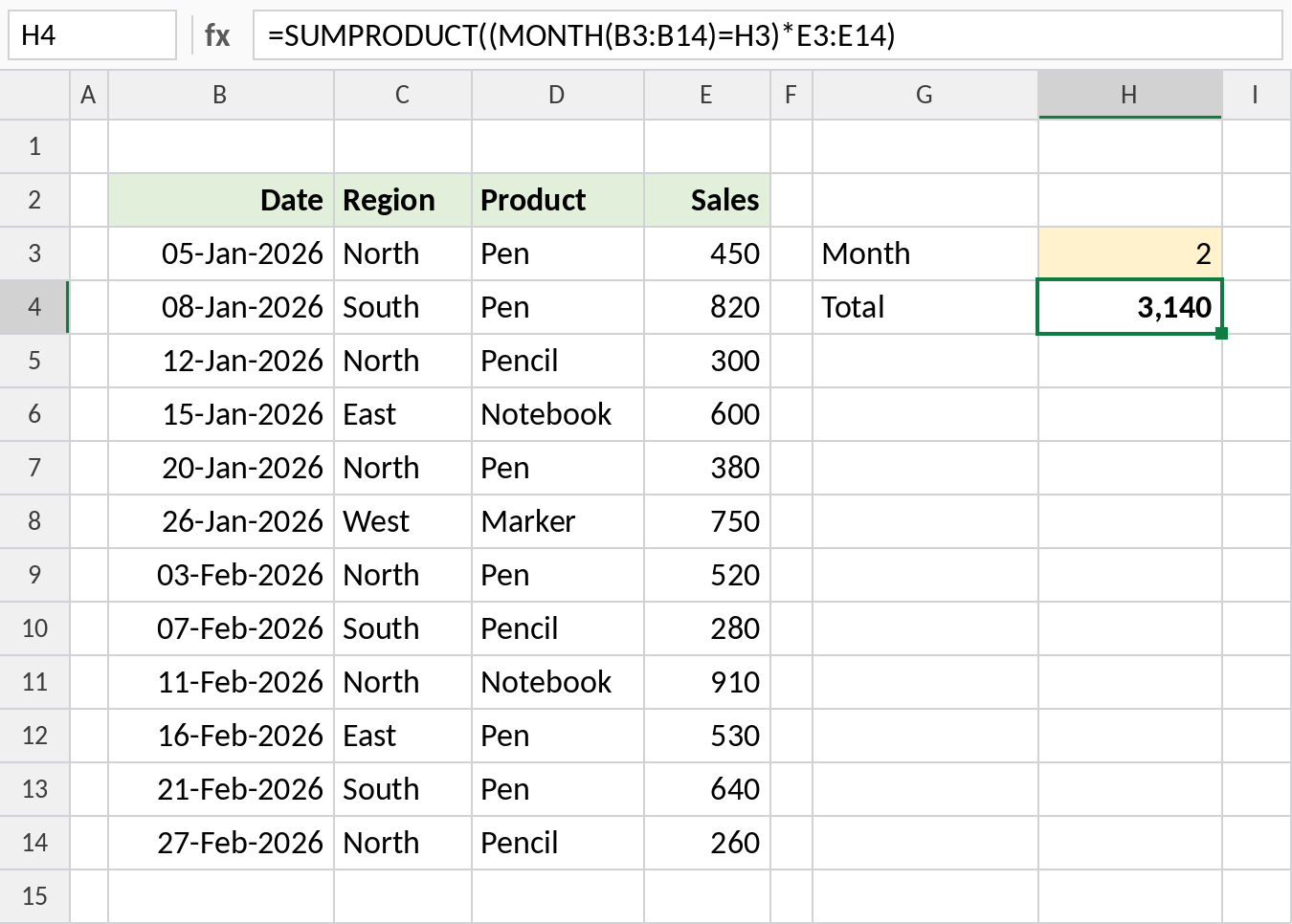
Only February rows are multiplied by 1, so the result is the February total: 3,140. Change H3 to 1 for January.
Weighted average
Divide the SUMPRODUCT by the total quantity to get the average price weighted by how much of each item sold:
=SUMPRODUCT(C3:C7,D3:D7)/SUM(C3:C7) 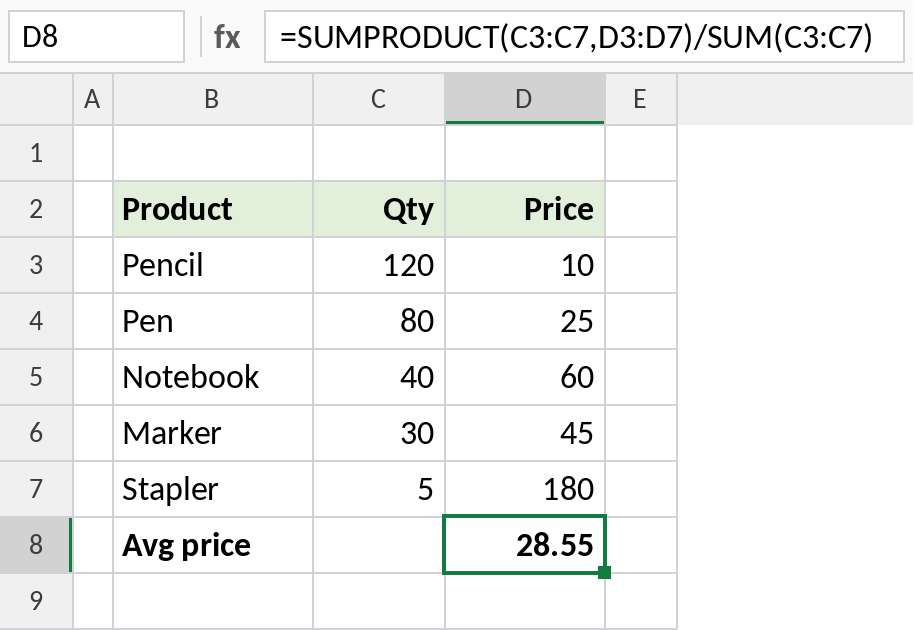
7,850 ÷ 275 items = 28.55. A simple AVERAGE of the prices would give 64, because it treats 5 staplers the same as 120 pencils.
SUMPRODUCT with conditions
On the dated sales table above:
| Formula | Result | Does |
|---|---|---|
=SUMPRODUCT((C3:C14="North")*E3:E14) |
2,820 | Sum where region is North |
=SUMPRODUCT((C3:C14="North")*(D3:D14="Pen")*E3:E14) |
1,350 | Sum with two conditions (AND) |
=SUMPRODUCT(--(MONTH(B3:B14)=1)) |
6 | Count January rows |
=SUMPRODUCT(((C3:C14="North")+(D3:D14="Pen")>0)*E3:E14) |
4,810 | Sum with OR, without double counting |
The double minus -- turns TRUE and FALSE into 1 and 0, so SUMPRODUCT can add them up.
Notes
- All ranges must be the same size, or SUMPRODUCT returns
#VALUE!. - Text in the ranges is treated as zero when you list ranges with commas, but causes
#VALUE!when you multiply ranges with*. - SUMPRODUCT handles arrays natively, so it never needs Ctrl+Shift+Enter, even in old Excel.
- Avoid whole-column references like
B:B. They make SUMPRODUCT slow.
Common errors
| Problem | Cause | Fix |
|---|---|---|
#VALUE! |
Ranges are different sizes, or text in a range multiplied with * |
Match the range sizes; use commas or -- instead of * for text |
| Result is 0 | Conditions return TRUE/FALSE without being converted | Multiply the tests, or add -- in front |
| Workbook is slow | Whole-column references | Limit the ranges to the data |
Practice file
All three examples plus conditional SUMPRODUCT formulas in a cheat sheet.