The Excel SUMIFS function adds the cells that meet two or more conditions. For example, sales for the North region and the product Pen, or sales between two dates.
sum_range |
The cells to add. |
|---|---|
criteria_range1 |
The cells to test with the first condition. |
criteria1 |
The first condition, such as "North", ">400" or a cell reference. |
criteria_range2, criteria2 optional |
More range and condition pairs, up to 127 pairs. |
Table of Contents
Basic example
To total sales where the region is North and the product is Pen, give SUMIFS the Sales column first, then each range with its condition:
=SUMIFS(E3:E14,C3:C14,"North",D3:D14,"Pen") 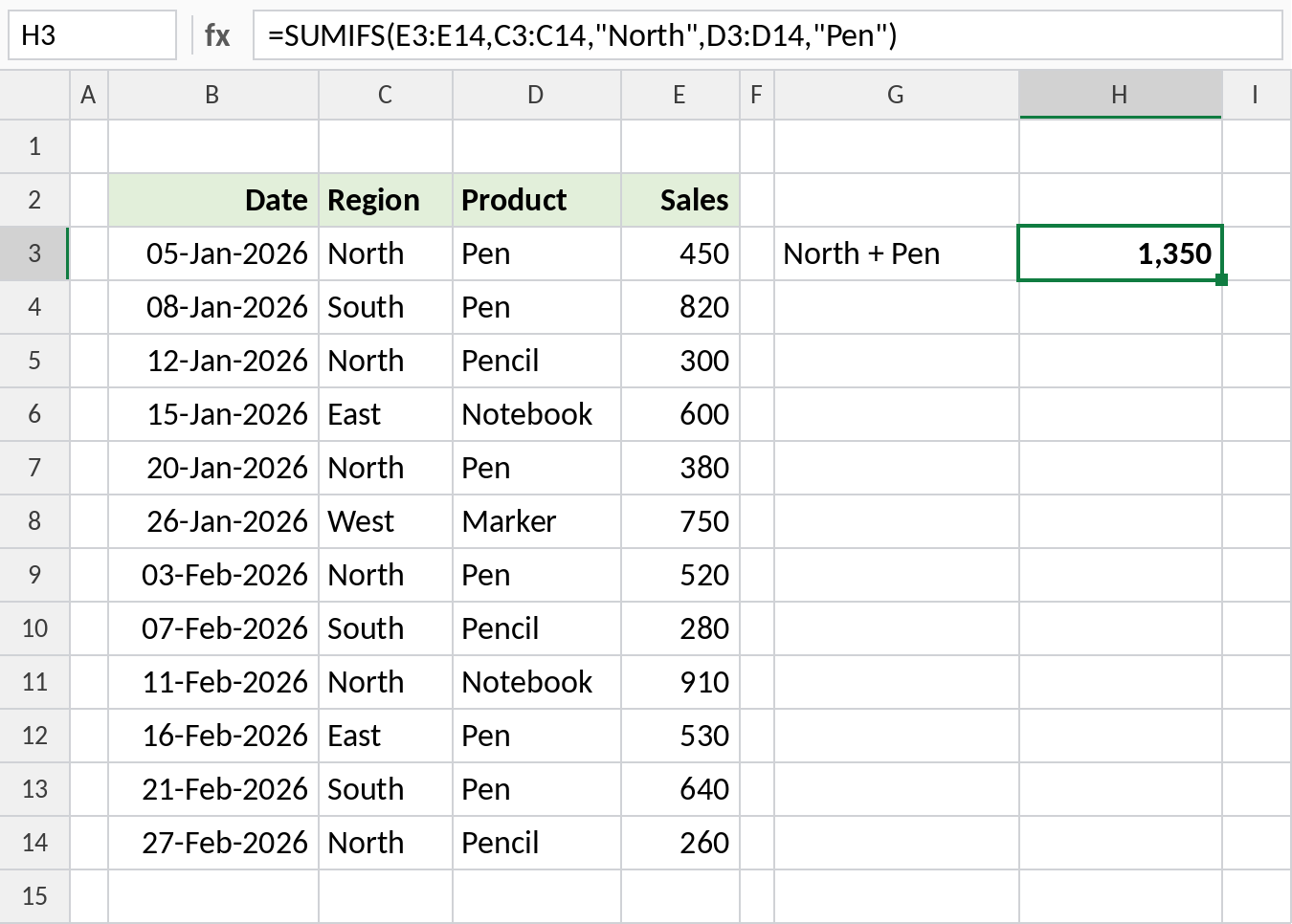
A row is added only when both conditions are true. Rows 3, 7 and 9 qualify: 450 + 380 + 520 = 1,350.
Use a comparison operator
Conditions can test numbers too. The Sales column can be both the range to add and one of the ranges to test:
=SUMIFS(E3:E14,C3:C14,"North",E3:E14,">400") 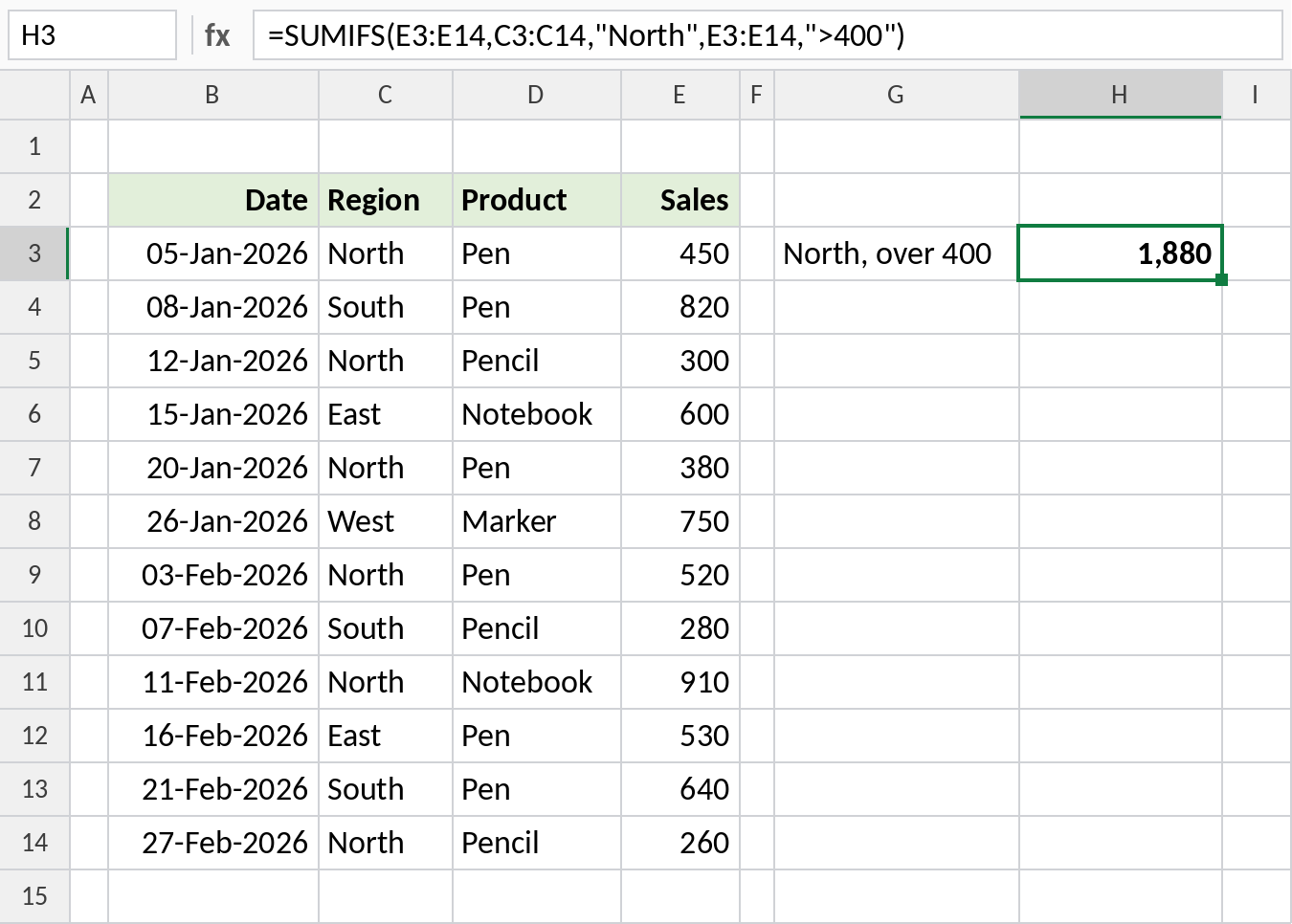
Only North sales of 450, 520 and 910 pass both tests, so the result is 1,880.
Sum between two dates
Test the same date column twice, once for the start and once for the end. Keep the dates in cells and join them to the operators with &:
=SUMIFS(E3:E14,B3:B14,">="&H3,B3:B14,"<="&H4) 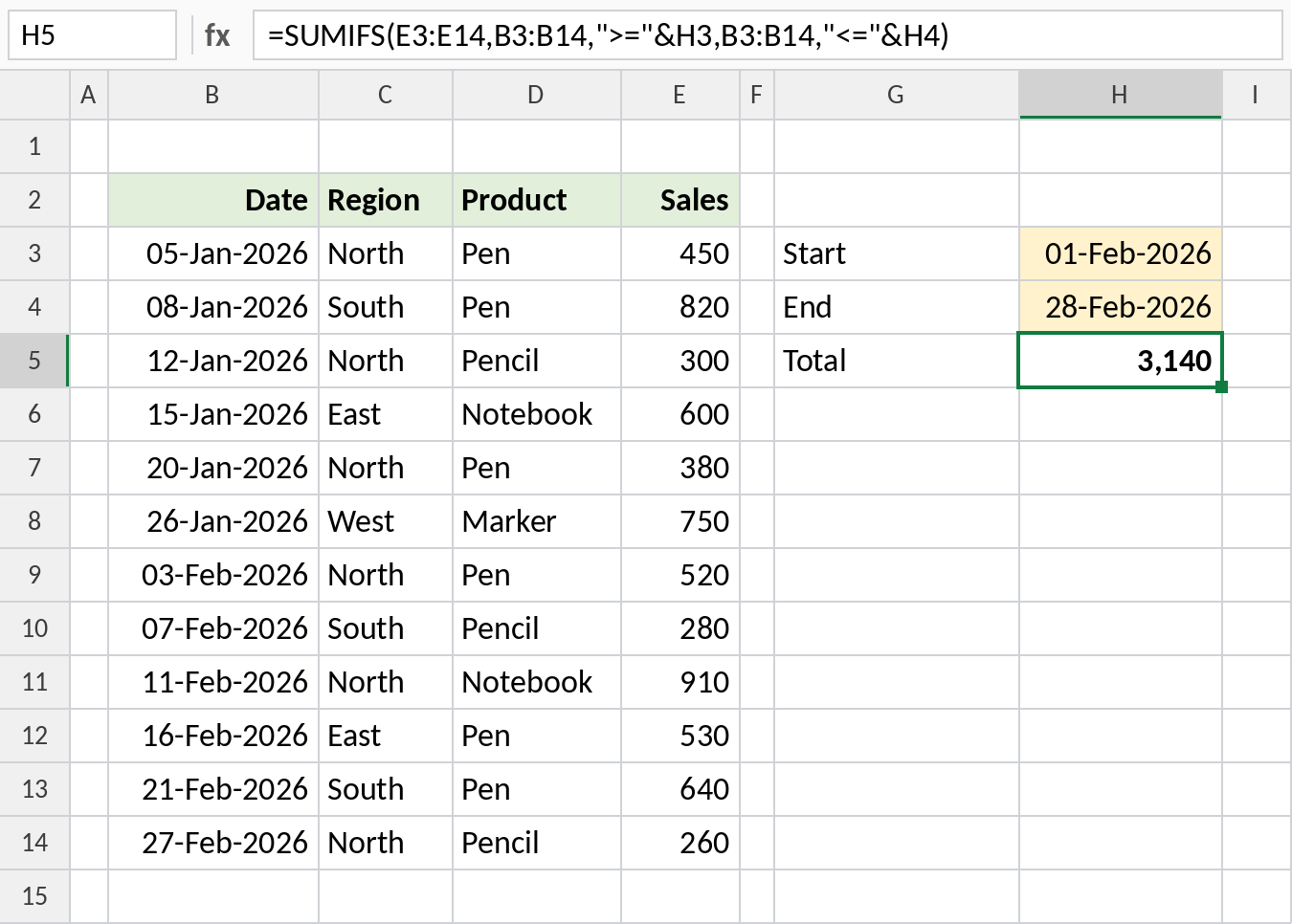
With 01-Feb-2026 and 28-Feb-2026 in H3 and H4, the formula totals February: 3,140. Change the dates to report on any period.
Sum with OR logic
SUMIFS always joins conditions with AND. To add North or South, give one condition as a list in curly braces and wrap the formula in SUM:
=SUM(SUMIFS(E3:E14,C3:C14,{"North","South"})) 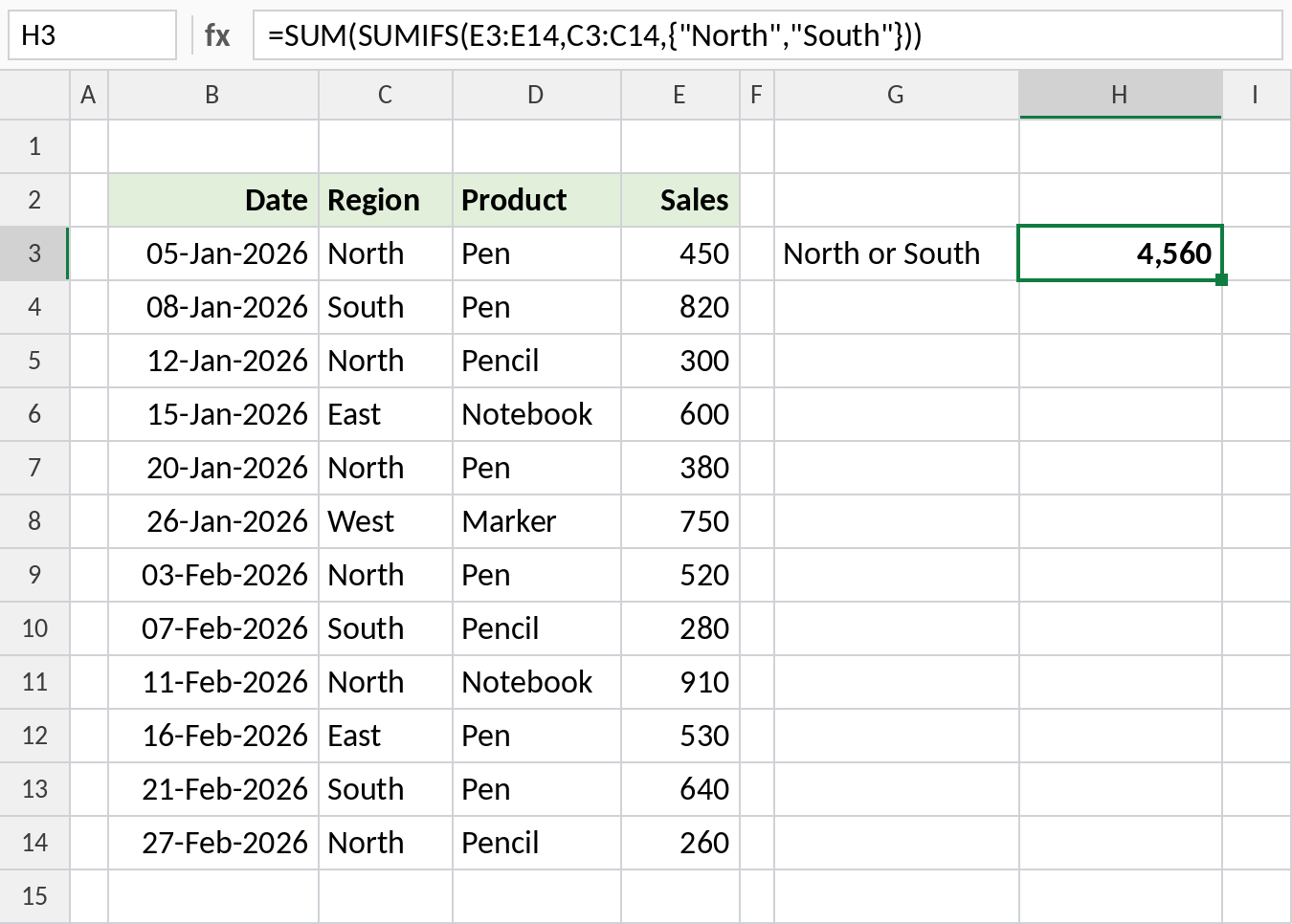
SUMIFS returns two totals, 2,820 for North and 1,740 for South, and SUM adds them: 4,560. Use this only with one list per formula. Two lists would pair the values up rather than test every combination.
SUMIFS vs SUMIF
| SUMIF | SUMIFS | |
|---|---|---|
| Conditions | One | One to 127 |
| Range to add | Last argument, optional | First argument, required |
| Ranges of different sizes | Resized silently | Returns #VALUE! |
| Criteria rules | The same: operators in quotes, wildcards * and ?, cell references with &. See the SUMIF criteria cheat sheet. |
|
SUMIFS works with a single condition too, so many people use it everywhere for a consistent argument order.
Notes
- Every condition must be true for a row to be added (AND logic).
- All ranges must have the same number of rows and columns.
- Text conditions are not case-sensitive.
- Empty cells in
sum_rangecount as zero, and text in it is ignored. - For conditions SUMIFS can’t express, such as testing the month of a date, use SUMPRODUCT or FILTER with SUM.
Common errors
| Problem | Cause | Fix |
|---|---|---|
#VALUE! |
Ranges are different sizes, such as E3:E14 and C3:C13 |
Make every range cover the same rows |
| Wrong total | Arguments in SUMIF order, with the range to add placed last | Put sum_range first |
| Result is 0 | Dates or numbers stored as text, or extra spaces in the data | Convert to real dates and numbers, clean text with TRIM |
| Date condition fails | Date typed as text, such as ">=01/02/2026", which reads differently in different regions |
Use a cell reference or ">="&DATE(2026,2,1) |
Practice file
All four examples with working formulas, ready to try your own conditions.