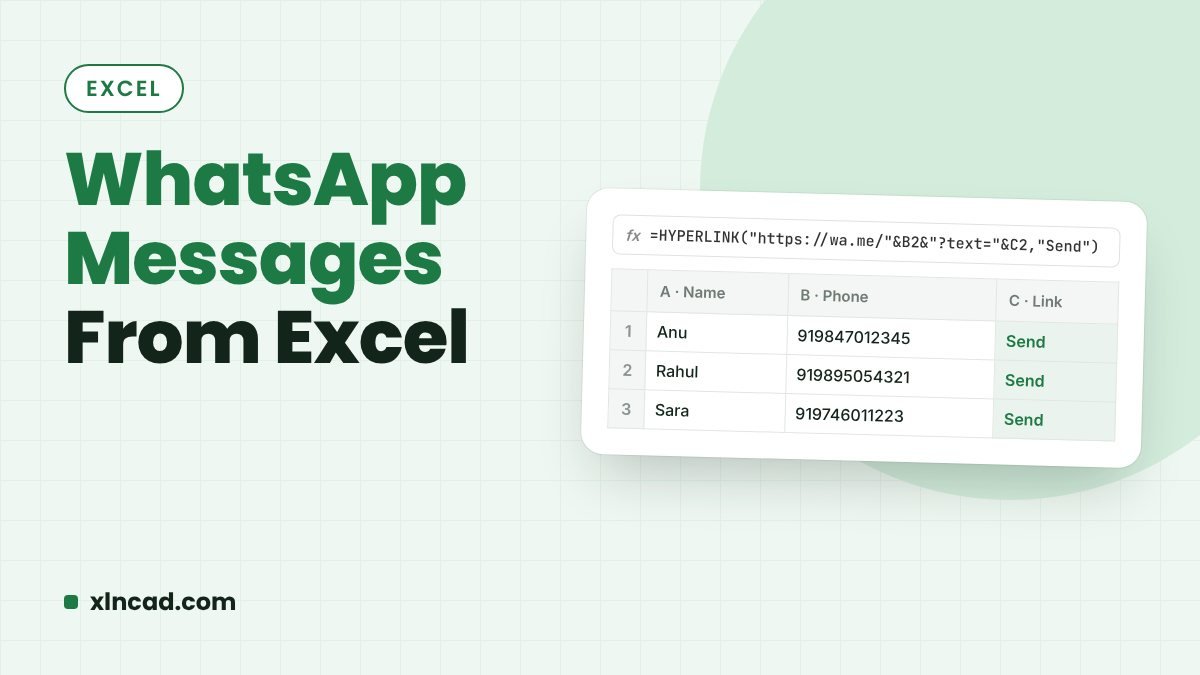
Excel can write a personalised WhatsApp message for everyone on a list and turn it into a link. Click the link and WhatsApp opens with the number and message filled in, ready to send, even if the number isn’t saved in your phone.
Video
The data
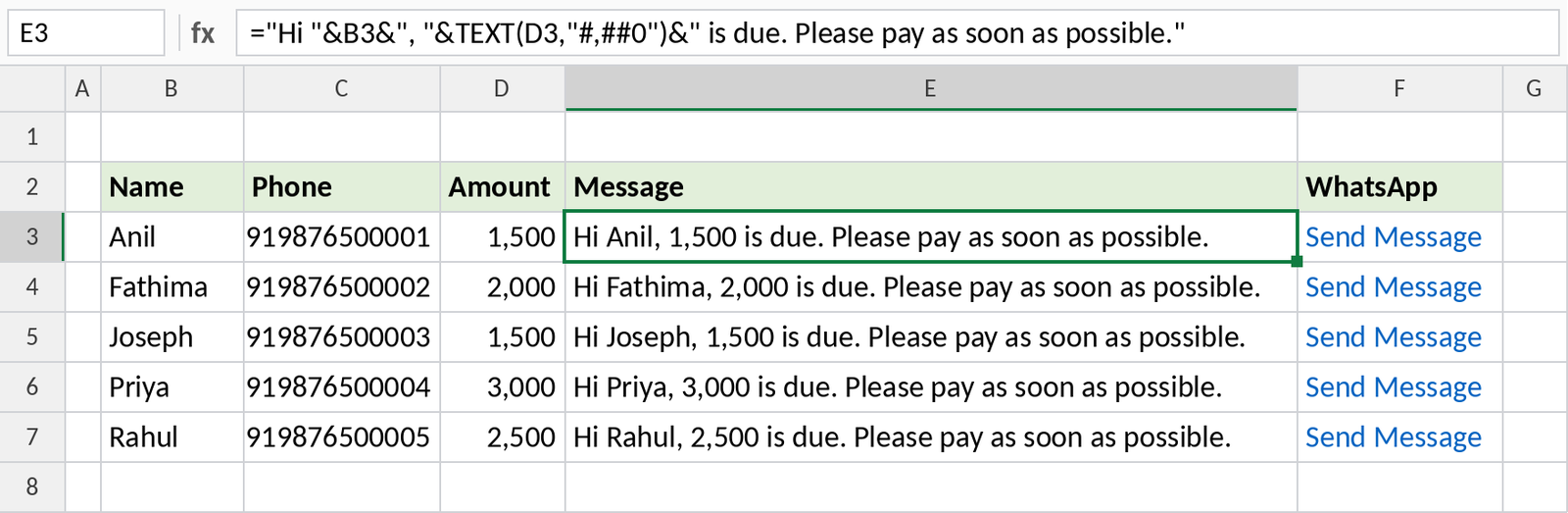
Friends who owe money to a health club: name in B, phone number in C and pending amount in D. Type numbers with the country code and no + or spaces, such as 919876500001. Format the phone column as Number with no decimals, or as Text, so Excel doesn’t show it in scientific notation.
Step 1: The message
In E3:
="Hi "&B3&", "&TEXT(D3,"#,##0")&" is due. Please pay as soon as possible."Copy it down. Each person gets their own name and amount.
Step 2: The WhatsApp link
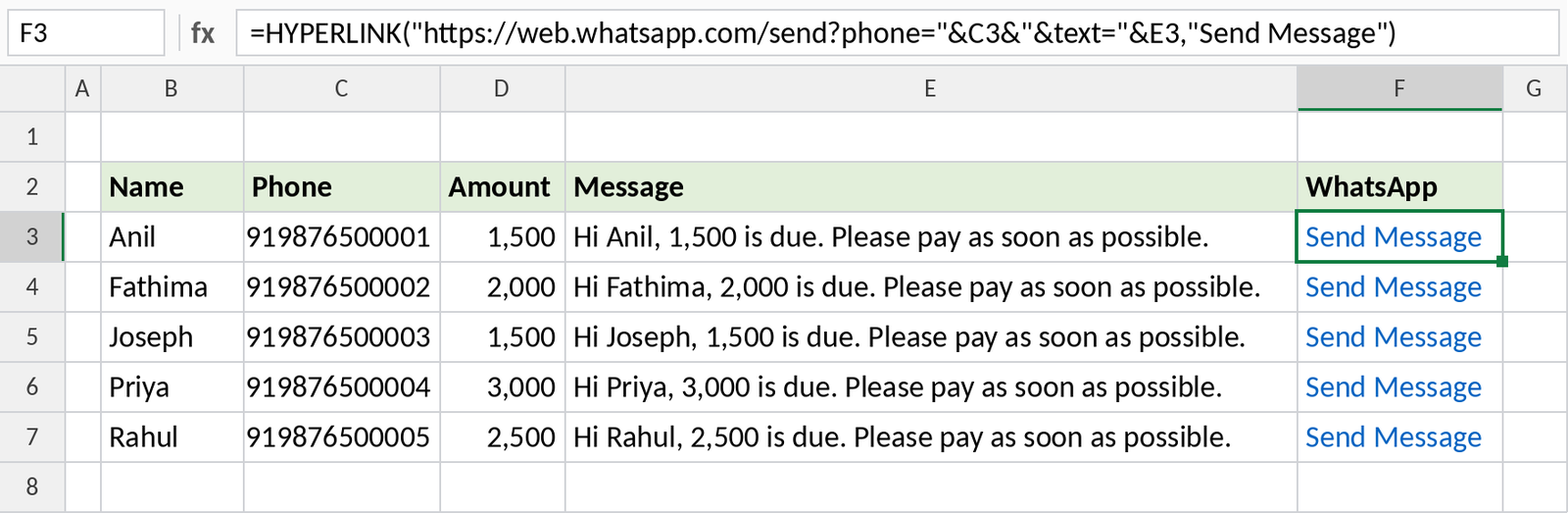
In F3:
=HYPERLINK("https://web.whatsapp.com/send?phone="&C3&"&text="&E3,"Send Message")Copy it down. The cells show a blue Send Message link.
Step 3: Send
- Click Send Message on a row. Your default browser opens WhatsApp Web.
- The first time, scan the QR code with WhatsApp on your phone (Linked devices). After that, it stays linked.
- The chat opens with the message typed in. Press Send.
More uses
The same two formulas work for any list: insurance and subscription renewal reminders, fee due dates, appointment confirmations or delivery updates. Combine it with an expiry date tracker to message people whose renewal is coming up.
To send many messages with one click, the steps can be automated with a VBA macro. Test it on a few numbers first.
Things to know
- If the message contains &, # or line breaks, use
ENCODEURL(E3)in place ofE3in the link (Excel 2013 and later on Windows). - To open the WhatsApp app instead of WhatsApp Web, use
=HYPERLINK("https://wa.me/"&C3&"?text="&E3,"Send Message"). - Send only to people who expect to hear from you. Numbers reported for spam can be blocked by WhatsApp.