The Excel HYPERLINK function creates a clickable link in a cell: to a web page, an email address, a file or another place in the workbook.
link_location |
The address to open: a web URL, mailto: address, file path, or #Sheet!A1 for a place in the workbook. |
|---|---|
friendly_name optional |
The text to show in the cell. Without it, the address is shown. |
Table of Contents
Basic example: web links
Build the address from the function name and show friendly text instead of the full URL:
=HYPERLINK("https://xlncad.com/functions/"&LOWER(B3)&"/",B3&" guide")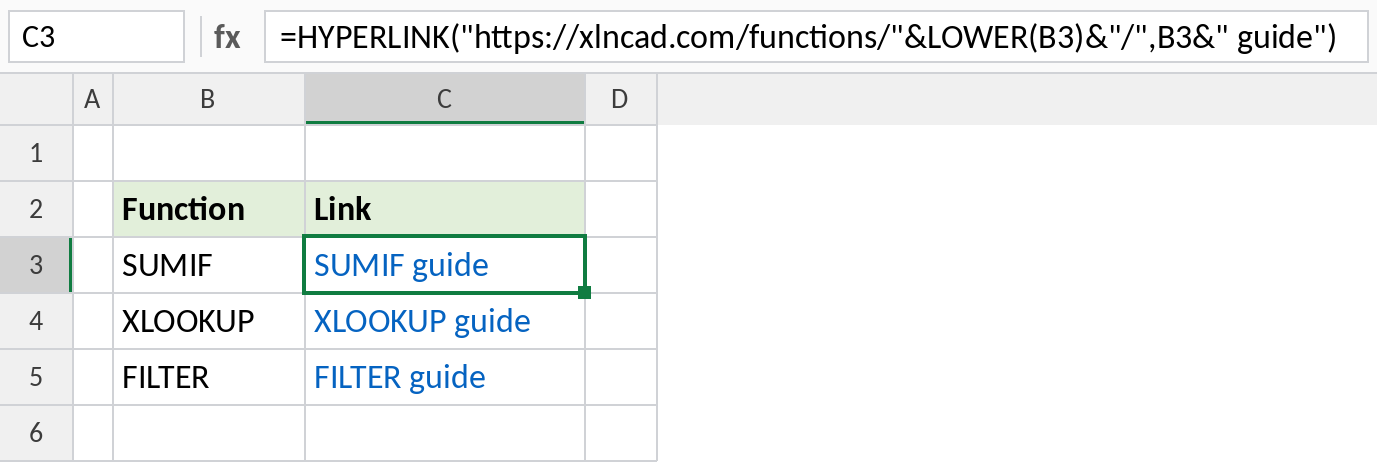
The cell shows SUMIF guide, and clicking it opens xlncad.com/functions/sumif/. To select the cell without opening the link, click and hold until the pointer changes.
Email links
Start the address with mailto: to open a new email. Add ?subject= to fill in the subject line:
=HYPERLINK("mailto:"&C3&"?subject=Invoice "&B3,"Email")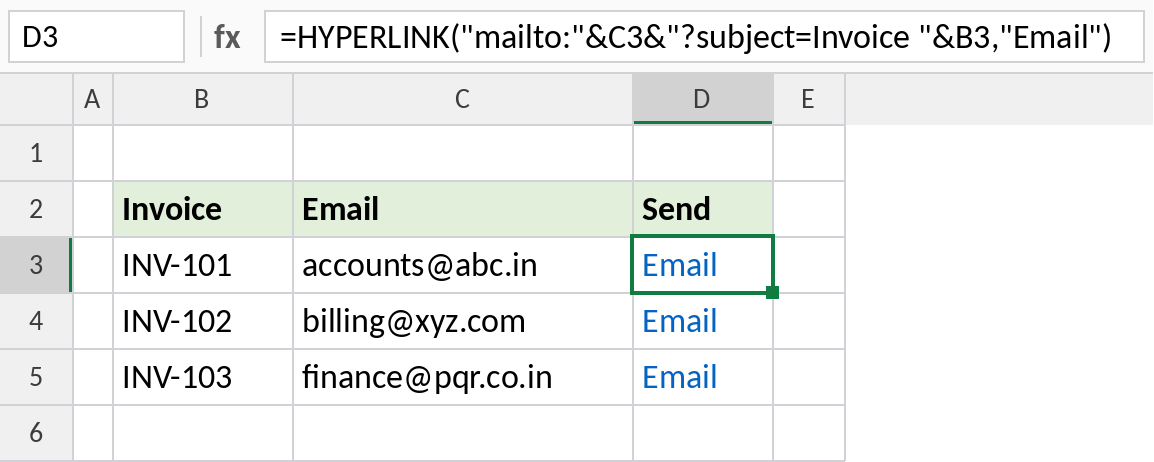
Clicking Email opens your mail app with the address filled in and the subject *Invoice INV-101*.
Links to sheets in the workbook
Start the address with # to link inside the workbook. Put the sheet name in single quotes if it contains spaces:
=HYPERLINK("#'"&B3&"'!A1","Open "&B3)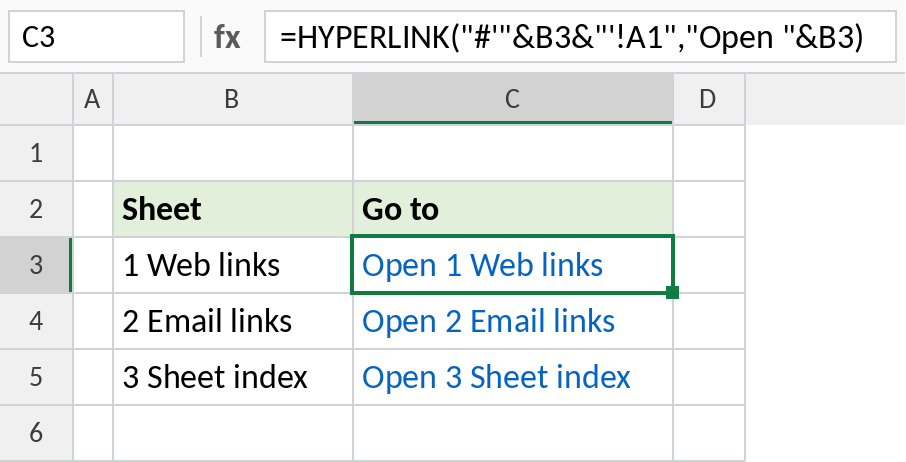
Each link jumps to cell A1 of the named sheet. Open 1 Web links takes you to the first sheet of the practice file. An index sheet like this makes big workbooks easy to navigate.
Kinds of link_location
| Starts with | Opens | Example |
|---|---|---|
https:// |
A web page | "https://xlncad.com" |
mailto: |
A new email | "mailto:hi@xlncad.com" |
# |
A place in this workbook | "#Summary!A1" |
| A file path | A file on your computer or network | "C:\Reports\Q3.xlsx" |
Notes
- The result shows the friendly name. The link is only followed when you click it.
- For links inside the workbook, the
#is essential. Without it, Excel looks for a file. - Links built with HYPERLINK update when the cells they use change, unlike links added with Insert → Link.
- The cell isn’t styled as a link automatically. Format it blue and underlined, or use the Hyperlink cell style.
Common errors
| Problem | Cause | Fix |
|---|---|---|
| “Cannot open the specified file” | Missing # for an internal link, or a wrong path |
Add #, and check the sheet name or path |
| Link to a sheet doesn’t work | Sheet name with spaces not in single quotes | Use "#'Sheet name'!A1" |
| Can’t select the cell | Clicking follows the link | Click and hold, or use the arrow keys |
Practice file
All three examples, including a working sheet index.