The Excel LOWER function converts all the letters in a text to lowercase. Numbers and symbols stay as they are.
text |
The text or cell to convert. |
|---|
Table of Contents
Basic example
Email addresses are often typed with random capitals. LOWER makes them consistent:
=LOWER(B3)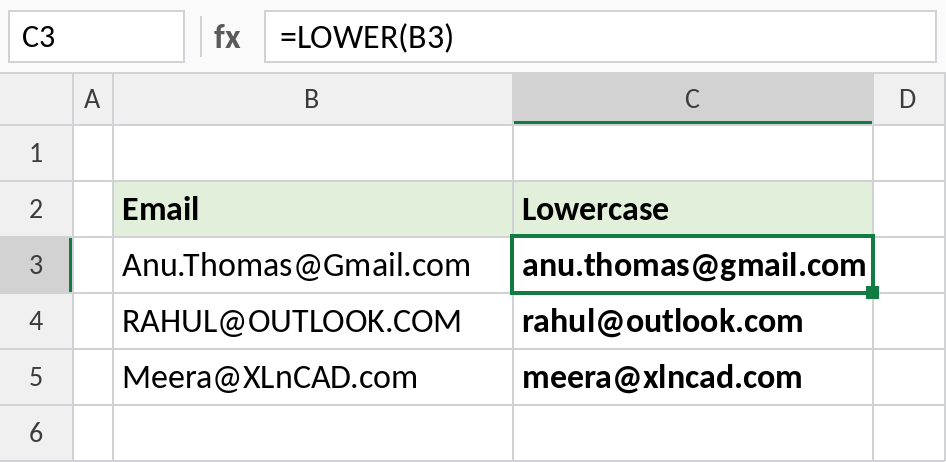
Anu.Thomas@Gmail.com becomes anu.thomas@gmail.com.
Create usernames
Swap the space for a dot and make everything lowercase to build a login name:
=LOWER(SUBSTITUTE(B3," ",".")) 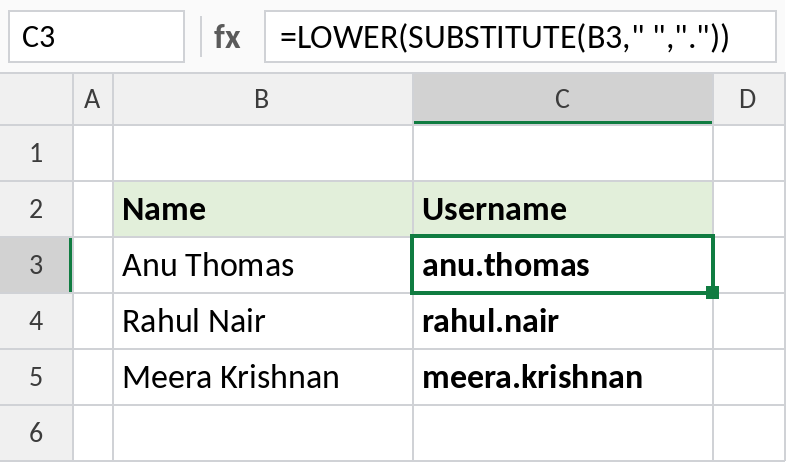
Anu Thomas becomes anu.thomas.
Make SUBSTITUTE ignore case
SUBSTITUTE is case-sensitive, so “pen” doesn’t match PEN or Pen. Convert the text with LOWER first:
=SUBSTITUTE(LOWER(B3),"pen","marker") 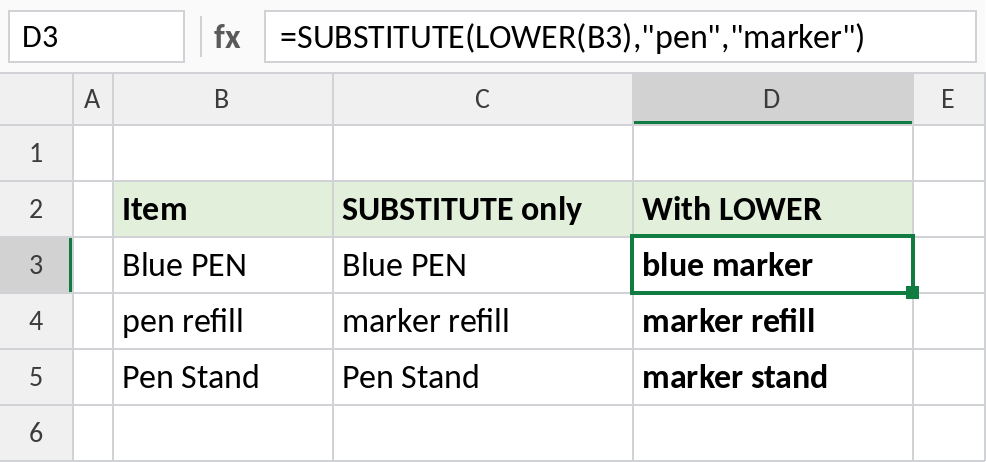
Column C only changes the row with a lowercase pen. Column D catches them all: Blue PEN becomes blue marker. The trade-off is that the whole result is lowercase.
UPPER, LOWER and PROPER
For the text “meera KRISHNAN”:
| Formula | Result |
|---|---|
=UPPER(B3) |
MEERA KRISHNAN |
=LOWER(B3) |
meera krishnan |
=PROPER(B3) |
Meera Krishnan |
Notes
- LOWER only changes letters.
- Use LOWER before case-sensitive functions such as SUBSTITUTE, FIND and EXACT when case shouldn’t matter.
- To keep the results and drop the formulas, copy and use Paste Special → Values.
- Flash Fill (Ctrl+E) can lowercase text without a formula, but won’t update automatically.
Common errors
| Problem | Cause | Fix |
|---|---|---|
| Original text unchanged | LOWER returns a new value in another cell | Paste the results as values over the original |
| Proper names lose capitals | LOWER changes every letter | Use PROPER for names |
Practice file
All three examples with working formulas.