The Excel UPPER function converts all the letters in a text to capitals. Numbers and symbols stay as they are.
text |
The text or cell to convert. |
|---|
Table of Contents
Basic example
UPPER turns every letter into a capital, however it was typed:
=UPPER(B3)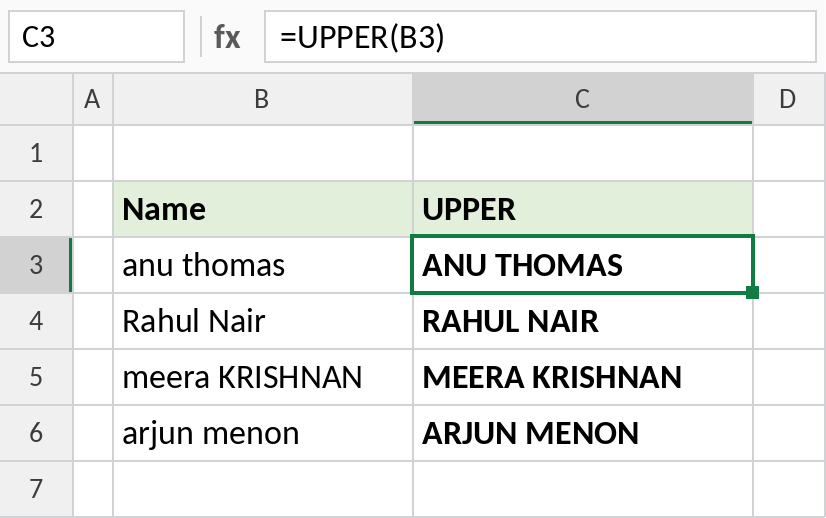
anu thomas becomes ANU THOMAS, and mixed case like meera KRISHNAN is fixed too.
Standardise codes
Codes typed in different cases look untidy and can trip up exact-case functions like FIND. UPPER makes them consistent:
=UPPER(B4)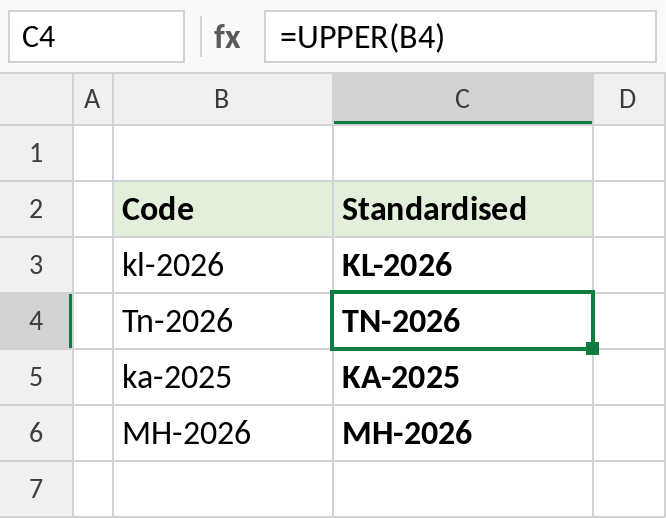
Tn-2026 becomes TN-2026. The digits and dash are unchanged.
Clean up vehicle numbers
Combine UPPER with SUBSTITUTE to remove spaces and capitalise in one step:
=UPPER(SUBSTITUTE(B3," ","")) 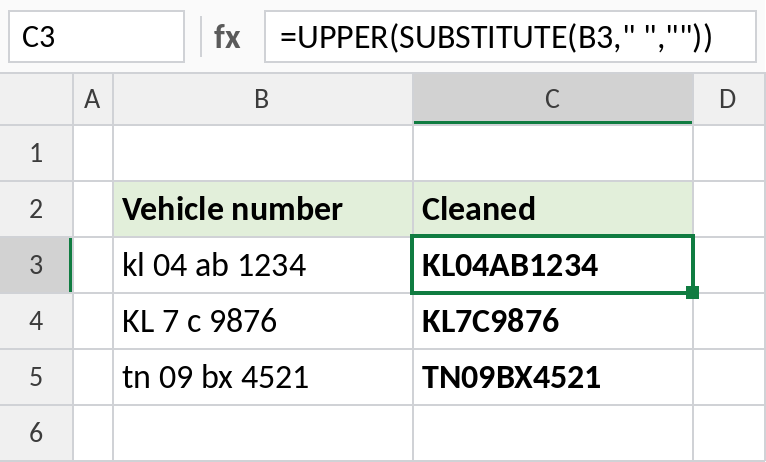
kl 04 ab 1234 becomes KL04AB1234, the format most systems expect.
UPPER, LOWER and PROPER
For the text “meera KRISHNAN”:
| Formula | Result |
|---|---|
=UPPER(B3) |
MEERA KRISHNAN |
=LOWER(B3) |
meera krishnan |
=PROPER(B3) |
Meera Krishnan |
See LOWER and PROPER for their own examples.
Notes
- UPPER only changes letters. Numbers, spaces and punctuation stay the same.
- The result is a formula. To replace the original text, copy the results and use Paste Special → Values.
- Excel comparisons like
=B3="ANU"already ignore case, so you don’t need UPPER for those. - Flash Fill (Ctrl+E) can also change case without a formula, but it won’t update if the data changes.
Common errors
| Problem | Cause | Fix |
|---|---|---|
| Original text unchanged | UPPER returns a new value in another cell | Paste the results as values over the original |
| Extra spaces remain | UPPER doesn’t remove spaces | Wrap with TRIM |
Practice file
All three examples plus UPPER, LOWER and PROPER compared in a cheat sheet.