The Excel TEXTAFTER function returns the text that comes after a delimiter, such as everything after a colon or the last dot in a file name.
text |
The text or cell to search. |
|---|---|
delimiter |
The character or text to start after. |
instance_num optional |
Which occurrence to use. Default is 1; -1 means the last one. |
match_mode optional |
1 to ignore case. |
match_end optional |
1 to treat the end of the text as a delimiter. |
if_not_found optional |
What to return if the delimiter isn’t there. Default is #N/A. |
Table of Contents
Basic example
To keep just the status, take everything after the colon and space:
=TEXTAFTER(B3,": ") 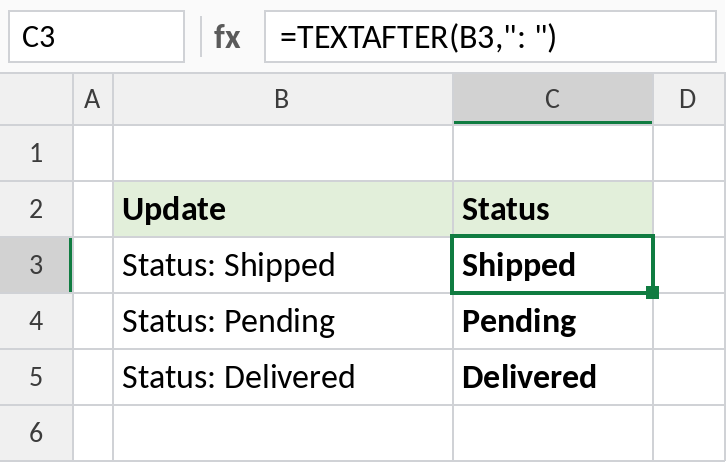
Status: Shipped returns Shipped. The delimiter can be more than one character.
After the last delimiter
File names can contain several dots. -1 uses the last one, so you always get the extension:
=TEXTAFTER(B4,".",-1) 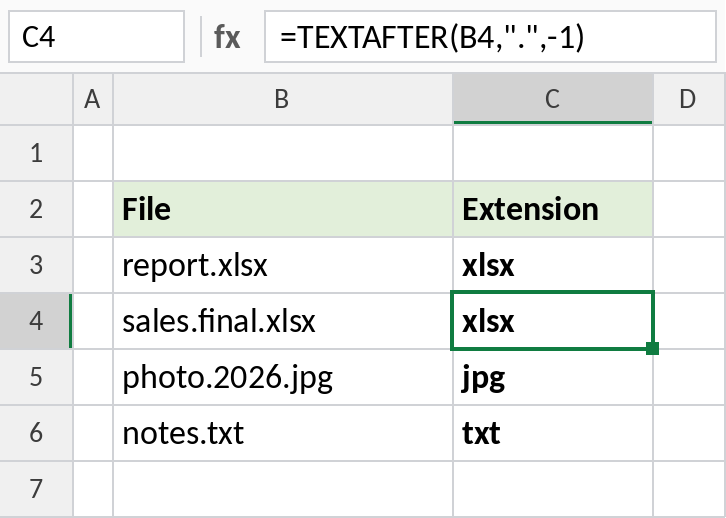
sales.final.xlsx returns xlsx, not final.xlsx. That’s hard to do with MID and FIND, which work from the left.
Ignore upper and lower case
The prefix is typed as ID, id and Id. Set match_mode to 1 so the delimiter matches any case:
=TEXTAFTER(B3,"id-",,1) 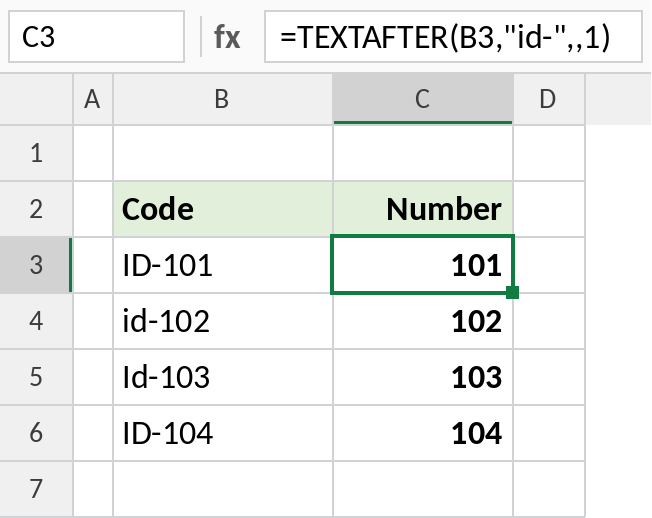
All four codes return their number, starting with 101. Without match_mode 1, only the lowercase id-102 would match.
TEXTAFTER options
Using the text KL-2026-0451:
| Formula | Result |
|---|---|
=TEXTAFTER(B3,"-") |
2026-0451 |
=TEXTAFTER(B3,"-",2) |
0451 |
=TEXTAFTER(B3,"-",-1) |
0451 |
=TEXTAFTER(B3,"x",,,,"") |
(empty) |
For the text before a delimiter, use TEXTBEFORE.
Notes
- TEXTAFTER is case-sensitive unless
match_modeis 1. - A negative
instance_numcounts from the end, which is the easiest way to get the last part of a text. - The result is text. Wrap it in VALUE if it’s a number.
- In older Excel versions, use MID with FIND or SEARCH.
Common errors
| Problem | Cause | Fix |
|---|---|---|
#N/A |
The delimiter isn’t in the text | Add an if_not_found value |
| Only some rows match | Different case in the delimiter | Set match_mode to 1 |
#NAME? |
Excel 2021 or earlier | Use MID and FIND |
Practice file
All three examples with working formulas (Excel 2024 or 365).