The Excel RIGHT function returns a set number of characters from the end of a text, such as the last four digits of a code or phone number.
text |
The text or cell to take characters from. |
|---|---|
num_chars optional |
How many characters to return. Default is 1. |
Table of Contents
Basic example
Each order code ends with a 4-digit number. Take the last 4 characters:
=RIGHT(B3,4) 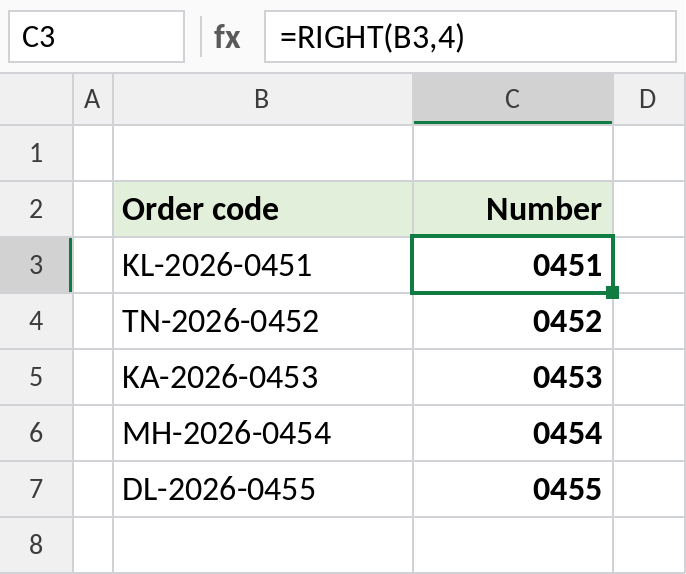
RIGHT(B3,4) returns 0451. The leading zero stays, because RIGHT returns text. Wrap it in VALUE if you need a number.
Extract text after a space
Last names have different lengths. Subtract the position of the space from the total length to find how many characters to take:
=RIGHT(B3,LEN(B3)-FIND(" ",B3)) 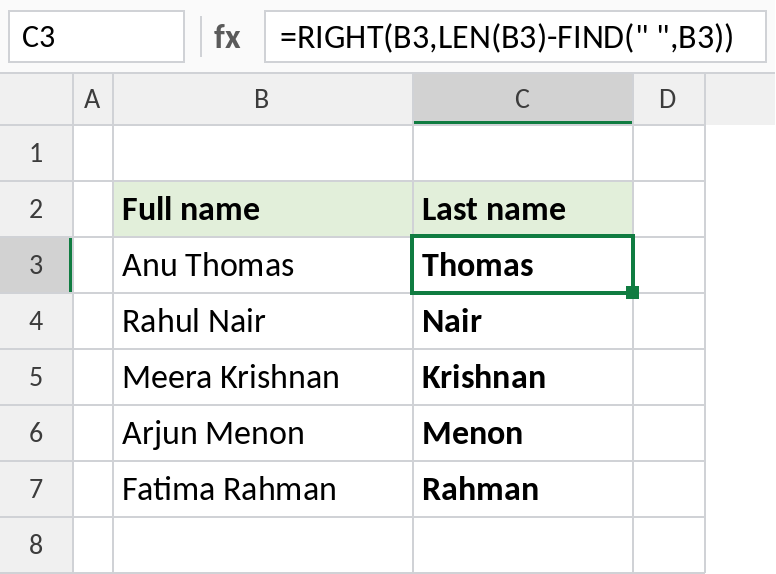
Anu Thomas has 10 characters and the space is 4th, so RIGHT takes 10 − 4 = 6 characters: Thomas. In Excel 365, =TEXTAFTER(B3," ") is simpler.
Mask all but the last digits
To hide most of a phone number, show only the last 4 digits and put asterisks in front:
=REPT("*",6)&RIGHT(B3,4) 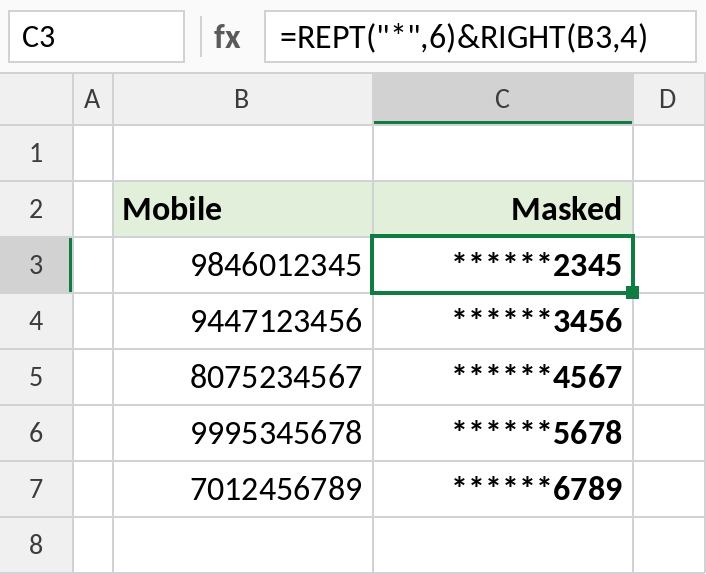
REPT repeats the asterisk 6 times, and & joins it to the last 4 digits: ******2345. RIGHT works on numbers too, treating them as text.
LEFT, RIGHT and MID
| Formula | Result |
|---|---|
=LEFT("KL-2026-0451",2) |
KL |
=RIGHT("KL-2026-0451",4) |
0451 |
=MID("KL-2026-0451",4,4) |
2026 |
=RIGHT("Excel") |
l |
Notes
- RIGHT always returns text, so
RIGHT("2026",2)gives the text “26”. Use VALUE to convert it. - If
num_charsis longer than the text, RIGHT returns the whole text. - Trailing spaces count as characters. Use TRIM first if the data has extra spaces.
- On numbers formatted with decimals or commas, RIGHT works on the underlying value, not what you see.
Common errors
| Problem | Cause | Fix |
|---|---|---|
#VALUE! |
FIND didn’t find the character, or num_chars is negative |
Check the delimiter exists; wrap with IFERROR |
| Result is missing a character | A trailing space was counted | Use =RIGHT(TRIM(B3),4) |
| Wrong digits from a formatted number | RIGHT reads the stored value, such as 1234.5 shown as 1,234.50 | Use RIGHT(TEXT(B3,"0.00"),2) |
Practice file
All three examples plus LEFT, RIGHT and MID in a cheat sheet.