The Excel TEXTBEFORE function returns the text that comes before a delimiter, such as everything before the @ in an email address.
text |
The text or cell to search. |
|---|---|
delimiter |
The character or text to stop at. |
instance_num optional |
Which occurrence to use. Default is 1; -1 means the last one. |
match_mode optional |
1 to ignore case. |
match_end optional |
1 to treat the end of the text as a delimiter. |
if_not_found optional |
What to return if the delimiter isn’t there. Default is #N/A. |
Table of Contents
Basic example
To get the username from each email address, take everything before the @:
=TEXTBEFORE(B3,"@") 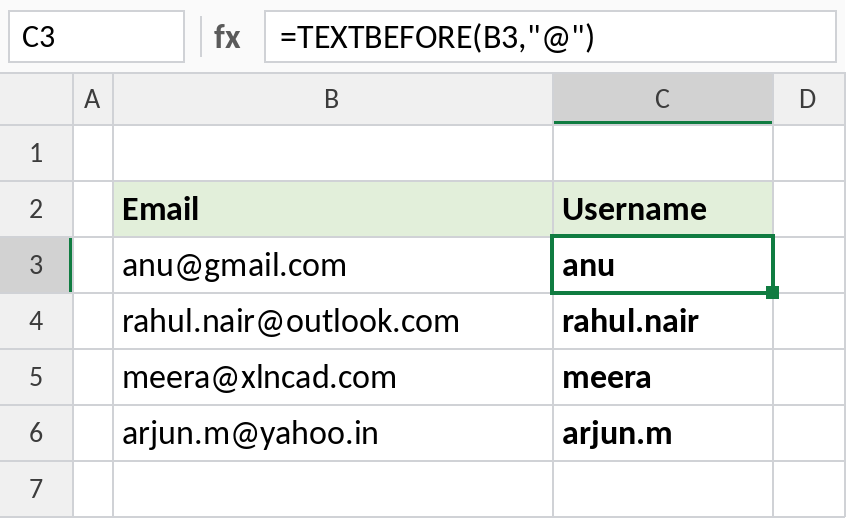
anu@gmail.com returns anu. The older way needs LEFT and FIND together: =LEFT(B3,FIND("@",B3)-1).
Before the last delimiter
A negative instance_num counts from the end. -1 uses the last dash:
=TEXTBEFORE(B3,"-",-1) 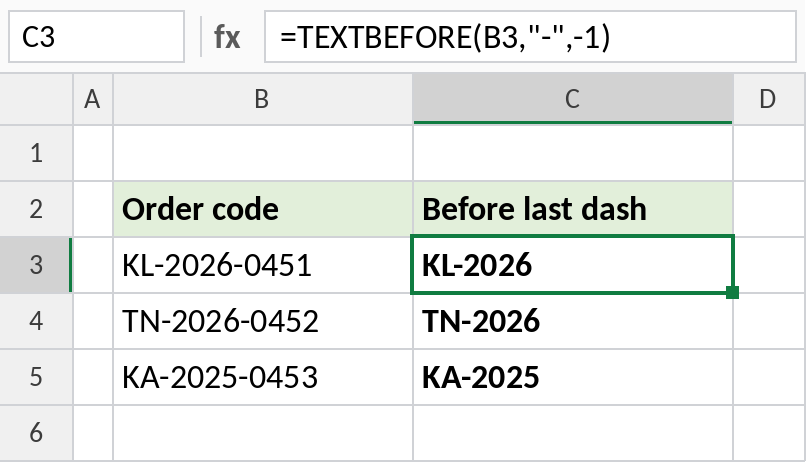
KL-2026-0451 returns KL-2026, the state and year without the serial number.
When the delimiter is missing
Madonna has no space, so a plain TEXTBEFORE would return #N/A. The last argument, if_not_found, returns the whole name instead:
=TEXTBEFORE(B5," ",,,,B5) 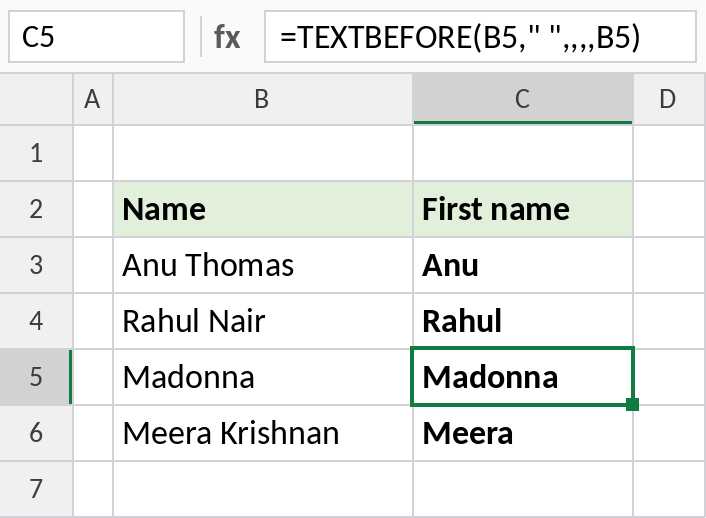
The commas skip the arguments in between. Madonna returns Madonna, and the others return their first name.
TEXTBEFORE options
Using the text KL-2026-0451:
| Formula | Result |
|---|---|
=TEXTBEFORE(B3,"-") |
KL |
=TEXTBEFORE(B3,"-",2) |
KL-2026 |
=TEXTBEFORE(B3,"-",-1) |
KL-2026 |
=TEXTBEFORE(B3,"x") |
#N/A |
For the text after a delimiter, use TEXTAFTER.
Notes
- TEXTBEFORE is case-sensitive unless
match_modeis 1. - Without
if_not_found, a missing delimiter returns#N/A. - The result is text. Wrap it in VALUE if it’s a number.
- In older Excel versions, use LEFT with FIND.
Common errors
| Problem | Cause | Fix |
|---|---|---|
#N/A |
The delimiter isn’t in the text | Add an if_not_found value |
#VALUE! |
instance_num is 0 or larger than the number of delimiters |
Use 1, 2, -1 and so on |
#NAME? |
Excel 2021 or earlier | Use LEFT and FIND |
Practice file
All three examples with working formulas (Excel 2024 or 365).