The Excel LEFT function returns a set number of characters from the start of a text, such as the first two letters of a code.
text |
The text or cell to take characters from. |
|---|---|
num_chars optional |
How many characters to return. Default is 1. |
Table of Contents
Basic example
Each order code starts with a two-letter state code. Take the first 2 characters:
=LEFT(B3,2)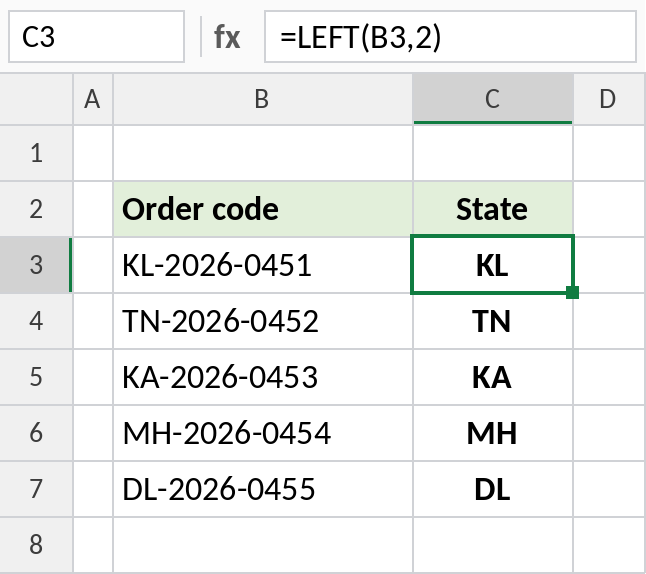
LEFT(B3,2) returns KL from KL-2026-0451. This works whenever the part you want is always the same length.
Extract text before a space
First names have different lengths. Use FIND to locate the space, and take everything before it:
=LEFT(B3,FIND(" ",B3)-1)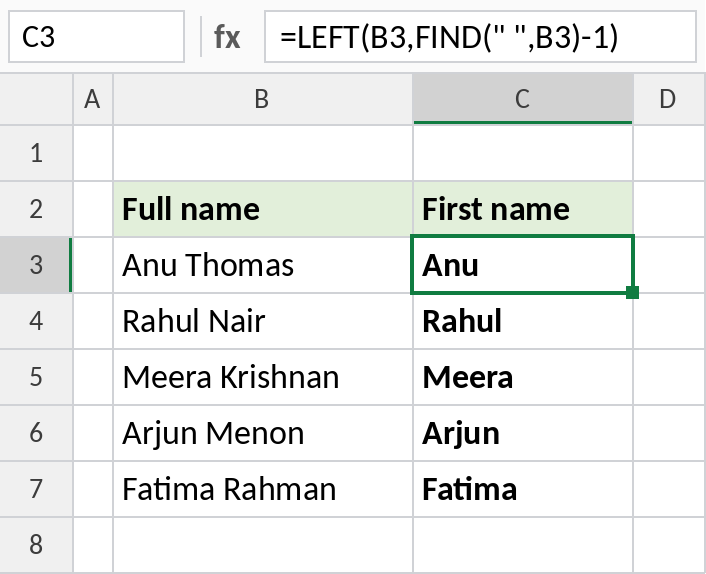
In Anu Thomas, the space is the 4th character, so LEFT takes 4 − 1 = 3 characters: Anu. In Excel 365, =TEXTBEFORE(B3," ") does the same more simply.
Turn the result into a number
LEFT always returns text, even when it looks like a number. Wrap it in VALUE to get a real number you can calculate with:
=VALUE(LEFT(B3,FIND(" ",B3)-1))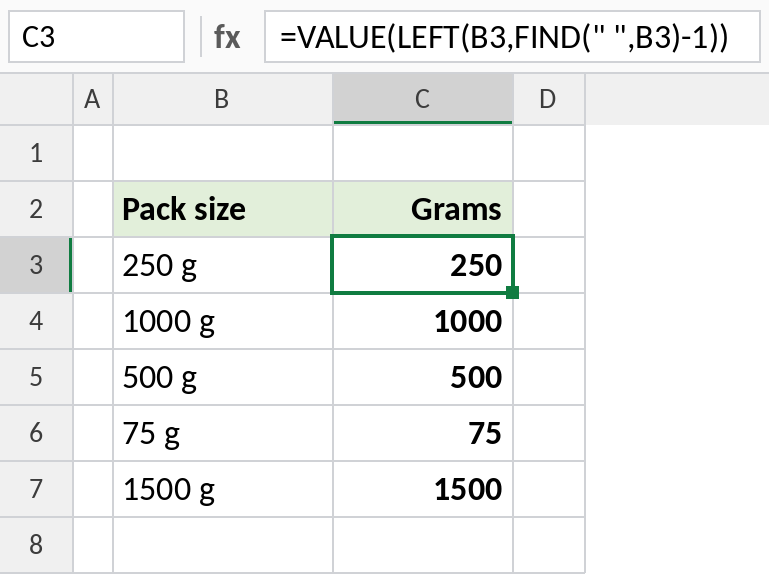
The results sit on the right of the cells because they are now numbers: 250, 1000 and so on. Without VALUE, they would be text and SUM would ignore them.
LEFT, RIGHT and MID
| Formula | Result | Takes |
|---|---|---|
=LEFT("KL-2026-0451",2) |
KL | Characters from the start |
=RIGHT("KL-2026-0451",4) |
0451 | Characters from the end |
=MID("KL-2026-0451",4,4) |
2026 | Characters from the middle |
Notes
- LEFT always returns text. Use VALUE, or add
*1, to convert the result to a number. - If
num_charsis larger than the text, LEFT returns the whole text. - LEFT counts spaces as characters. Clean the data with TRIM first if it has extra spaces.
- For variable-length parts, combine LEFT with FIND, or use TEXTBEFORE in Excel 365.
Common errors
| Problem | Cause | Fix |
|---|---|---|
#VALUE! |
FIND didn’t find the space or character | Wrap with IFERROR, or check the text has the delimiter |
| Result won’t add up | LEFT returns text | Wrap it in VALUE |
| Wrong characters | Leading spaces in the text | Use =LEFT(TRIM(B3),2) |
Practice file
All three examples plus LEFT, RIGHT and MID in a cheat sheet.