The Excel VSTACK function stacks ranges on top of each other into one list. It’s the formula way to combine data from several ranges or sheets.
array1 |
The first range or array. |
|---|---|
array2, ... optional |
More ranges to add below, up to 254. |
Table of Contents
Basic example
To combine two lists into one column, give VSTACK both ranges:
=VSTACK(B3:B6,D3:D5) 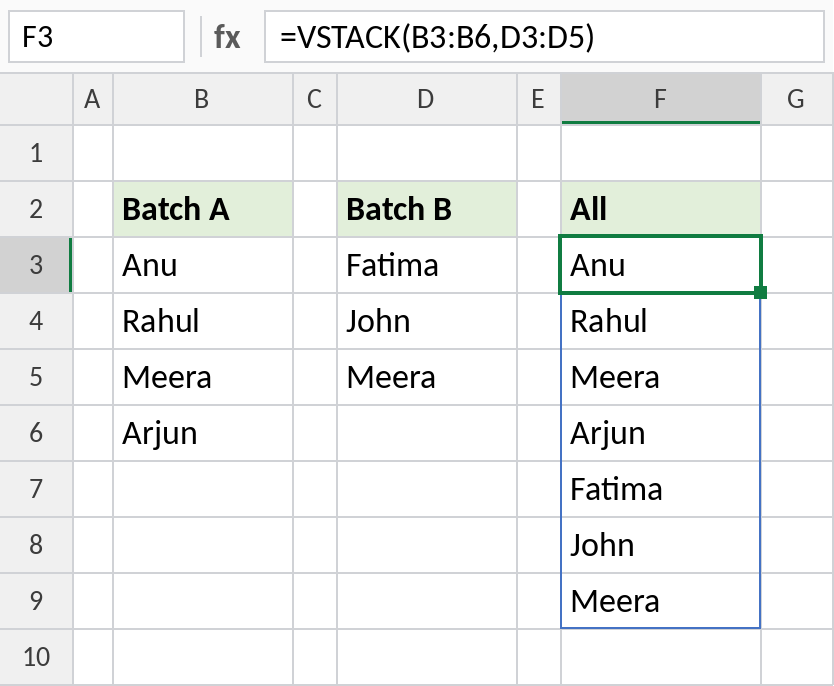
Batch A comes first, then Batch B directly underneath: 7 names. The lists can be different lengths.
Add headers to a FILTER result
FILTER returns rows without headers. Stack the header row on top so the result is a complete table:
=VSTACK(B2:D2,FILTER(B3:D10,B3:B10="North")) 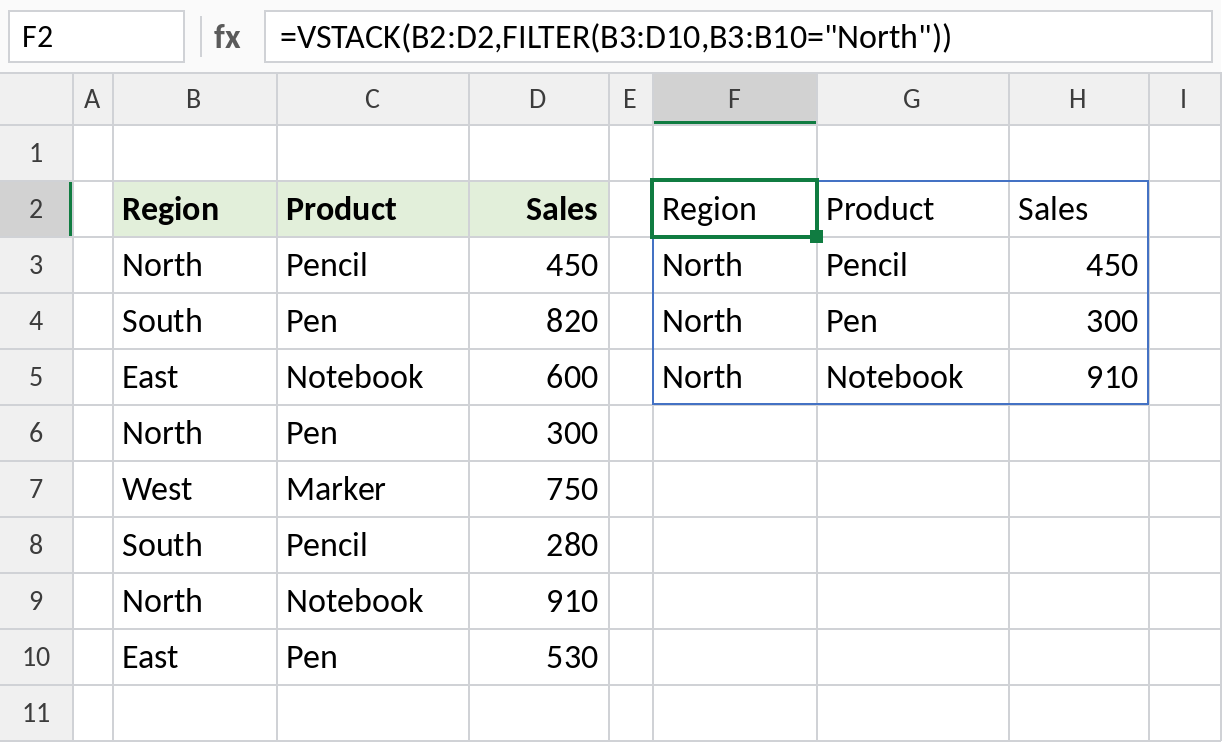
The header row and the 3 North rows spill as one block from F2. Copy it or chart it as a ready-made table.
Combine, remove duplicates and sort
Meera is in both batches. Wrap VSTACK in UNIQUE and SORT to get one clean list:
=SORT(UNIQUE(VSTACK(B3:B6,D3:D5))) 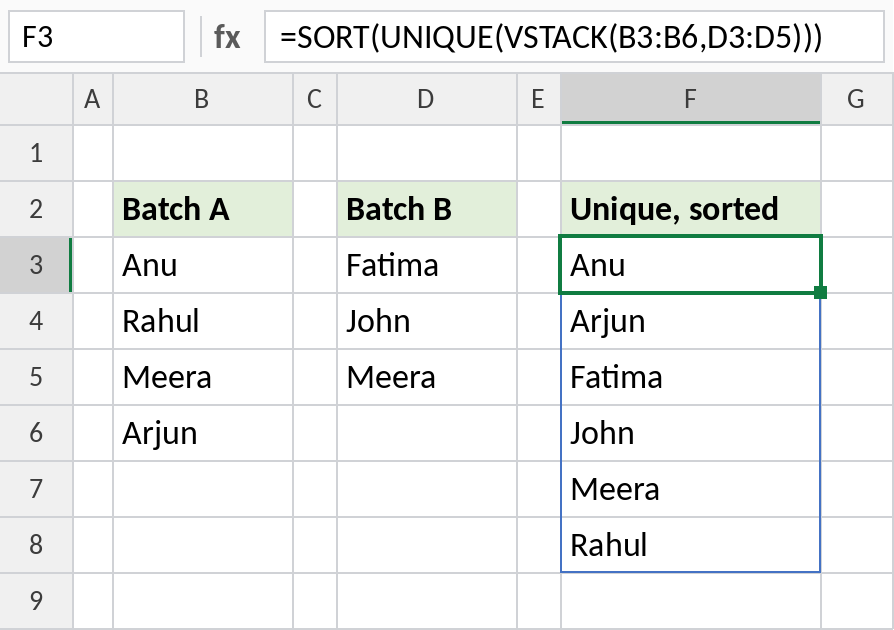
Seven names become 6, sorted A to Z, with Meera listed once.
Combining sheets with VSTACK
| Formula | Combines |
|---|---|
=VSTACK(Jan!B3:D20,Feb!B3:D20) |
The same range from two sheets |
=VSTACK(Jan:Mar!B3:D20) |
Every sheet from Jan to Mar (a 3D reference) |
=FILTER(VSTACK(Jan:Mar!B3:D20),VSTACK(Jan:Mar!B3:B20)<>"") |
All sheets, without the empty rows |
Use ranges a little larger than the data so new rows are picked up, and FILTER out the blanks. For side-by-side combining, use HSTACK.
Notes
- VSTACK places each range below the previous one, in the order you list them.
- If ranges have different widths, the gaps are filled with
#N/A. Wrap in IFNA to show blanks instead. - VSTACK accepts 3D references such as
Jan:Mar!B3:D20, which makes combining monthly sheets easy. - The result updates automatically when any source range changes.
Common errors
| Problem | Cause | Fix |
|---|---|---|
#N/A in the result |
Ranges have different numbers of columns | Use =IFNA(VSTACK(...),"") |
| Zeros for empty cells | Source ranges include empty rows | Wrap with FILTER to remove them |
#SPILL! |
Cells below the formula aren’t empty | Clear them |
#NAME? |
Excel 2021 or earlier | Use Power Query to append tables |
Practice file
All three examples with working formulas (Excel 2024 or 365).