To highlight duplicate values, use conditional formatting with COUNTIF: any value that appears more than once gets coloured. With a small change you can highlight only the repeats, or duplicate rows across several columns.
Highlight every duplicate
Select B3:B10 → Home → Conditional Formatting → New Rule → Use a formula, and enter:
=COUNTIF($B$3:$B$10,B3)>1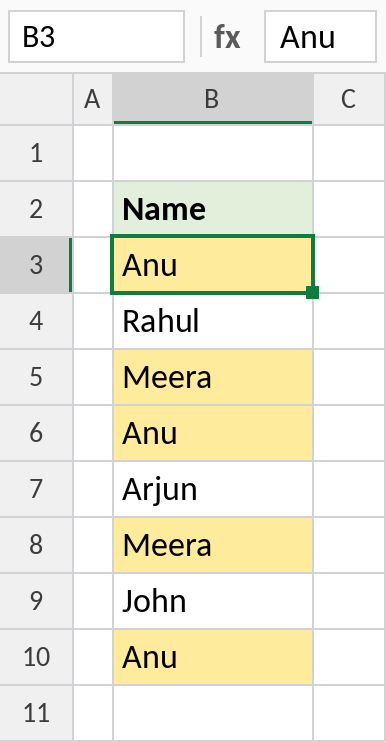
Anu appears three times and Meera twice, so all five of those cells are highlighted. Rahul, Arjun and John appear once.
How the formula works
COUNTIF($B$3:$B$10,B3)counts how many times the value in each cell appears in the whole list.>1is TRUE when it appears more than once.- The list is locked with
$, butB3isn’t, so each cell checks its own value.
Highlight only the repeats
To leave the first occurrence plain and colour only the second and later ones, count from the top of the list down to the current row:
=COUNTIF($B$3:B3,B3)>1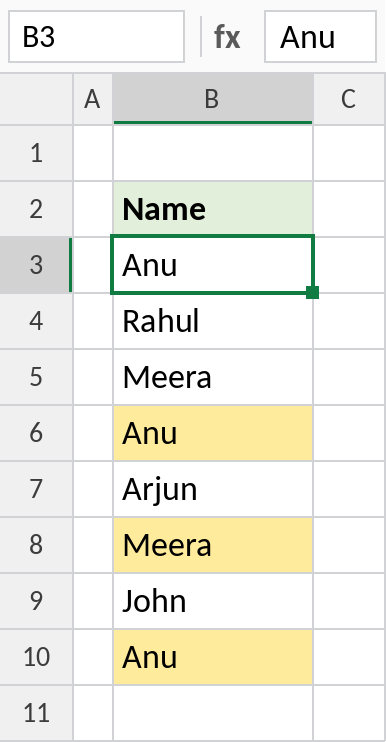
The first Anu and the first Meera stay plain. The later copies are highlighted, ready to review or delete.
Highlight duplicate rows
To treat a row as a duplicate only when both the name and city repeat, use COUNTIFS with both columns:
=COUNTIFS($B$3:$B$8,$B3,$C$3:$C$8,$C3)>1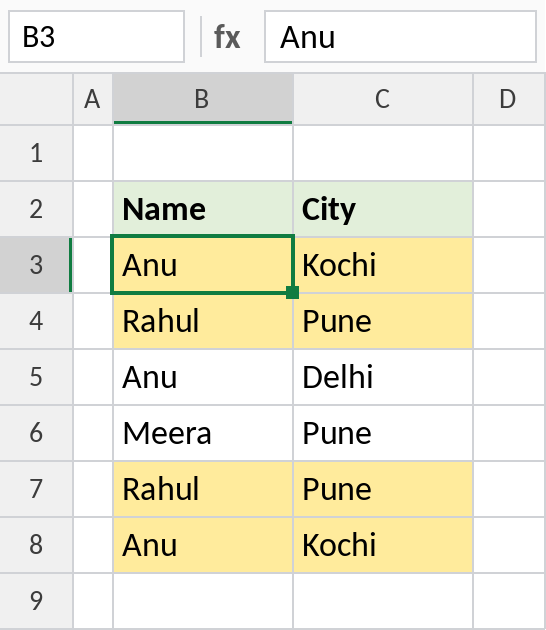
Anu in Kochi and Rahul in Pune each appear twice. Anu in Delhi is a different row, so it isn’t highlighted.
Other ways to deal with duplicates
| To | Use |
|---|---|
| Highlight duplicates in one click | Home → Conditional Formatting → Highlight Cells Rules → Duplicate Values |
| Highlight values that appear once | =COUNTIF($B$3:$B$10,B3)=1 |
| List each value once | UNIQUE: =UNIQUE(B3:B10) |
| Delete duplicates | Data → Remove Duplicates |
The built-in Duplicate Values option is quickest for one column. Use a formula when you need repeats only, or duplicates across several columns.
Notes
- COUNTIF isn’t case-sensitive, so ANU and Anu count as duplicates.
- Extra spaces stop values from matching. Clean the list with TRIM first.
- On very large lists, many COUNTIF rules can slow Excel down.
Common errors
| Problem | Cause | Fix |
|---|---|---|
| Nothing is highlighted | Range not locked with $ | Use $B$3:$B$10 |
| Duplicates not caught | Extra spaces or different spellings | Clean with TRIM |
| Every cell is highlighted | Formula references the wrong first cell | Start from the first selected cell |
Practice file
All three rules are set up in the practice file.