The Excel TRIM function removes extra spaces from text. It deletes spaces at the start and end, and reduces any run of spaces in between to one.
text |
The text or cell to clean. |
|---|
Table of Contents
Basic example
These names have extra spaces at the start, at the end and in the middle. TRIM cleans them all:
=TRIM(B3)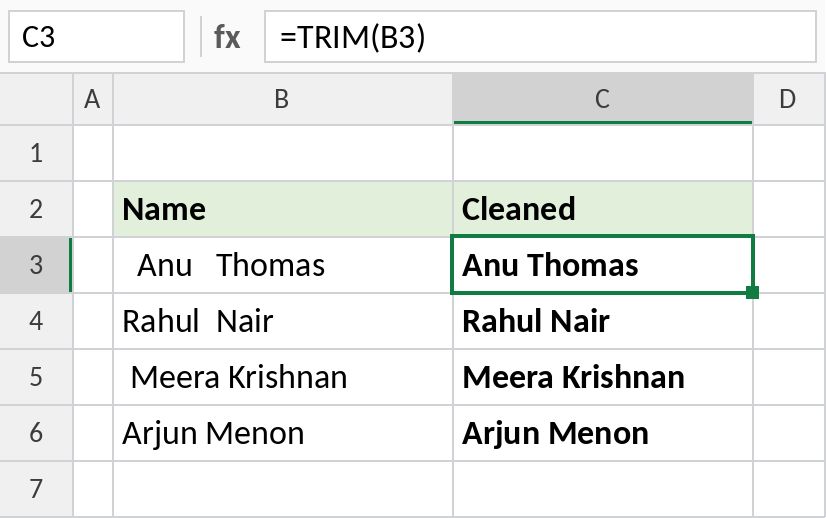
Anu Thomas becomes Anu Thomas, with exactly one space between the words. Copy the results and use Paste Special → Values to replace the original data.
See the spaces with LEN
Extra spaces are invisible, so compare the length before and after TRIM:
=LEN(TRIM(B3))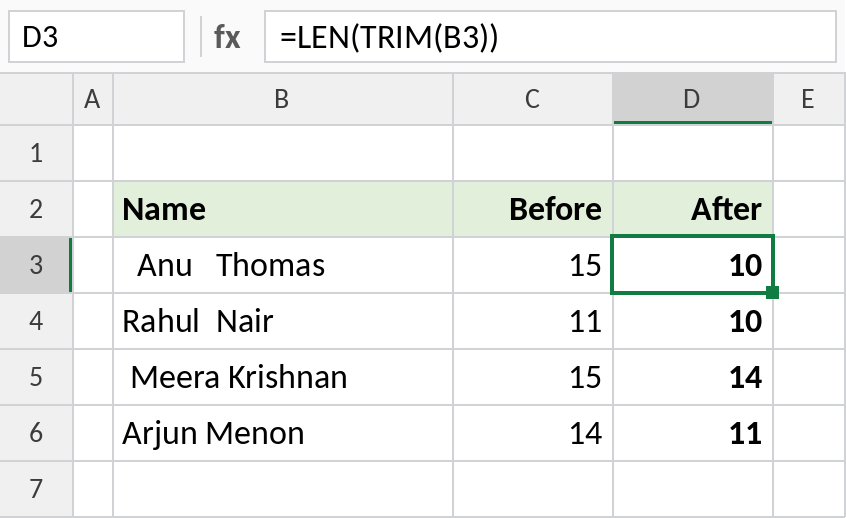
The first name drops from 15 characters to 10. If the two numbers differ, the cell had extra spaces, which is a common reason lookups and COUNTIF fail.
Spaces TRIM can't remove
Text copied from web pages often contains non-breaking spaces, character 160. TRIM only removes normal spaces, so swap them first with SUBSTITUTE:
=LEN(TRIM(SUBSTITUTE(B3,CHAR(160)," "))) 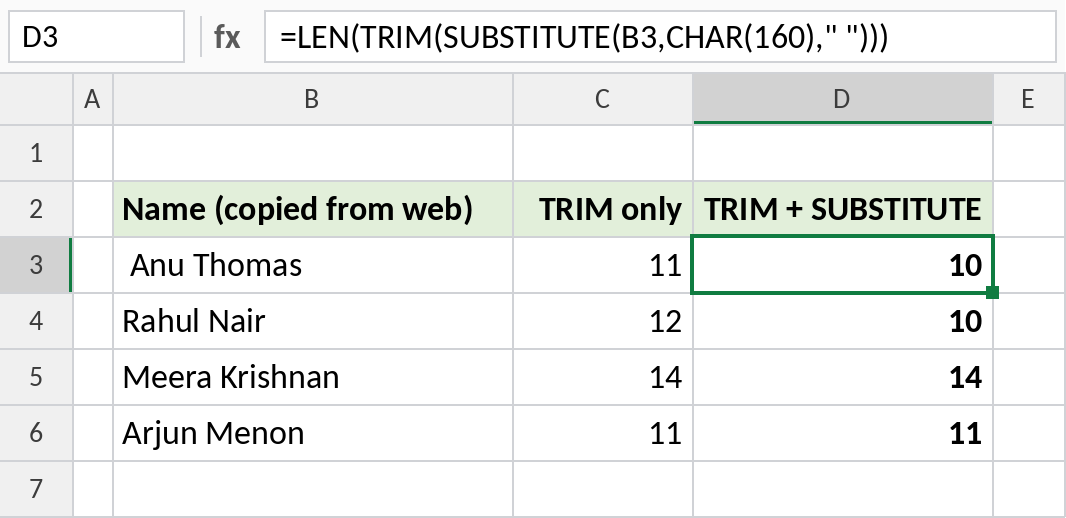
With TRIM alone, the first name is still 11 characters. After replacing CHAR(160) with a normal space, TRIM brings it down to 10. Use =TRIM(SUBSTITUTE(B3,CHAR(160)," ")) to get the clean text.
Cleaning text: which function
| Problem | Use |
|---|---|
| Extra normal spaces | =TRIM(B3) |
| Non-breaking spaces from the web | =TRIM(SUBSTITUTE(B3,CHAR(160)," ")) |
| Line breaks inside a cell | =TRIM(SUBSTITUTE(B3,CHAR(10)," ")) |
| Non-printing characters | =CLEAN(B3) |
| All spaces, including single ones | =SUBSTITUTE(B3," ","") |
Notes
- TRIM keeps single spaces between words. To remove every space, use SUBSTITUTE.
- TRIM doesn’t remove non-breaking spaces (character 160) or line breaks. Replace them with SUBSTITUTE first. On a Mac, use
UNICHAR(160)instead ofCHAR(160). - TRIM returns text. If the cleaned value is a number, wrap it in VALUE.
- Clean data before using VLOOKUP, XLOOKUP or COUNTIF, because extra spaces stop matches.
Common errors
| Problem | Cause | Fix |
|---|---|---|
| Spaces still there | They’re non-breaking spaces from a web page | Use SUBSTITUTE(B3,CHAR(160)," ") inside TRIM |
| Lookup still fails | Only one side of the lookup was cleaned | TRIM both the lookup value and the table |
| Numbers stay as text | TRIM returns text | Wrap it in VALUE |
Practice file
All three examples plus cleaning formulas in a cheat sheet.