The Excel NOW function returns the current date and time. Like TODAY, it updates whenever the workbook recalculates.
(none) |
NOW takes no arguments, but the brackets are required. |
|---|
Table of Contents
Basic example
Type =NOW() to show the current date and time:
=NOW()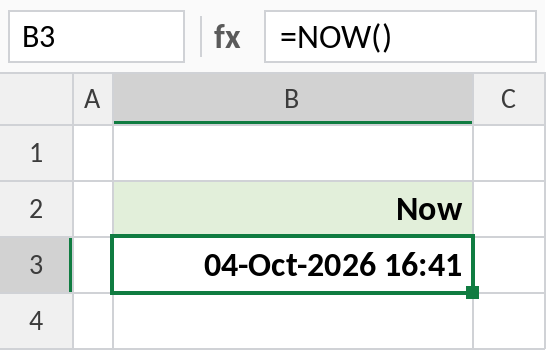
This screenshot was taken at 04-Oct-2026 16:41 India time. Format the cell as dd-mmm-yyyy hh:mm to see both parts. Press F9 to refresh it.
Show only the time
The whole-number part of NOW is the date and the decimal part is the time. MOD with 1 keeps just the time:
=MOD(NOW(),1) 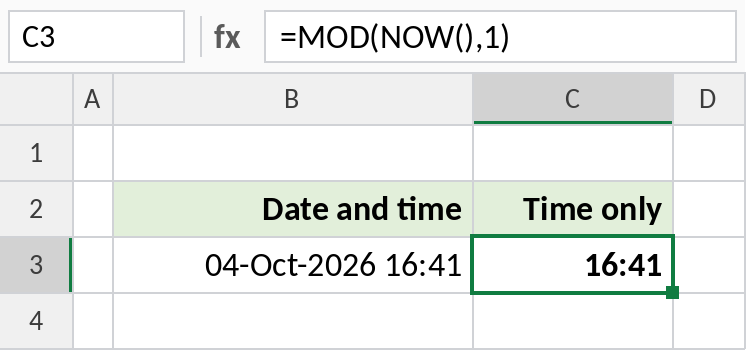
The result is 16:41, formatted as time. =NOW()-TODAY() gives the same result.
Hours until an event
Subtracting NOW from a future date-time gives days. Multiply by 24 to get hours:
=ROUND((C3-NOW())*24,1) 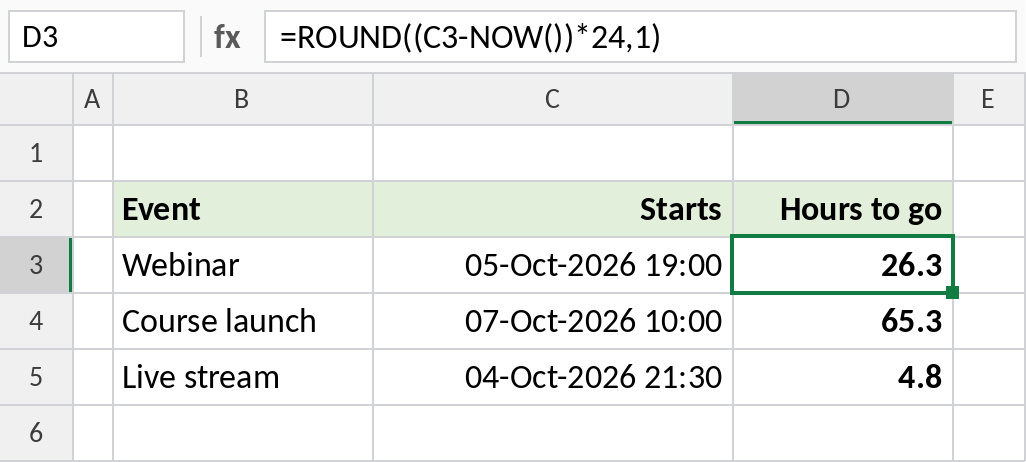
At the time of the screenshot, the webinar was 26.3 hours away. The numbers count down every time the sheet recalculates.
NOW vs TODAY
| NOW | TODAY | |
|---|---|---|
| Returns | Date and time | Date only |
| Example result | 04-Oct-2026 16:41 | 04-Oct-2026 |
| Fixed timestamp shortcut | Ctrl+Shift+; (time) | Ctrl+; (date) |
For dates without a time, use TODAY.
Notes
- NOW is volatile: it recalculates whenever anything in the workbook changes, so it isn’t suitable for recording when something happened.
- For a fixed timestamp, press Ctrl+; then a space then Ctrl+Shift+; to type the date and time as values.
- NOW returns your computer’s local time.
- Seconds are included but hidden unless you format the cell with
hh:mm:ss.
Common errors
| Problem | Cause | Fix |
|---|---|---|
| Shows a number like 46299.8 | The cell is formatted as General | Format it as a date and time |
| Time doesn’t change | Calculation is set to Manual | Press F9, or set Calculation Options to Automatic |
| Old records changed | NOW was used as a timestamp | Use the keyboard shortcuts for fixed values |
Practice file
All three examples plus NOW checks in a cheat sheet. Results update to your current time.