The Excel MID function returns characters from the middle of a text. You tell it where to start and how many characters to take.
text |
The text or cell to take characters from. |
|---|---|
start_num |
The position of the first character to take. The first character is 1. |
num_chars |
How many characters to take. |
Table of Contents
Basic example
The year in each order code starts at the 4th character and is 4 characters long:
=MID(B3,4,4) 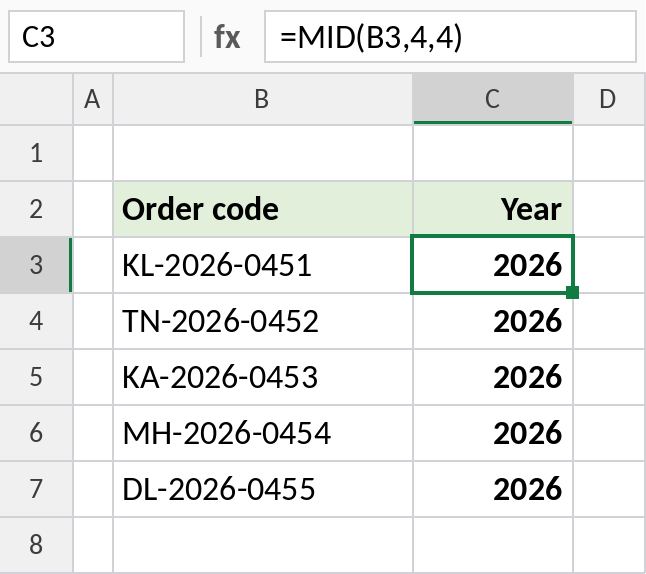
Counting from the left, K is 1, L is 2, the dash is 3, so the year starts at 4. MID returns 2026.
Extract text after a character
To get the domain from an email address, start one character after the @ and take everything that’s left:
=MID(B3,FIND("@",B3)+1,100) 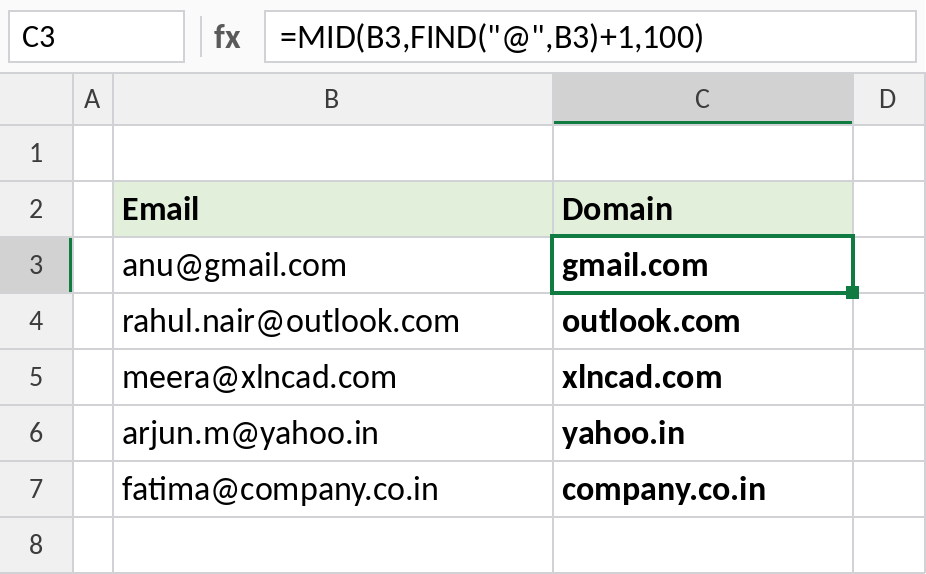
FIND locates the @, and +1 starts just after it. Asking for 100 characters is a simple way to say “the rest”, because MID stops at the end of the text: gmail.com.
Extract text between two characters
To get the text inside brackets, start after the opening bracket and take the characters up to the closing one:
=MID(B3,FIND("(",B3)+1,FIND(")",B3)-FIND("(",B3)-1) 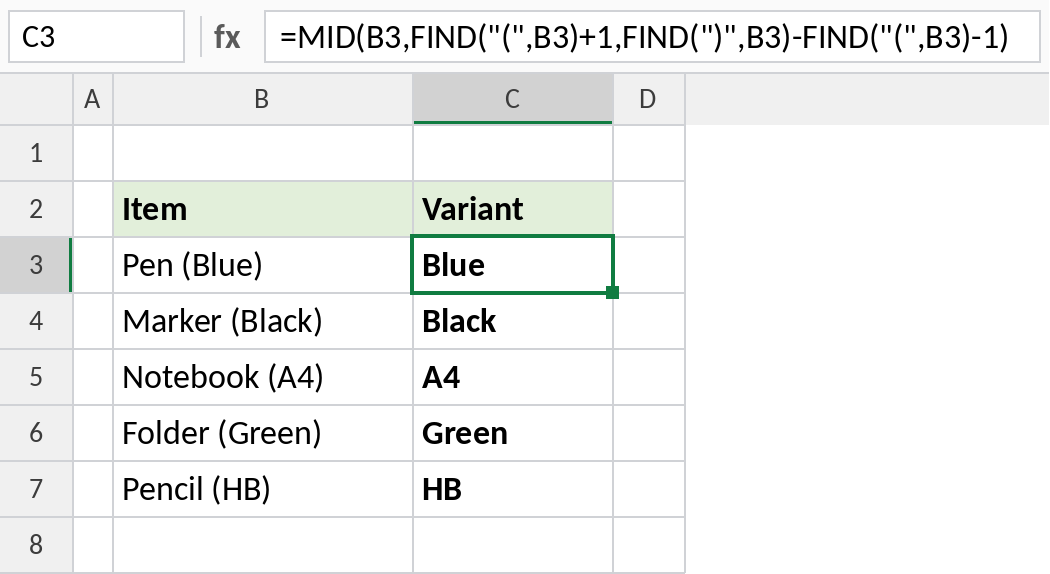
In Pen (Blue), the brackets are at positions 5 and 10. MID starts at 6 and takes 10 − 5 − 1 = 4 characters: Blue. In Excel 365, =TEXTBEFORE(TEXTAFTER(B3,"("),")") does the same.
MID at a glance
| Formula | Result |
|---|---|
=MID("Excel",2,3) |
xce |
=MID("Excel",4,10) |
el |
=MID("Excel",9,2) |
(empty text) |
=MID("Excel",0,2) |
#VALUE! |
Notes
- Positions start at 1. Spaces and punctuation count as characters.
- If
start_numis past the end of the text, MID returns empty text. - If
num_charsruns past the end, MID returns what’s left, which is why100works as “the rest”. - MID always returns text. Use VALUE to convert numbers.
Common errors
| Problem | Cause | Fix |
|---|---|---|
#VALUE! |
start_num is less than 1, or FIND didn’t find the character |
Check the delimiter exists; wrap with IFERROR |
| One character too many or too few | Off-by-one in the start or length | Add or subtract 1 after FIND |
| Result won’t calculate | MID returns text | Wrap it in VALUE |
Practice file
All three examples plus MID edge cases in a cheat sheet.