The Excel SUMIF function adds the cells in a range that meet one condition. For example, total sales for one region, or only the amounts above 500.
range |
The cells to test against the criteria. |
|---|---|
criteria |
The condition, such as "North", ">500" or a cell reference. |
sum_range optional |
The cells to add. If you leave it out, Excel adds the cells in range. |
Table of Contents
Basic example
To total the sales for the North region, test the Region column and add the Sales column:
=SUMIF(B3:B10,"North",D3:D10) 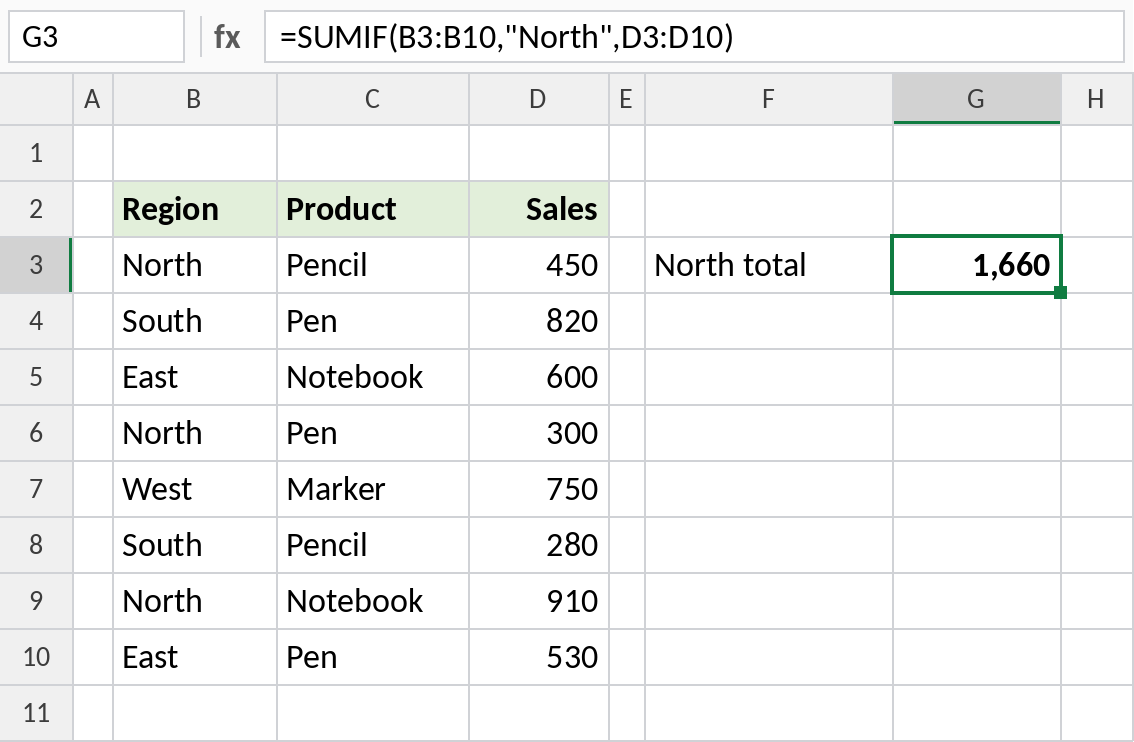
Excel checks each cell in B3:B10. Wherever it finds North, it adds the matching value from D3:D10: 450 + 300 + 910 = 1,660. Text criteria are not case-sensitive, so "north" works too.
Sum values greater than a number
Put the comparison operator inside quotes with the number. Here the range being tested is also the range being added, so sum_range is not needed:
=SUMIF(D3:D10,">500") 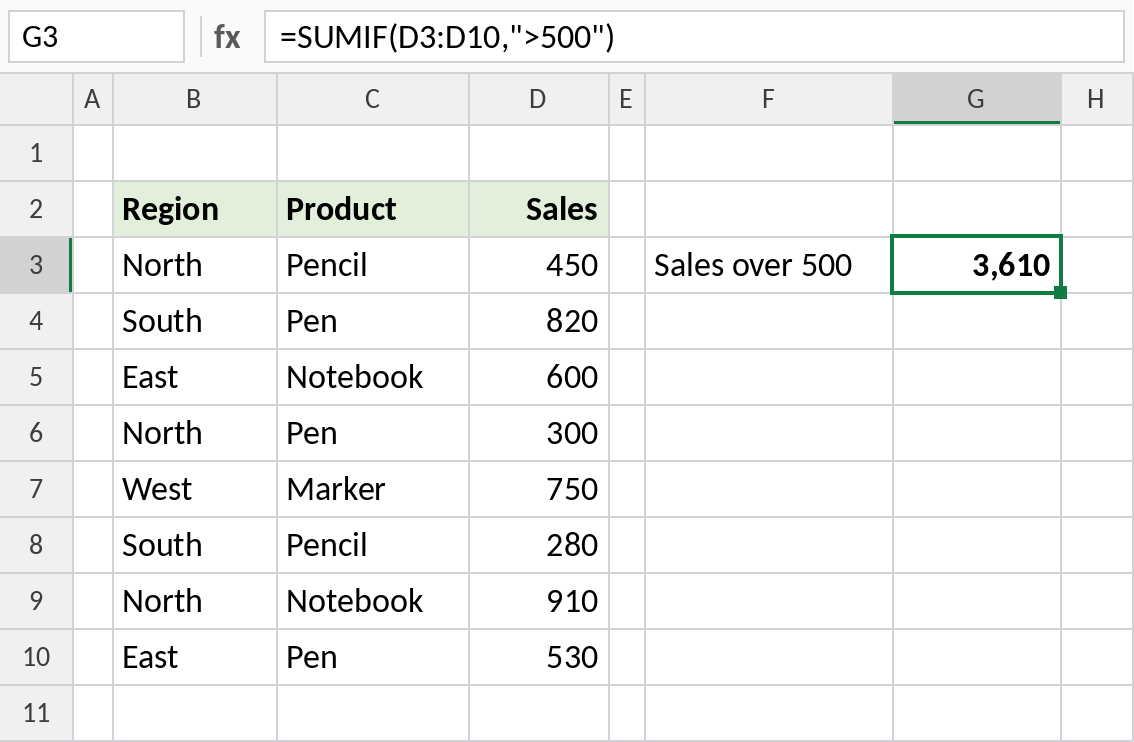
Only 820, 600, 750, 910 and 530 qualify, so the result is 3,610.
Use a cell reference in the criteria
Keep the limit in a cell so you can change it without editing the formula. Join the operator to the cell with an ampersand (&):
=SUMIF(D3:D10,">="&G3) 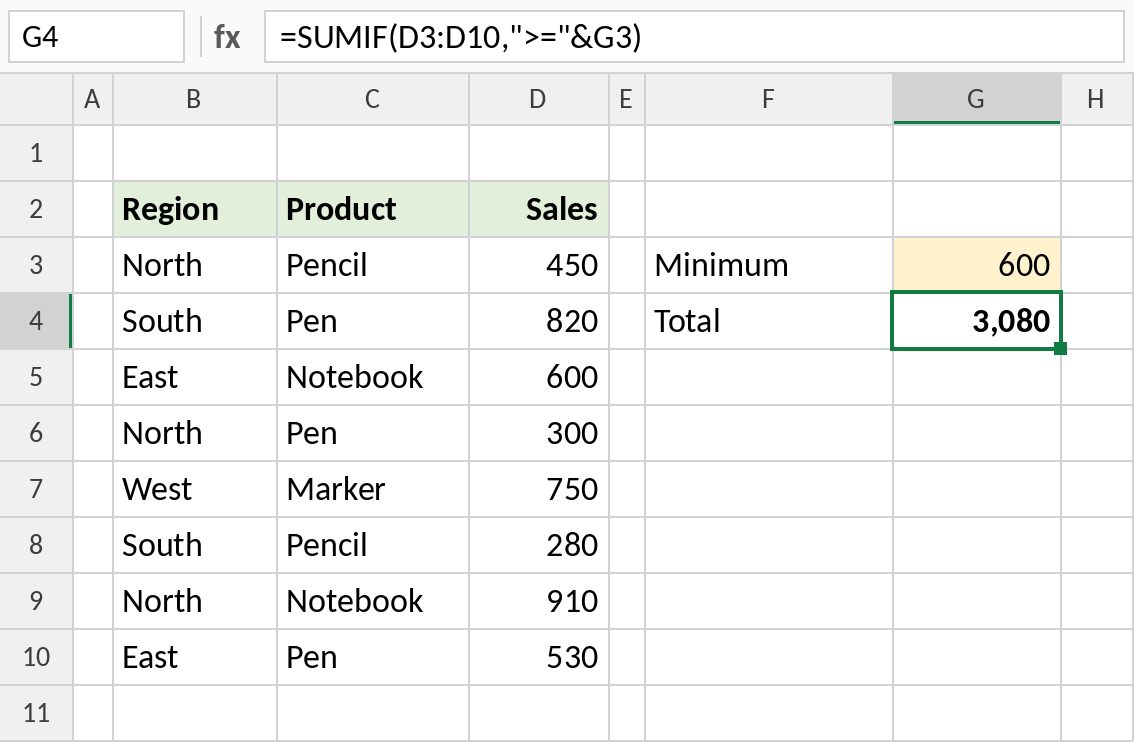
With 600 in G3, the formula adds every sale of 600 or more: 3,080. Type a new number in G3 and the total updates. Writing ">=G3" inside the quotes would not work, because Excel would treat G3 as text.
Sum with wildcards
Use an asterisk (*) for any number of characters and a question mark (?) for one character:
=SUMIF(C3:C10,"Pen*",D3:D10) 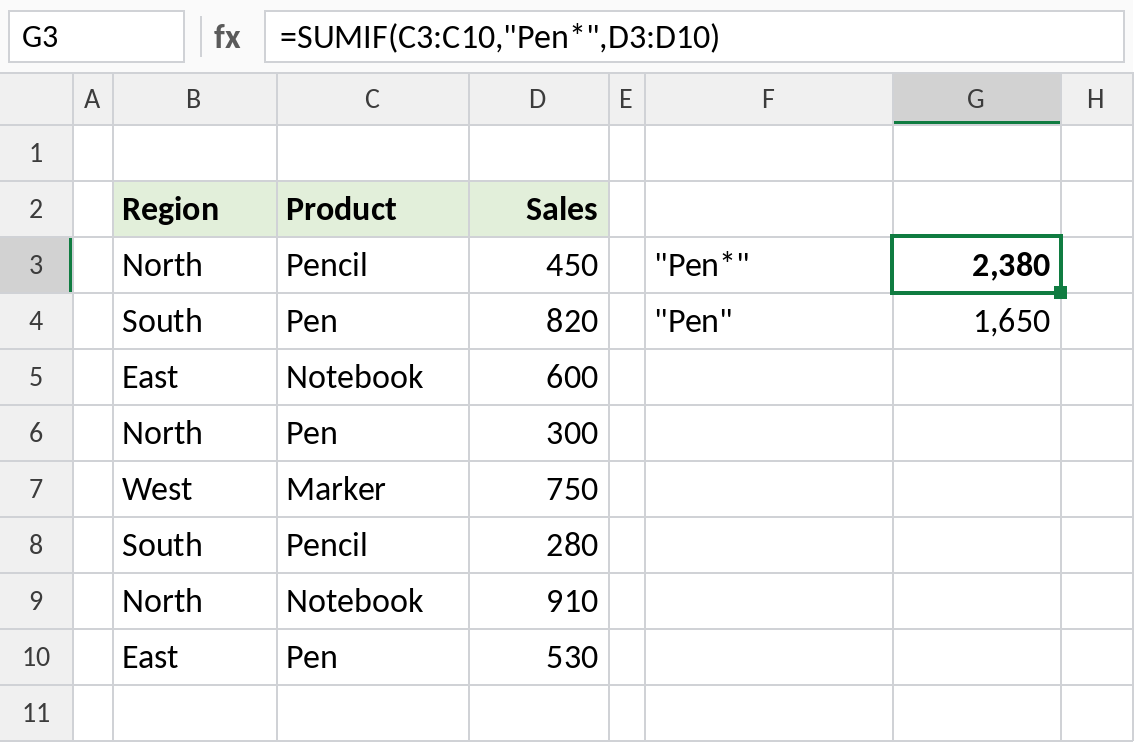
"Pen*" matches both Pen and Pencil, giving 2,380. If you only want pens, use "Pen" without the asterisk, which returns 1,650. Watch for this whenever product names share a starting word.
Criteria cheat sheet
| Criteria | Adds cells where the tested value… |
|---|---|
"North" |
equals North |
"<>North" |
is anything except North |
">500" |
is greater than 500 |
"<="&G3 |
is less than or equal to the value in G3 |
"*pen*" |
contains “pen” anywhere |
"???" |
is exactly three characters long |
"" |
is blank |
"<>" |
is not blank |
">="&DATE(2026,4,1) |
is a date on or after 1 April 2026 |
"~*" |
is a literal asterisk (the tilde escapes it) |
Notes
- SUMIF handles one condition. For two or more, such as North and Pen, use SUMIFS.
- Text and comparison criteria must be in double quotes. Plain numbers and cell references don’t need them.
rangeandsum_rangeshould be the same size. If they aren’t, Excel quietly resizessum_rangefrom its first cell, which can give a wrong total without any error.- Numbers stored as text in
sum_rangeare ignored. Convert them to real numbers first. - Criteria longer than 255 characters return
#VALUE!.
Common errors
| Problem | Cause | Fix |
|---|---|---|
| Result is 0 | Criteria doesn’t match, often because of extra spaces or numbers stored as text | Clean the data with TRIM or convert text to numbers |
| Wrong total, no error | range and sum_range are different sizes |
Make both ranges cover the same rows |
| Formula not accepted | Operator typed without quotes, such as >500 |
Write ">500" |
#VALUE! |
Range points to a closed workbook, or criteria exceeds 255 characters | Open the source workbook, or shorten the criteria |
Practice file
All four examples with working formulas, ready to try your own criteria.