The Excel CONCAT function joins text from cells, ranges and typed values into one text. It replaces the older CONCATENATE and can take a whole range at once.
text1 |
The first cell, range or text to join. |
|---|---|
text2, ... optional |
More cells, ranges or text, up to 253 items. |
Table of Contents
Basic example
Give CONCAT a range and it joins every cell in it, left to right:
=CONCAT(B3:D3)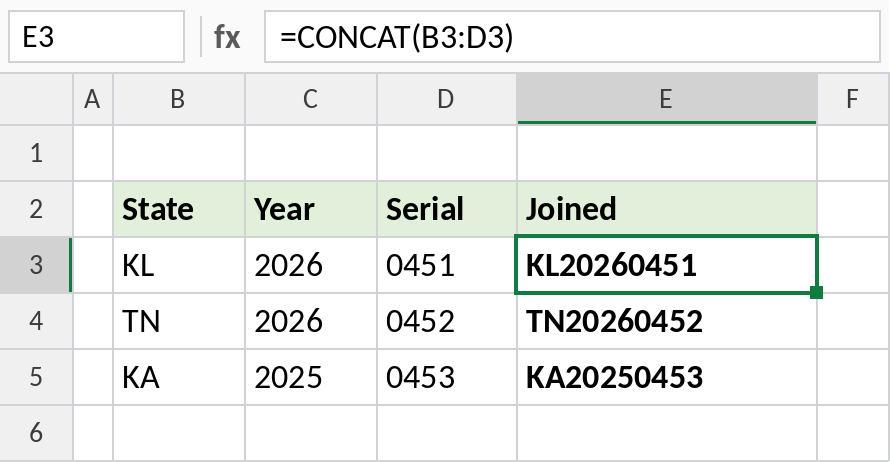
KL, 2026 and 0451 become KL20260451. CONCATENATE can’t take a range like this. It needs each cell listed separately.
Add separators
Mix cells with typed text to add separators between them:
=CONCAT(B3,"-",C3,"-",D3) 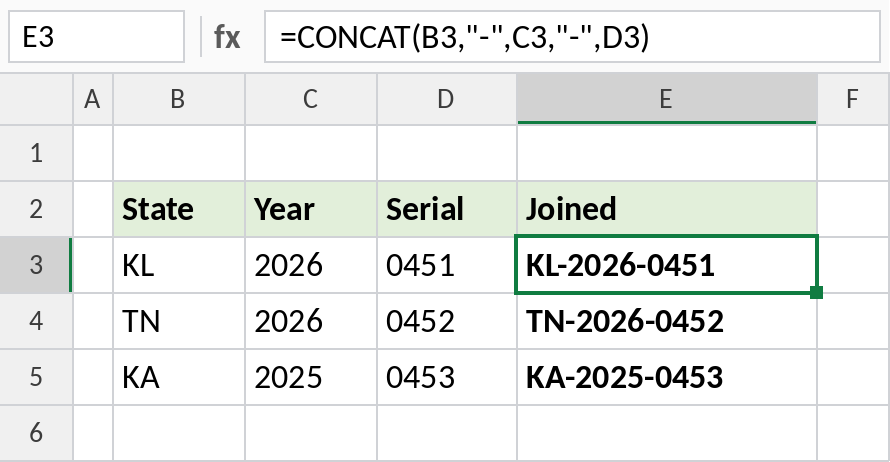
The result is KL-2026-0451. When the same separator goes between every item, TEXTJOIN is shorter.
Build links or IDs
Combine fixed text with values from cells to build web addresses, file names or reference codes:
=CONCAT("https://xlncad.com/functions/",LOWER(B3),"/") 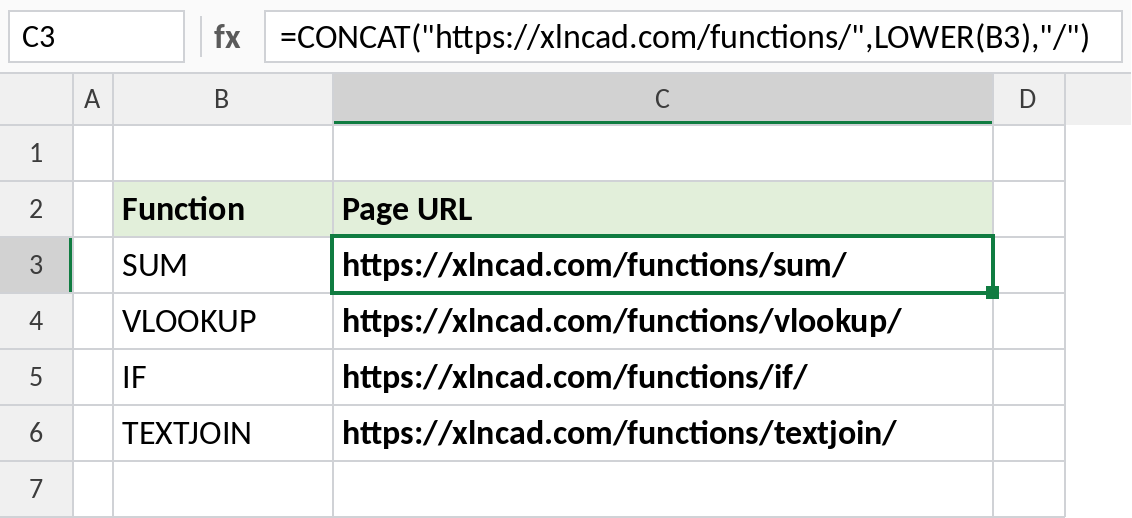
SUM becomes https://xlncad.com/functions/sum/. LOWER makes the name lowercase so it matches the real web address.
Ways to join text
| Method | Formula | Result |
|---|---|---|
& |
=B3&"-"&C3 |
KL-2026 |
| CONCATENATE | =CONCATENATE(B3,C3) |
KL2026 |
| CONCAT | =CONCAT(B3:D3) |
KL20260451 |
| TEXTJOIN | =TEXTJOIN("-",TRUE,B3:D3) |
KL-2026-0451 |
CONCATENATE still works but can’t take ranges. Use CONCAT, & or TEXTJOIN in new workbooks.
Notes
- CONCAT doesn’t add spaces or separators. Type them in quotes:
" ". - Numbers are joined without formatting. Use TEXT to keep commas, decimals or date formats.
- Empty cells add nothing, so they don’t leave gaps.
- The result can be up to 32,767 characters.
Common errors
| Problem | Cause | Fix |
|---|---|---|
| Words run together | No separator typed | Add " " or use TEXTJOIN |
| Dates show as numbers | Dates are joined as serial numbers | Use TEXT(B3,"dd-mmm-yyyy") |
#NAME? |
Excel 2016 or earlier | Use CONCATENATE or & |
Practice file
All three examples plus the joining methods in a cheat sheet.