To show each value as a percentage of the total, divide it by the total and format the result as a percentage. Lock the total with $ so the formula copies down correctly.
ProblemShow each value’s share of the total
Functions usedSUM, SUMIF
Works inAll Excel versions
Share of the grand total
Divide each sale by the total of all sales, then format column E as a percentage (Ctrl+Shift+%):
=D3/SUM($D$3:$D$10)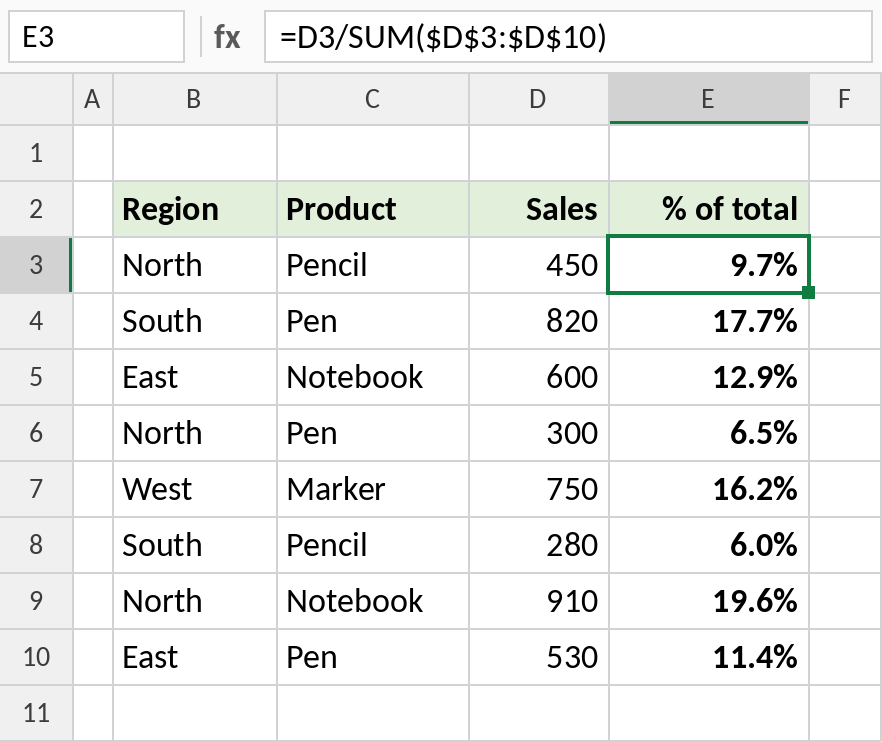
North Pencil’s 450 is 9.7% of the 4,640 total. The percentages in column E add up to 100%.
How the formula works
SUM($D$3:$D$10)is the total of all sales. The$signs keep it fixed as you copy down.D3changes on each row, so every value is divided by the same total.- The result is a decimal such as 0.097. Percentage format shows it as 9.7%.
Share of a group total
To show each sale as a share of its own region, divide by that region’s total with SUMIF:
=D3/SUMIF($B$3:$B$10,B3,$D$3:$D$10)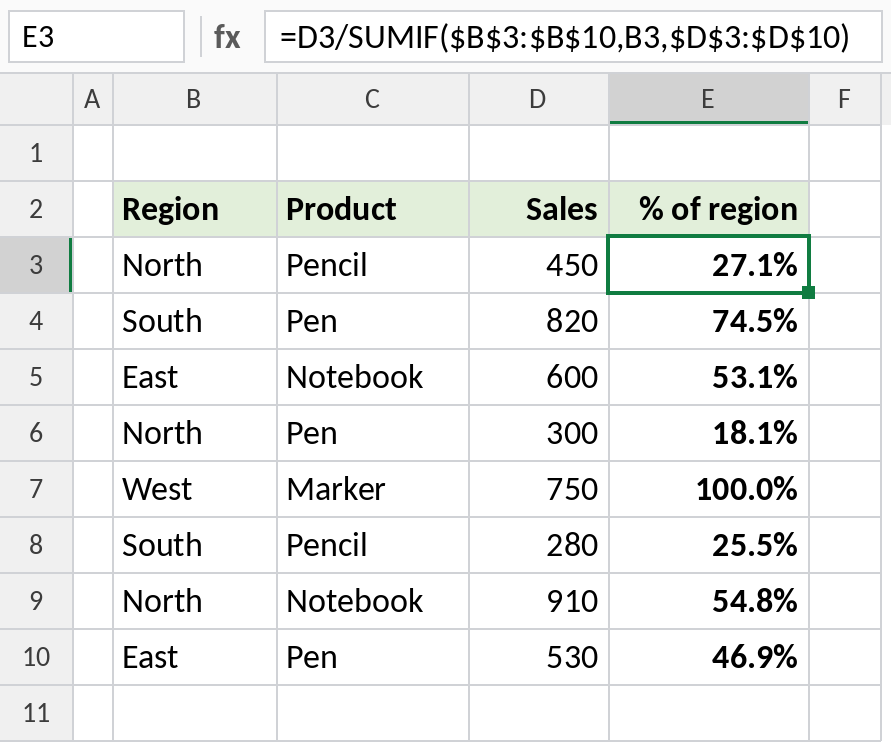
North’s sales total 1,660, so North Pencil is 27.1% of North. Each region’s percentages add up to 100%.
Other ways
| Method | How |
|---|---|
| Total in its own cell | =D3/$D$11, where D11 holds =SUM(D3:D10) |
| Excel Table | =[@Sales]/SUM([Sales]) |
| PivotTable | Show Values As → % of Grand Total |
Notes
- Don’t multiply by 100 if you use percentage format. Excel does that in the display.
- If the total is 0, the formula returns
#DIV/0!. Wrap it in IFERROR if that can happen. - Rounded percentages may not add up to exactly 100%. That’s normal.
Common errors
| Problem | Cause | Fix |
|---|---|---|
#DIV/0! |
The total is 0 or the range is empty | Check the range, or wrap in IFERROR |
| Shows 0.097 instead of 9.7% | Cell not formatted as a percentage | Press Ctrl+Shift+% |
| Wrong results after copying | Total not locked with $ | Use $D$3:$D$10 |
Practice file
Both examples in one workbook.