To highlight a whole row when one cell meets a condition, such as Status = Overdue, use conditional formatting with a formula. The key is a $ before the column letter, so every cell in the row checks the same column.
ProblemColour the whole row when one cell matches
Functions usedConditional formatting with a formula
Works inAll Excel versions
Highlight rows with a text value
Select B3:D7, then Home → Conditional Formatting → New Rule → Use a formula to determine which cells to format, and enter:
=$D3="Overdue"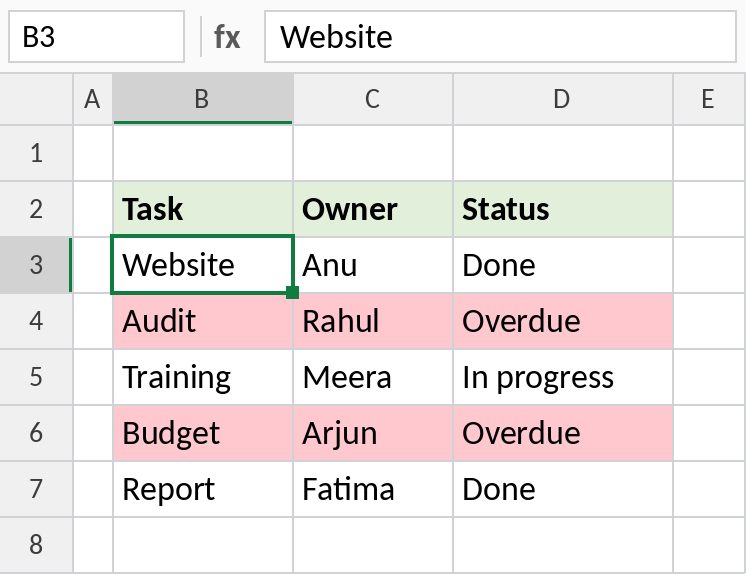
The Audit and Budget rows turn red. Change a status to Overdue and its row changes colour immediately.
How the formula works
- Select the whole table first, starting from the top-left data cell, B3.
- Write the rule for that first row.
$D3means “column D, in the current row”. - The
$locks the column, so cells in B, C and D all check column D. The row number has no$, so each row checks its own status.
Highlight rows above a number
The same idea works with numbers. This rule highlights every sale of 750 or more:
=$D3>=750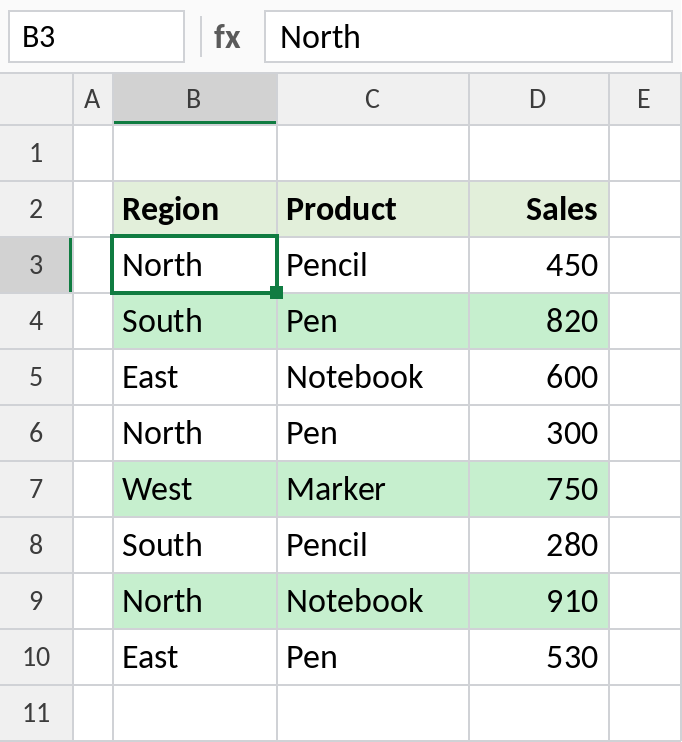
Three rows qualify: South Pen, West Marker and North Notebook.
More rule ideas
| To highlight rows where | Rule |
|---|---|
| Status is Overdue or Pending | =OR($D3="Overdue",$D3="Pending") |
| The owner is Anu and the task isn’t done | =AND($C3="Anu",$D3<>"Done") |
| The status contains “due” | =ISNUMBER(SEARCH("due",$D3)) |
| The value matches a cell | =$D3=$G$1 |
Notes
- Forgetting the
$before D is the most common mistake: each column then checks a different cell and only one column changes colour. - Start the formula at the first row of your selection, not row 1.
- To edit or remove the rule, use Home → Conditional Formatting → Manage Rules.
Common errors
| Problem | Cause | Fix |
|---|---|---|
| Only one column is coloured | No $ before the column letter | Use $D3, not D3 |
| The wrong rows are coloured | Rule written for a different starting row | Match the row number to the first selected row |
| Nothing is highlighted | Typo or extra spaces in the text | Check the value; try TRIM |
Practice file
Both rules are set up in the practice file. Change the values to see them update.