You can pull a Google Sheet into Excel with Power Query and refresh it whenever the sheet changes: no download, no copy-paste. The trick is one small change to the sheet’s share link.
Video
Step 1: Get the share link
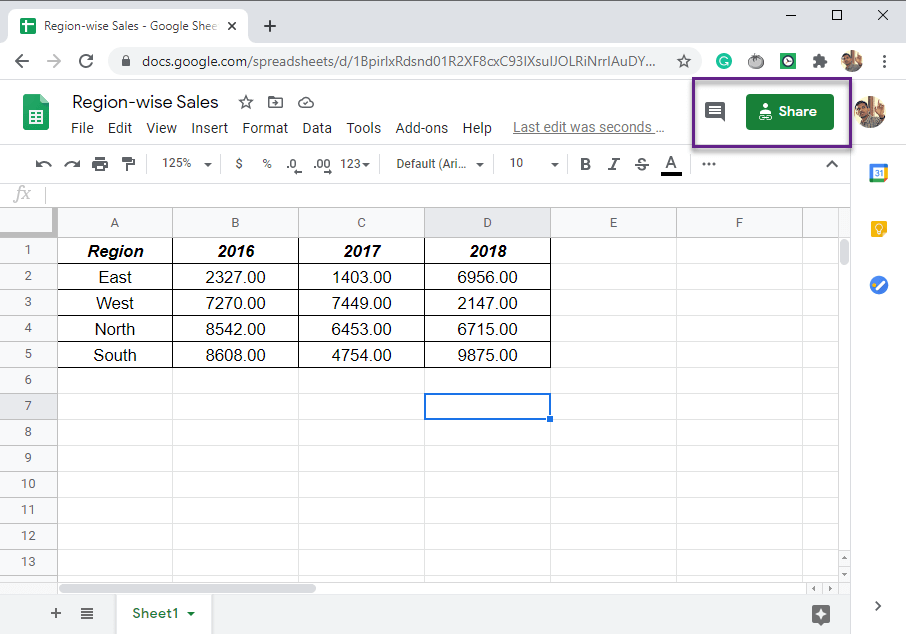
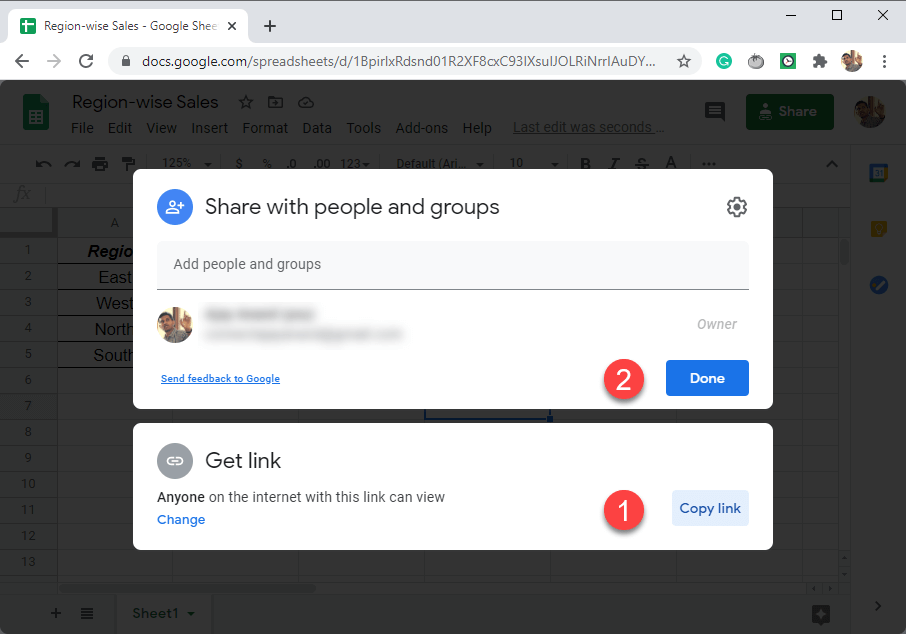
- Open the Google Sheet and click Share.
- Under General access, choose Anyone with the link (Viewer).
- Click Copy link, then Done.
Step 2: Change the end of the link
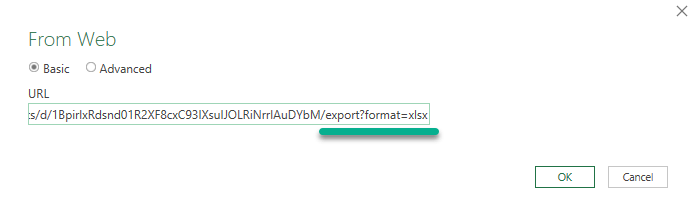
The copied link opens the sheet in a browser. Excel needs a download link instead, so replace the end of it:
| Copied link ends with | Change it to |
|---|---|
/edit?usp=sharing |
/export?format=xlsx |
For example, https://docs.google.com/spreadsheets/d/ABC123/edit?usp=sharing becomes https://docs.google.com/spreadsheets/d/ABC123/export?format=xlsx. Everything before /edit stays the same.
Step 3: Import it with Power Query
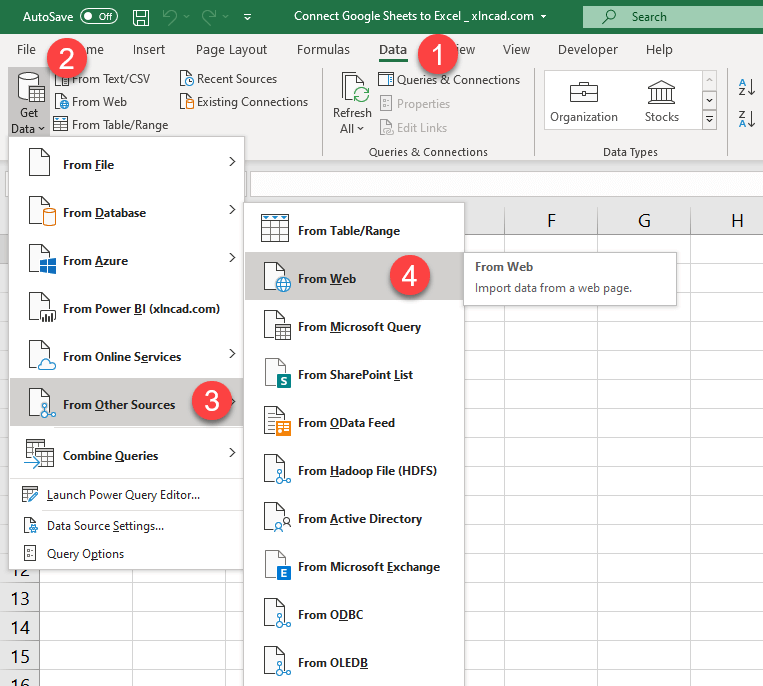
- In Excel, go to Data → Get Data → From Other Sources → From Web.
- Paste the changed link and click OK.
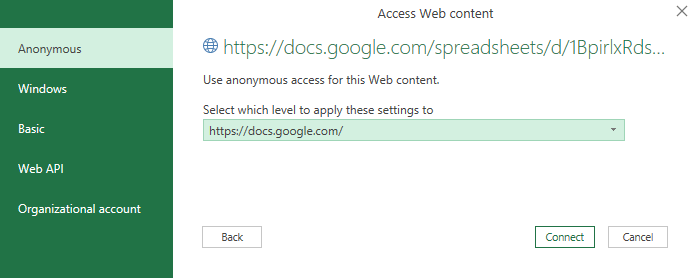
- If asked, choose Anonymous in the Access Web Content dialog and click Connect.
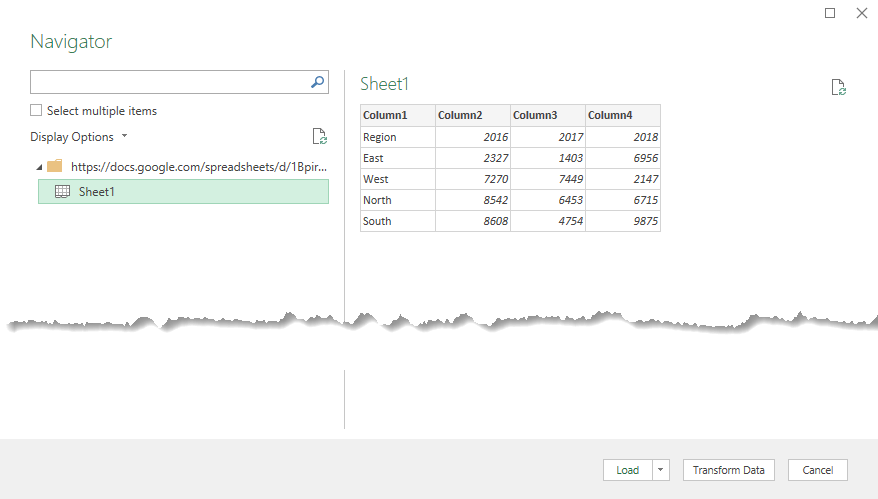
The Navigator lists every sheet in the Google workbook. Select the one you want.
Step 4: Fix the headers and load
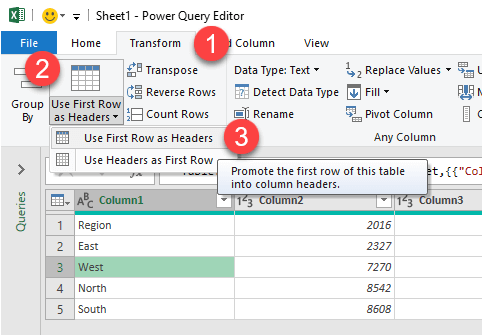
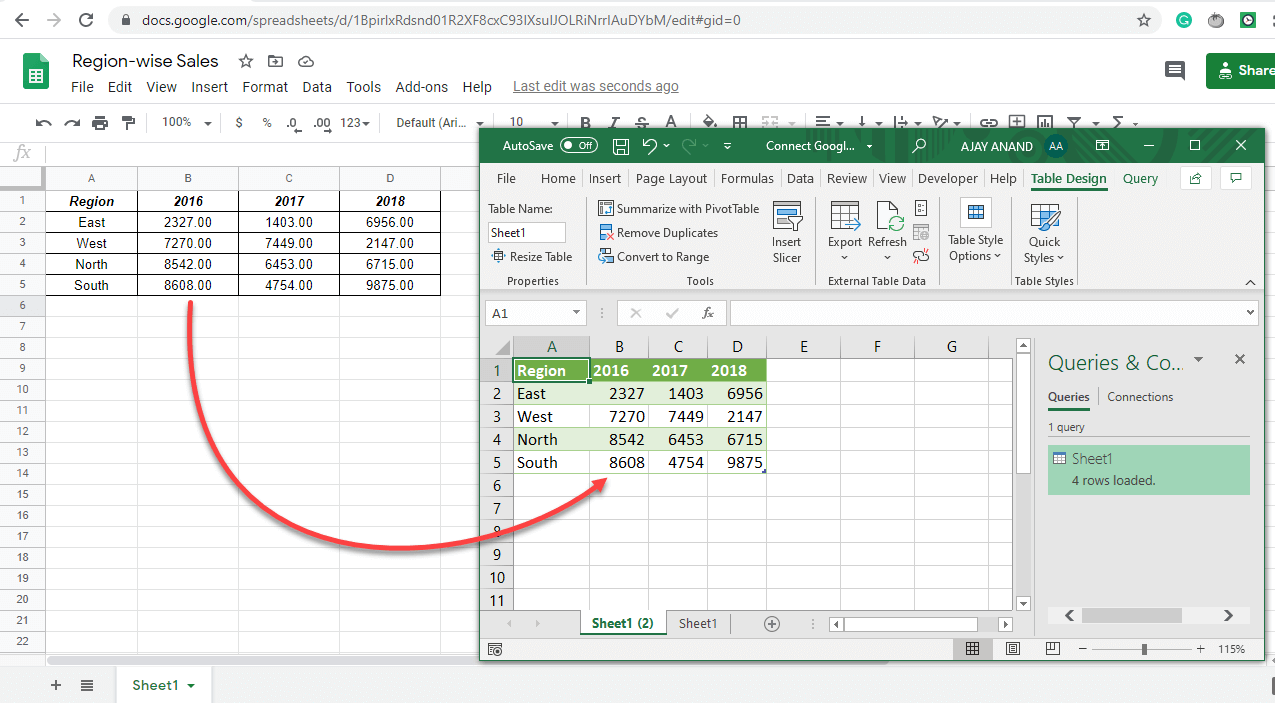
If the preview shows Column1, Column2 as headers, click Transform Data, then Home → Use First Row as Headers. Check each column’s data type, then click Home → Close & Load.

Step 5: Refresh when the Google Sheet changes
Edit the Google Sheet, then in Excel click Data → Refresh All (Ctrl + Alt + F5). New rows and columns come through.
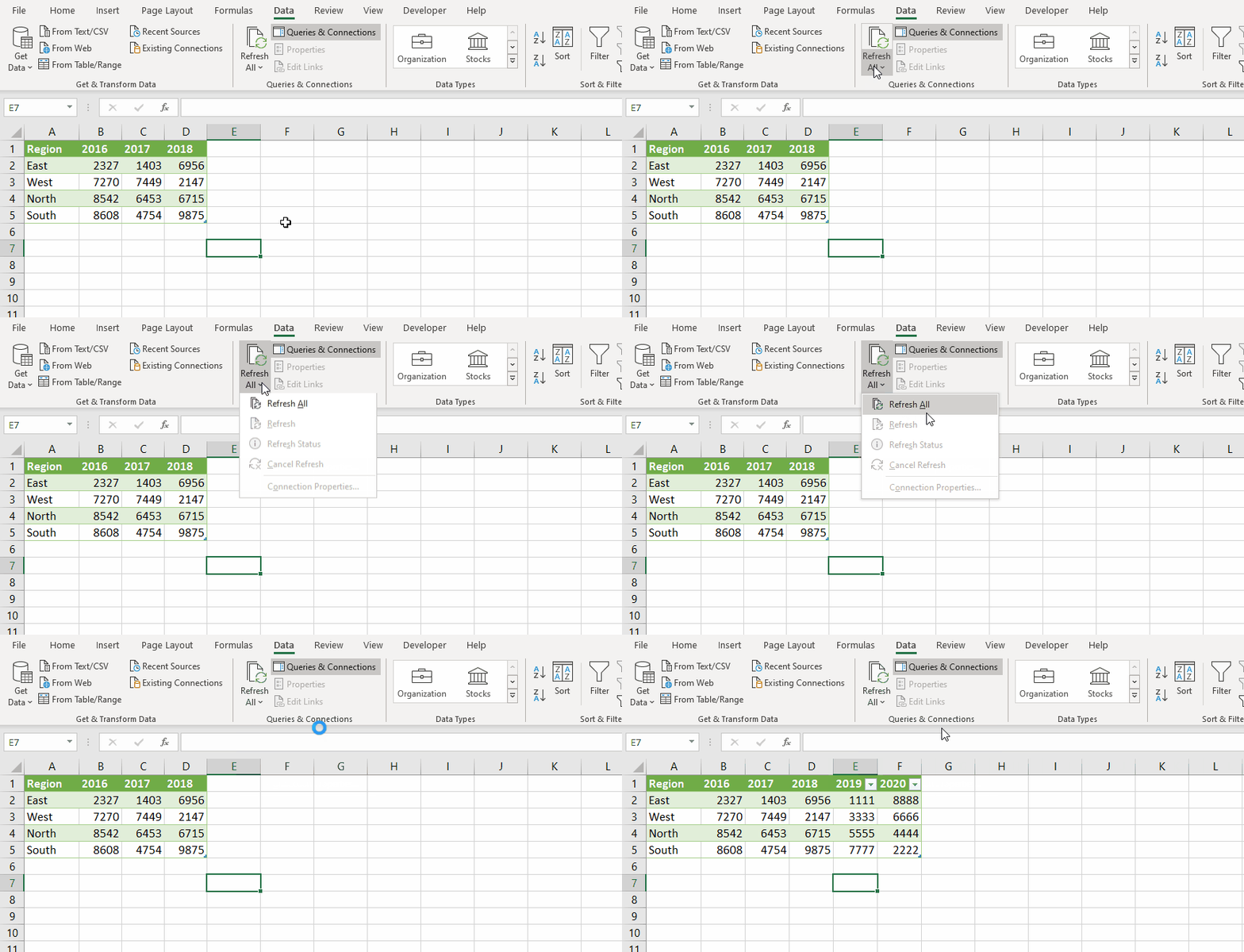
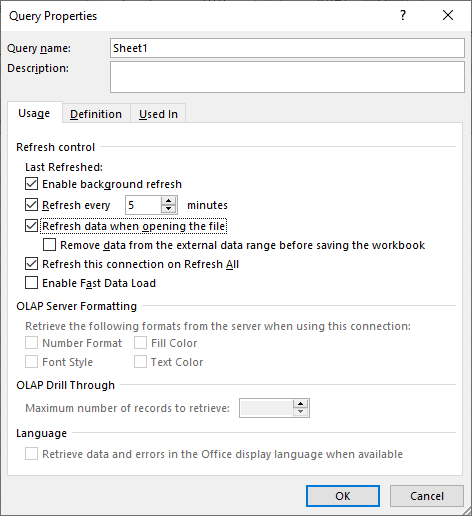
To refresh automatically, go to Data → Refresh All arrow → Connection Properties and tick Refresh every _ minutes and Refresh data when opening the file.
Only one sheet, as CSV
To import a single tab, use its gid (the number after #gid= in the browser address bar) and request CSV:
https://docs.google.com/spreadsheets/d/ABC123/export?format=csv&gid=0Use this link in Data → From Web the same way. CSV is quicker for large sheets.
Things to know
- Anyone who has the link can view the sheet. Don’t use this for private or sensitive data.
- Changes only go one way: from Google Sheets into Excel. Edits in Excel are overwritten on the next refresh.
- If refresh fails with an access error, check the sheet is still shared as Anyone with the link.
- Add your own formulas in columns next to the loaded table, not inside it, so a refresh doesn’t remove them.
Frequently asked questions
Can I connect a private Google Sheet?
Not with this method. Power Query’s web connector can’t sign in to Google. Keep the sheet shared by link, or export it from Google Drive.
Does it work in Excel for the web?
Excel for the web can refresh some queries but can’t create a web query. Set it up in desktop Excel first.