The Excel ABS function returns the absolute value of a number: the number without its minus sign. -120 becomes 120, and 45 stays 45.
number |
The number, cell or calculation. |
|---|
Table of Contents
Basic example
ABS drops the minus sign and leaves positive numbers alone:
=ABS(B3)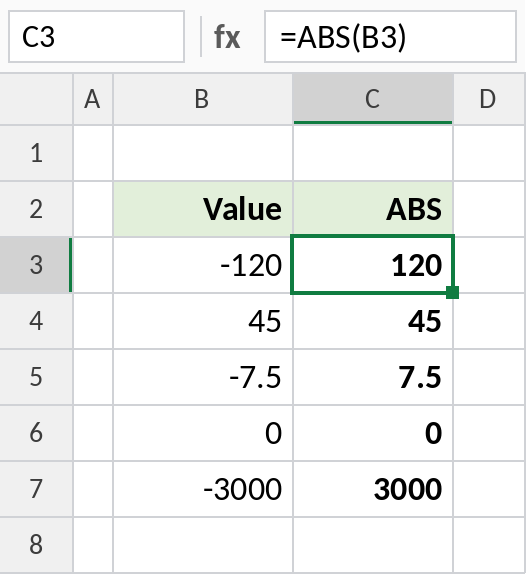
-120 becomes 120, 45 stays 45, and 0 stays 0.
Size of a difference, either way
To see how far each forecast was off, without caring whether it was over or under, wrap the difference in ABS:
=ABS(D3-C3)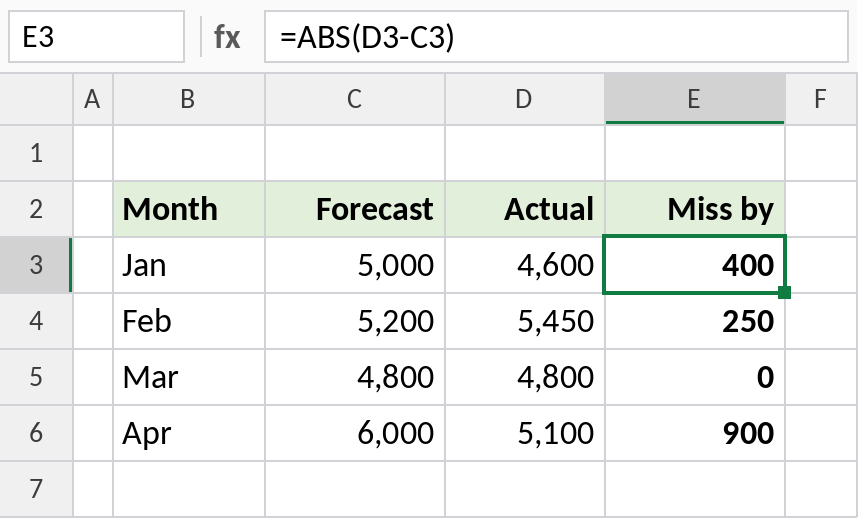
January was 400 under and February was 250 over. ABS shows both as positive: 400 and 250. That makes the misses easy to compare and total.
Check a tolerance
Parts pass if they’re within 5 of the target in either direction. ABS turns that into a single test:
=IF(ABS(D4-C4)<=5,"OK","Check")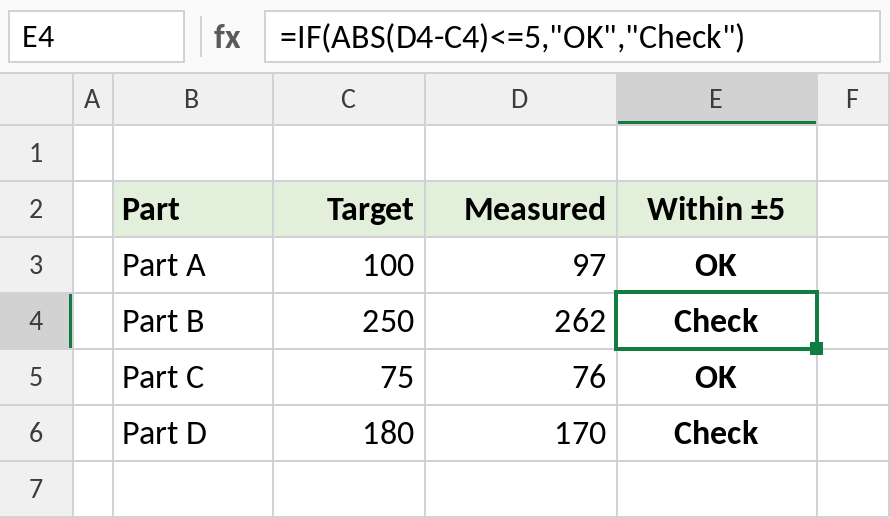
Part B is 12 over, so it shows Check. Part A is 3 under and passes. Without ABS, you’d need two tests joined with AND.
Handy ABS formulas
| Formula | Does |
|---|---|
=SUMPRODUCT(ABS(E3:E6)) |
Total of absolute values |
=-ABS(B3) |
Always negative |
=ABS(D3-C3)/C3 |
Percentage error, either direction |
Notes
- ABS never returns a negative number.
- To keep the sign but round, use ROUND, not ABS.
- To add up absolute values, use
SUMPRODUCT(ABS(range)).SUM(ABS(range))also works in Excel 365. - For the sign alone (-1, 0 or 1), use SIGN.
Common errors
| Problem | Cause | Fix |
|---|---|---|
#VALUE! |
The cell contains text | Convert it to a number |
| Total is wrong | Negatives cancelled out positives | Use ABS on each value before adding |
Practice file
All three examples plus handy formulas in a cheat sheet.