The Excel LOOKUP function finds a value in a sorted row or column and returns the matching value from another row or column. It always does an approximate match, which makes it handy for bands, rate tables and finding the last entry in a list.
lookup_value |
The value to look for. |
|---|---|
lookup_vector |
One row or column to search. Must be sorted smallest to largest. |
result_vector optional |
The row or column to return a value from, the same size as lookup_vector. |
Table of Contents
Basic example: grade bands
The grade table lists the lowest score for each grade. LOOKUP finds the largest value that is less than or equal to the score:
=LOOKUP(C3,$H$3:$H$7,$I$3:$I$7)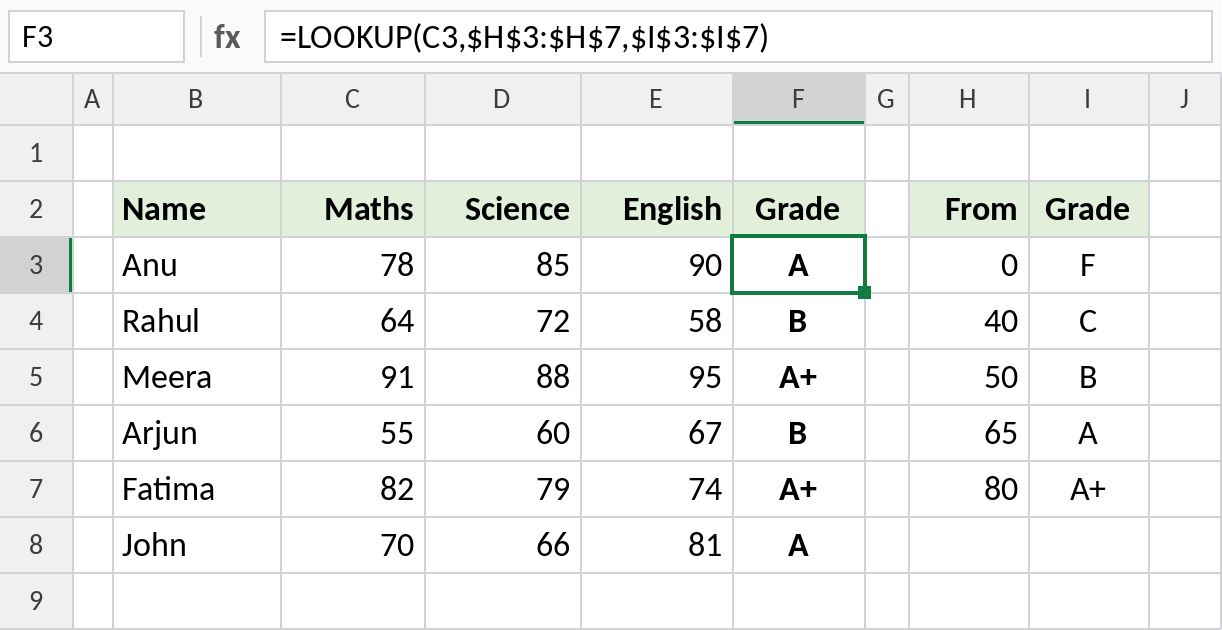
Anu’s 78 falls between 65 and 80, so LOOKUP uses the 65 row and returns A.
The rate on a given date
An interest rate changes on certain dates. To find the rate in force on 20-Aug-2026, look up the last change on or before it:
=LOOKUP(F2,B3:B6,C3:C6)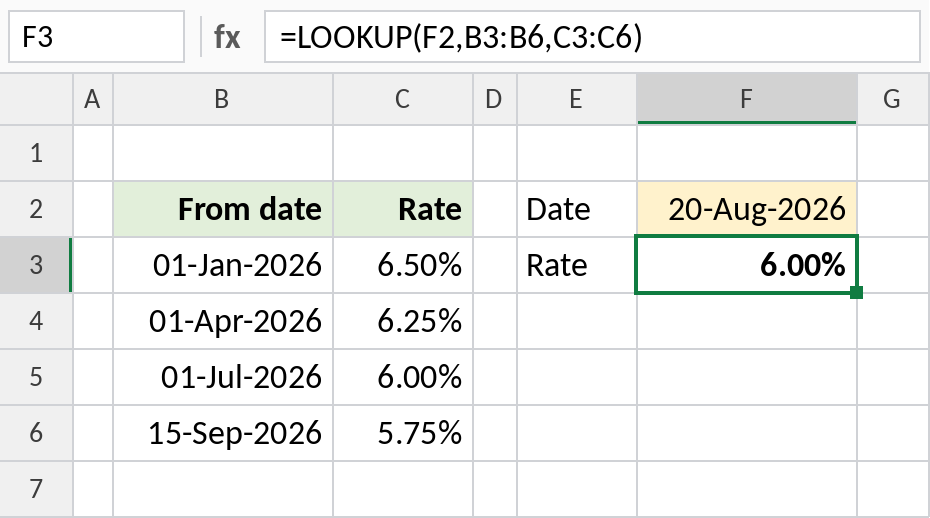
The last change before 20-Aug-2026 was on 01-Jul-2026, so the rate is 6.00%.
The last value in a column
This classic trick returns the last filled cell, so the result updates as you add readings:
=LOOKUP(2,1/(C3:C20<>""),C3:C20)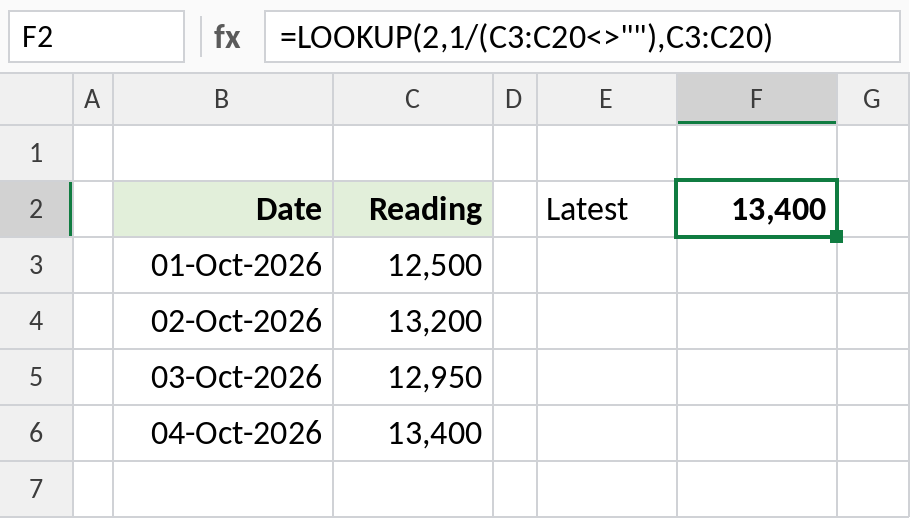
1/(C3:C20<>"") gives 1 for filled cells and an error for empty ones. LOOKUP can’t find 2, so it settles on the last 1: 13,400.
LOOKUP vs VLOOKUP vs XLOOKUP
| LOOKUP | VLOOKUP | XLOOKUP | |
|---|---|---|---|
| Match type | Approximate only | Approximate or exact | Exact by default |
| Data must be sorted | Yes | For approximate | No |
| Look left | Yes | No | Yes |
| Best for | Bands and last values | Older workbooks | Everything else |
For exact matches, use XLOOKUP or VLOOKUP with FALSE. LOOKUP can return a wrong value on unsorted data without any error.
Notes
- lookup_vector must be sorted in ascending order, or LOOKUP may return wrong results.
- If lookup_value is smaller than every value in lookup_vector, LOOKUP returns
#N/A. - LOOKUP has an older array form,
=LOOKUP(value, array), but the vector form shown here is clearer. - There is no exact-match option. Use XLOOKUP when you need one.
Common errors
| Problem | Cause | Fix |
|---|---|---|
| Wrong value | lookup_vector not sorted | Sort it smallest to largest |
#N/A |
Value smaller than the first item | Add a starting row, such as 0 |
| Unexpected match | Exact match needed | Use XLOOKUP instead |
Practice file
All three examples plus LOOKUP checks in a cheat sheet.