The Excel NOT function reverses a logical value: TRUE becomes FALSE and FALSE becomes TRUE. Use it when it’s easier to describe what you don’t want.
logical |
A condition or value that is TRUE or FALSE. |
|---|
Table of Contents
Basic example
C3>=60 is TRUE when a student passed. NOT flips it, so the result is TRUE for students below 60:
=NOT(C6>=60)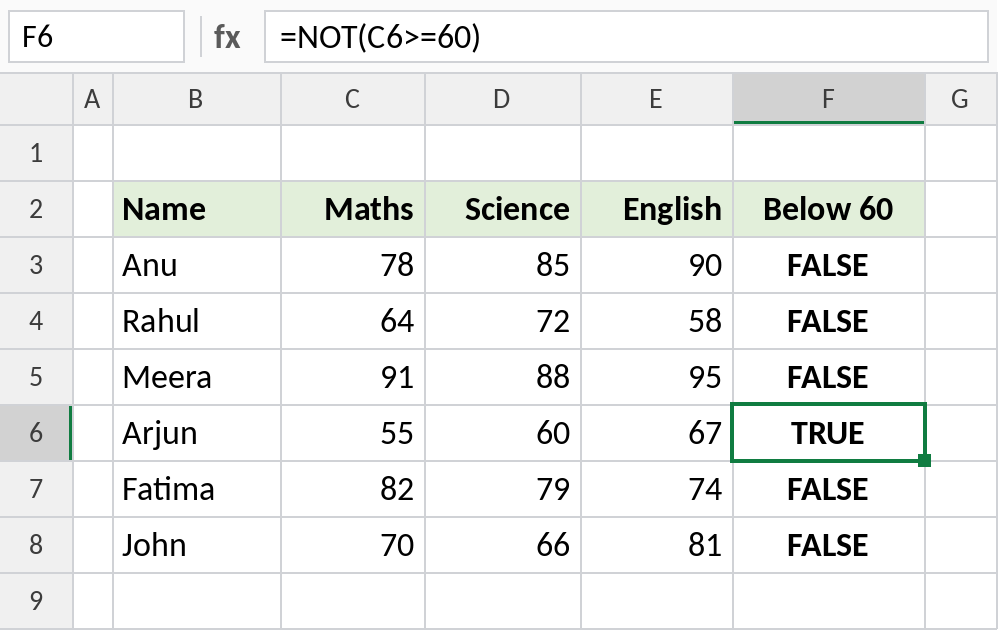
Arjun scored 55, so C6>=60 is FALSE and NOT returns TRUE. For a simple test like this, C6<60 does the same. NOT earns its place with longer conditions.
Everything except a list
To flag rows that are neither North nor South, describe the regions you want to exclude and reverse the test:
=NOT(OR(B5="North",B5="South"))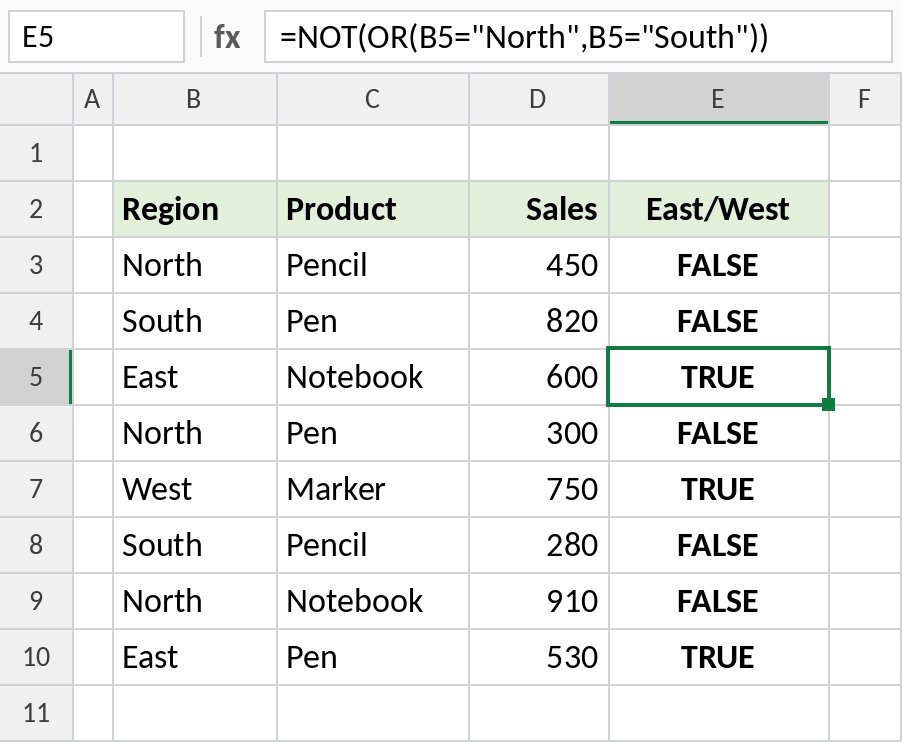
East and West rows return TRUE. This reads more naturally than AND(B5<>"North",B5<>"South"), especially as the list grows.
Exclude rows in FILTER
NOT works on whole ranges too. Here it keeps every row that isn’t North:
=FILTER(B3:D10,NOT(B3:B10="North"))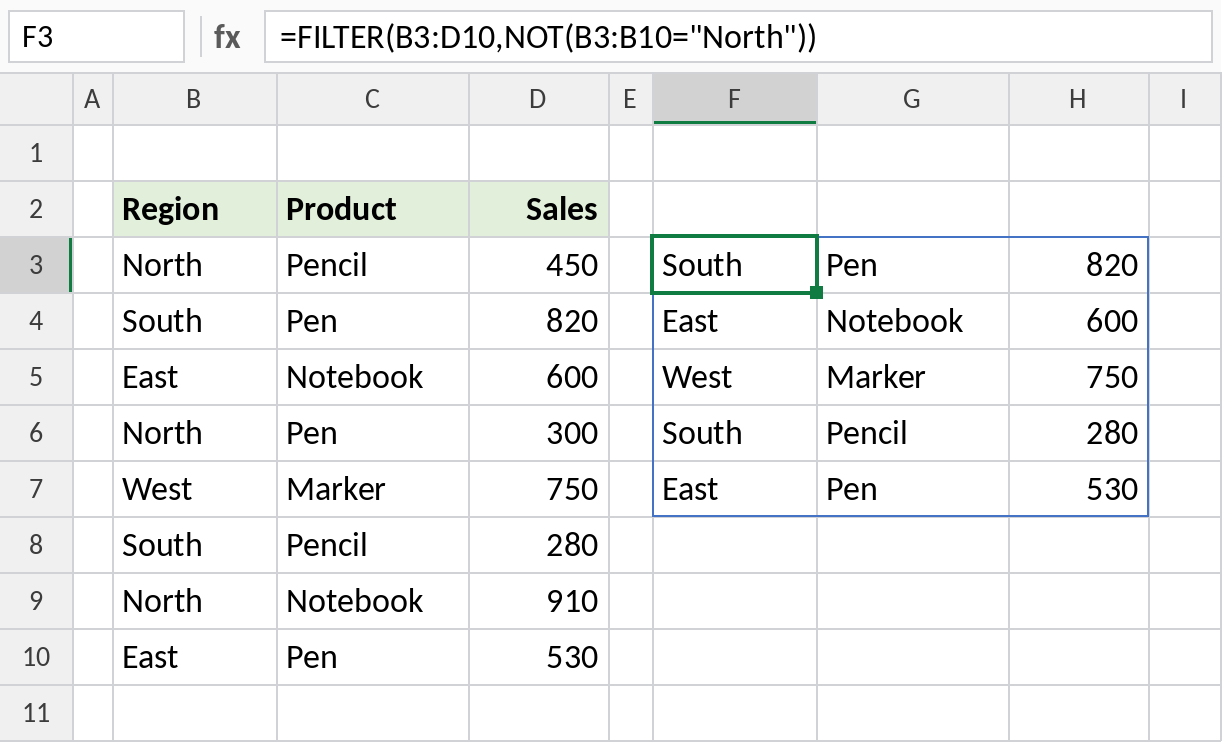
The five non-North rows spill, starting with South Pen 820.
NOT, AND and OR
| Formula | TRUE when |
|---|---|
=NOT(A1) |
A1 is FALSE |
=NOT(AND(A1,B1)) |
At least one is FALSE |
=NOT(OR(A1,B1)) |
Both are FALSE |
=NOT(ISBLANK(A1)) |
A1 is not empty |
See AND and OR for combining conditions.
Notes
- NOT takes one condition. Combine several with AND or OR inside it.
- Numbers count as logical values: 0 is FALSE and any other number is TRUE, so
NOT(0)is TRUE. - For a single comparison, the opposite operator is often simpler:
<>instead ofNOT(=). - NOT is common in conditional formatting and data validation rules.
Common errors
| Problem | Cause | Fix |
|---|---|---|
#VALUE! |
Text that isn’t TRUE or FALSE | Use a comparison, such as B3="North" |
| Unexpected TRUE | A blank cell counts as 0, which is FALSE | Test for blanks separately |
Practice file
All three examples plus NOT checks in a cheat sheet.