The Excel SEARCH function returns the position of one text inside another. Unlike FIND, it ignores upper and lower case and accepts wildcards.
find_text |
The text to look for. Can include wildcards ? and *. |
|---|---|
within_text |
The text or cell to search in. |
start_num optional |
The character to start searching from. Default is 1. |
Table of Contents
Basic example
To find where “pen” appears in each product name, whatever the case:
=SEARCH("pen",B3) 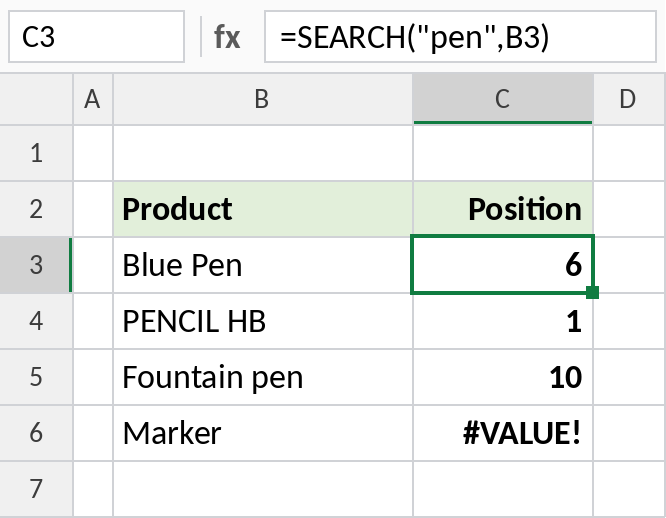
“pen” starts at character 6 in Blue Pen and at 1 in PENCIL HB, even though the case is different. Marker has no match, so SEARCH returns #VALUE!.
Find a pattern with wildcards
Each ? matches any single character. "??/??" finds the first spot that looks like a date, and MID pulls those 5 characters out:
=MID(B3,SEARCH("??/??",B3),5) 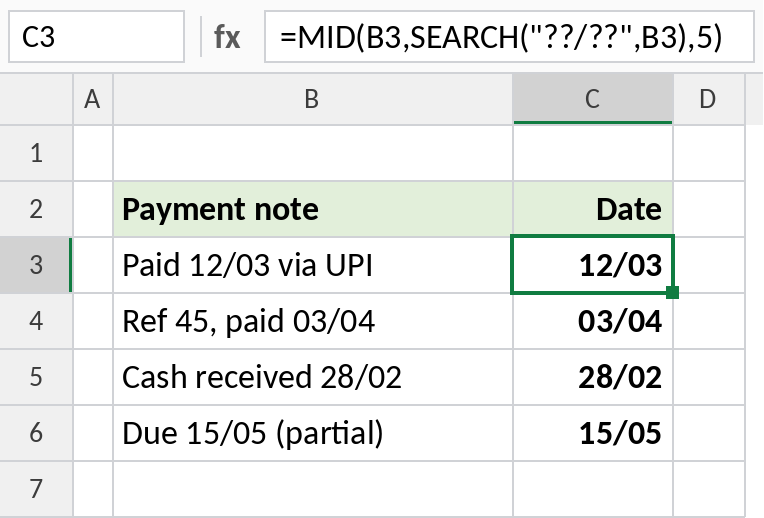
The date sits in a different place in each note, but SEARCH finds the pattern every time: 12/03, 03/04 and so on. FIND can’t do this, because it doesn’t support wildcards.
Get the text after a keyword, any case
The keyword is typed as Name, NAME or name. SEARCH finds it either way, and MID takes everything after the 5 characters of “name:”:
=TRIM(MID(B4,SEARCH("name:",B4)+5,100)) 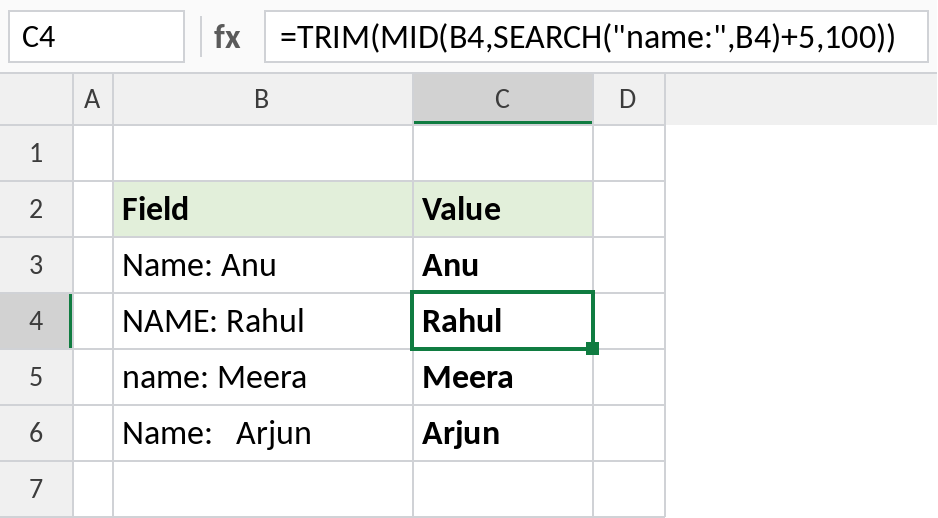
NAME: Rahul returns Rahul. TRIM removes the extra spaces after the colon in the last row.
SEARCH vs FIND
| SEARCH | FIND | |
|---|---|---|
| Upper and lower case | Treated the same | Must match exactly |
Wildcards ? and * |
Yes | No |
| Find a real ? or * | Use ~? or ~* |
Type it as is |
| Not found | #VALUE! |
#VALUE! |
See FIND when the case matters, such as product codes.
Notes
- SEARCH ignores case: “pen”, “Pen” and “PEN” all match.
?matches any one character and*any number of characters. Put~in front to search for a real?or*.- If the text isn’t found, SEARCH returns
#VALUE!. Wrap it in IFERROR to show something else. - Combine SEARCH with MID, LEFT or REPLACE to work with the text it finds.
Common errors
| Problem | Cause | Fix |
|---|---|---|
#VALUE! |
The text isn’t there | Wrap with IFERROR, or check the spelling |
| Wrong position | A ? or * in your text was read as a wildcard |
Use ~? or ~* |
| Finds the wrong occurrence | SEARCH returns the first match | Use start_num to skip past it |
Practice file
All three examples plus extra formulas in a cheat sheet.