The Excel SUBSTITUTE function replaces specific text with new text. It replaces every match, or just one occurrence if you choose.
text |
The text or cell to change. |
|---|---|
old_text |
The text to find. It is case-sensitive. |
new_text |
The text to put in its place. Use "" to remove it. |
instance_num optional |
Which occurrence to replace. Leave it out to replace all of them. |
Table of Contents
Basic example
To change every dash to a slash, give SUBSTITUTE the old and new characters:
=SUBSTITUTE(B3,"-","/") 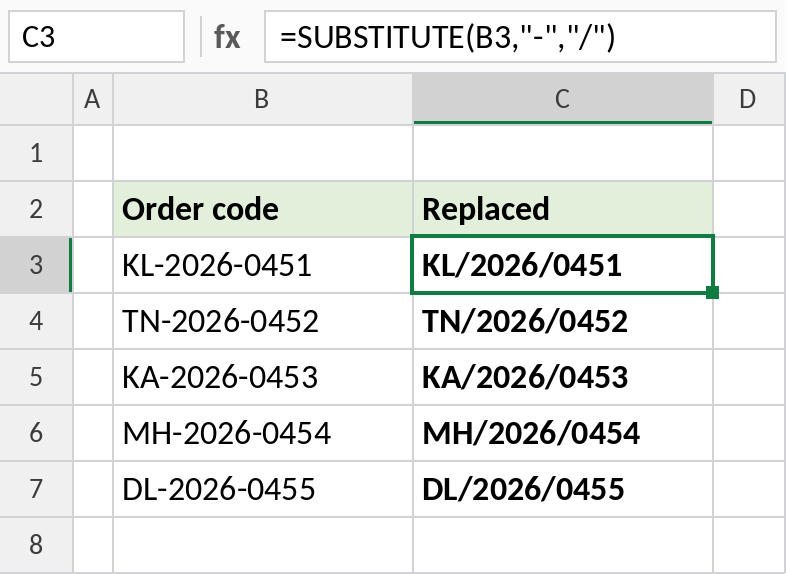
Both dashes are replaced: KL/2026/0451.
Remove characters
Replace a character with "" (nothing) to remove it. This removes the space from each mobile number:
=SUBSTITUTE(B3," ","") 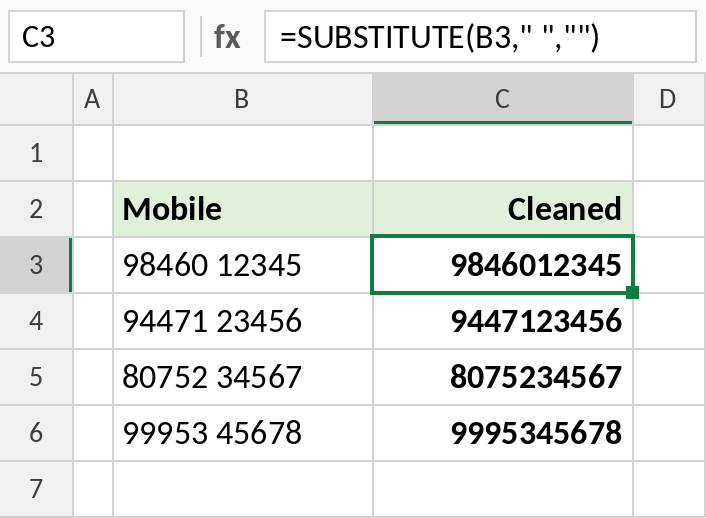
98460 12345 becomes 9846012345. The result is still text. Use =VALUE(SUBSTITUTE(B3," ","")) to get a number.
Replace only one occurrence
The fourth argument picks which occurrence to replace. Here, only the second dash changes:
=SUBSTITUTE(B3,"-","/",2) 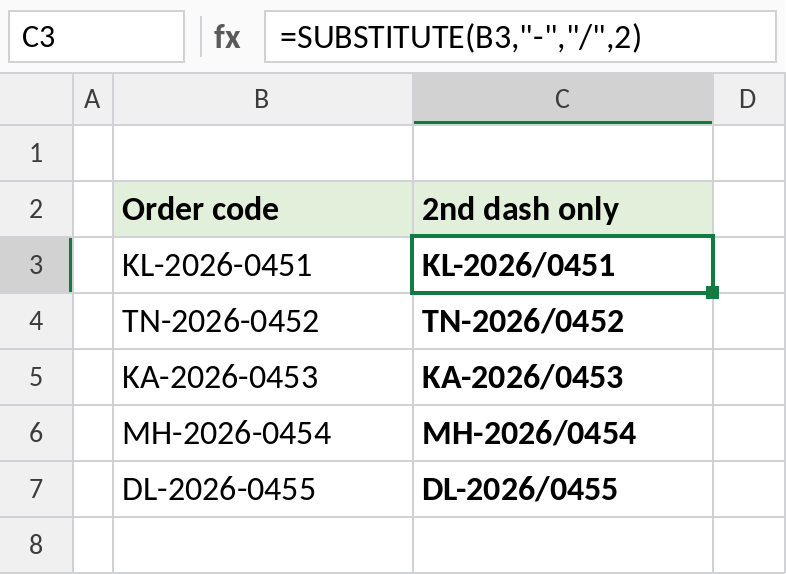
The first dash stays and the second becomes a slash: KL-2026/0451.
Handy SUBSTITUTE formulas
| Formula | Result | Does |
|---|---|---|
=LEN(B3)-LEN(SUBSTITUTE(B3,"-","")) |
2 | Counts the dashes in KL-2026-0451 |
=SUBSTITUTE(SUBSTITUTE(B3,"-",""),"KL","") |
20260451 | Nested: two replacements in one formula |
=SUBSTITUTE("pen PEN","pen","ink") |
ink PEN | Shows it’s case-sensitive |
To replace text by its position rather than what it says, use REPLACE.
Notes
- SUBSTITUTE is case-sensitive: “pen” doesn’t match “PEN”.
- Leave out
instance_numto replace every occurrence. - Nest SUBSTITUTE functions to make several different replacements at once.
- For a one-off change across a sheet, Find and Replace (Ctrl+H) is quicker. SUBSTITUTE is for results that update automatically.
Common errors
| Problem | Cause | Fix |
|---|---|---|
| Nothing is replaced | Different case, or the text has a different character, such as a non-breaking space | Match the case exactly; try CHAR(160) as old_text |
| Result won’t calculate | SUBSTITUTE returns text | Wrap it in VALUE |
#VALUE! |
instance_num is 0 or negative |
Use 1 or more |
Practice file
All three examples plus the handy formulas in a cheat sheet.