The Excel TEXTSPLIT function splits text into separate cells at a delimiter, such as a space or comma. The pieces spill across columns, down rows, or both.
text |
The text or cell to split. |
|---|---|
col_delimiter |
Where to split into new columns, such as " ". |
row_delimiter optional |
Where to split into new rows. |
ignore_empty optional |
TRUE to skip empty pieces from double delimiters. |
match_mode optional |
1 to make the delimiter case-insensitive. |
pad_with optional |
Value to fill missing pieces with. Default is #N/A. |
Table of Contents
Basic example
To split each full name into first and last name, split at the space:
=TEXTSPLIT(B3," ") 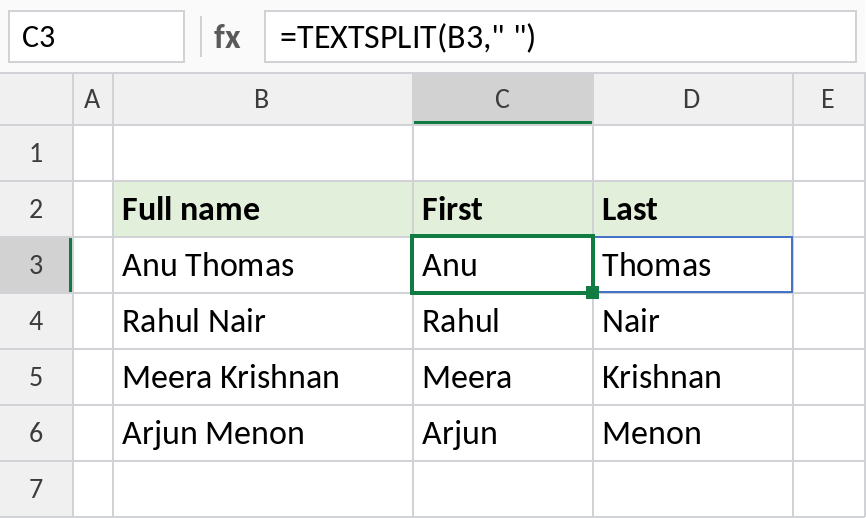
The formula is in C3 only, and the last name spills into D3. Fill it down for the other rows. Anu Thomas becomes Anu and Thomas.
Split into rows
Leave col_delimiter empty and use row_delimiter to split down the rows instead of across:
=TEXTSPLIT(B3,,", ") 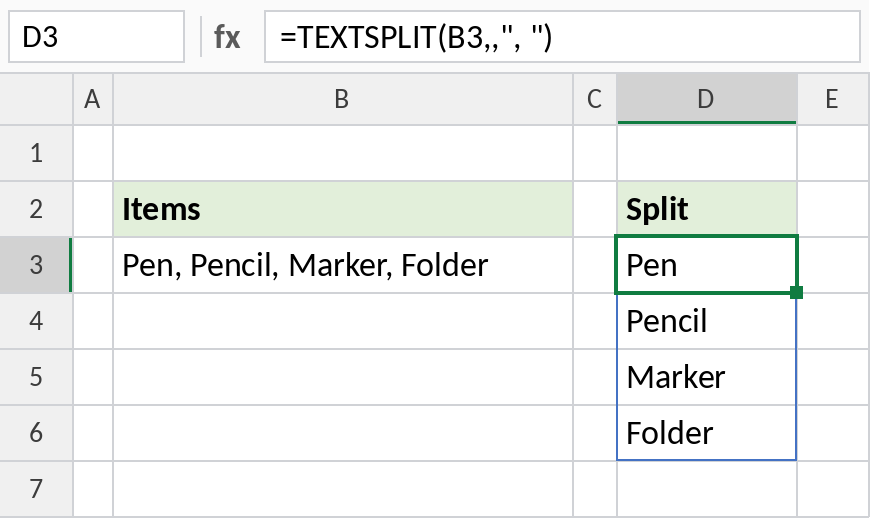
The two commas skip the column delimiter. Each item lands on its own row: Pen, Pencil, Marker, Folder.
Split at more than one delimiter
These codes use both dashes and slashes. Give TEXTSPLIT a list of delimiters in curly braces:
=TEXTSPLIT(B3,{"-","/"}) 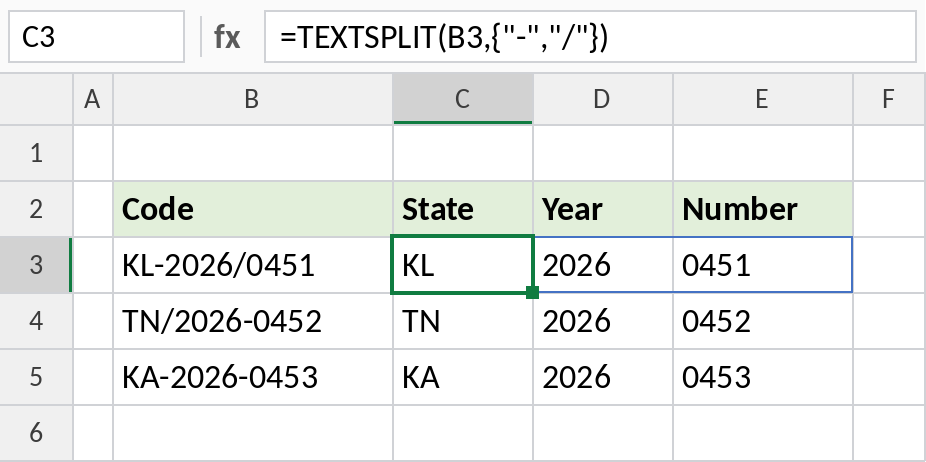
Each code splits into three pieces, whichever separator it uses: KL, 2026, 0451. The pieces are text, so 2026 sits on the left.
TEXTSPLIT vs Text to Columns
| TEXTSPLIT | Data → Text to Columns | |
|---|---|---|
| Updates when the text changes | Yes | No, run it again |
| Original data kept | Yes | Overwritten |
| Split into rows | Yes | No |
| Available in | 2024 and 365 | All versions |
For just the first or last piece, TEXTBEFORE and TEXTAFTER are simpler.
Notes
- TEXTSPLIT returns a spill range, so the cells it needs must be empty.
- The pieces are always text. Wrap the formula in VALUE, or add
--, to turn numeric pieces into numbers. - Set
ignore_emptyto TRUE to avoid empty cells when the text has double delimiters, such as two spaces. - TEXTSPLIT only works on one cell at a time. Fill the formula down for a list.
Common errors
| Problem | Cause | Fix |
|---|---|---|
#SPILL! |
Cells in the spill range aren’t empty | Clear the cells to the right or below |
#N/A in some cells |
Rows have different numbers of pieces | Add a pad_with value, such as "" |
| Extra empty cells | Double spaces or delimiters | Set ignore_empty to TRUE, or TRIM first |
#NAME? |
Excel 2021 or earlier | Use Text to Columns, or LEFT, MID and FIND |
Practice file
All three examples with working formulas (Excel 2024 or 365).