The Excel XMATCH function returns the position of a value in a list, like MATCH, but defaults to an exact match and can search from the last item or find the next larger value.
lookup_value |
The value to find. |
|---|---|
lookup_array |
The row or column to search. |
match_mode optional |
0 exact (default), -1 exact or next smaller, 1 exact or next larger, 2 wildcards. |
search_mode optional |
1 first to last (default), -1 last to first. |
Table of Contents
Find the last match
MATCH always returns the first match. Set search_mode to -1 and XMATCH searches from the bottom up:
=XMATCH("North",B3:B10,0,-1) 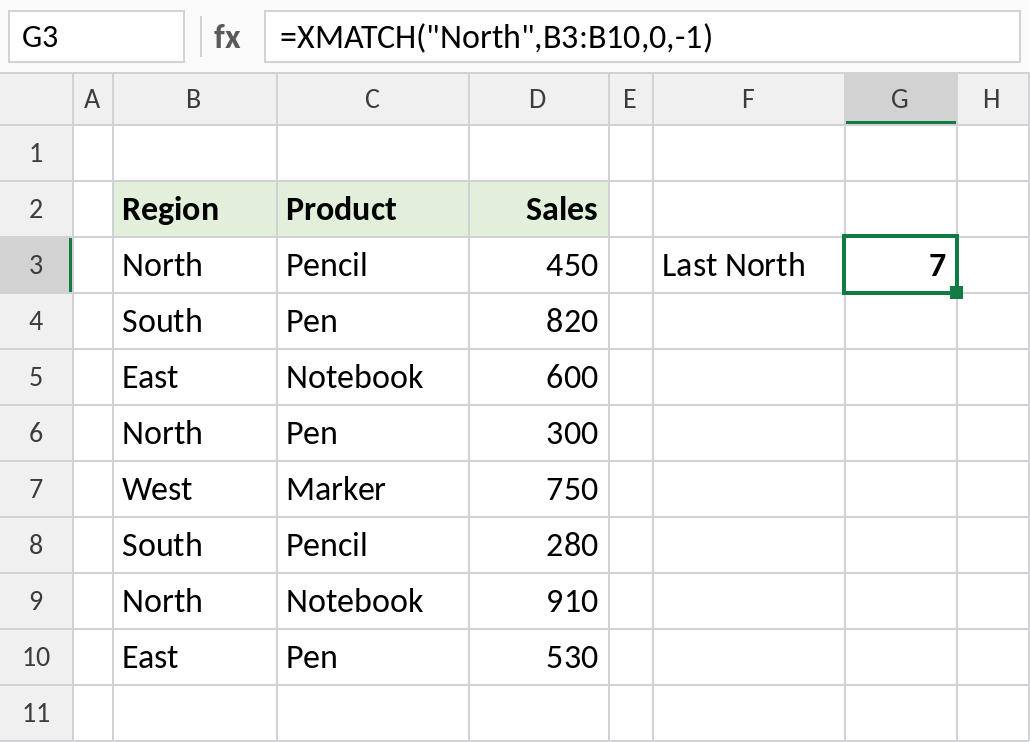
North appears in positions 1, 4 and 7. Searching from the end, XMATCH returns 7. Combine it with INDEX to get the latest North sale.
Next larger match, no sorting needed
Delivery charges here are by upper weight limit. A 7 kg parcel falls in the “up to 10 kg” band, so we need the next larger value. match_mode 1 finds it:
=INDEX(C3:C6,XMATCH(F3,B3:B6,1)) 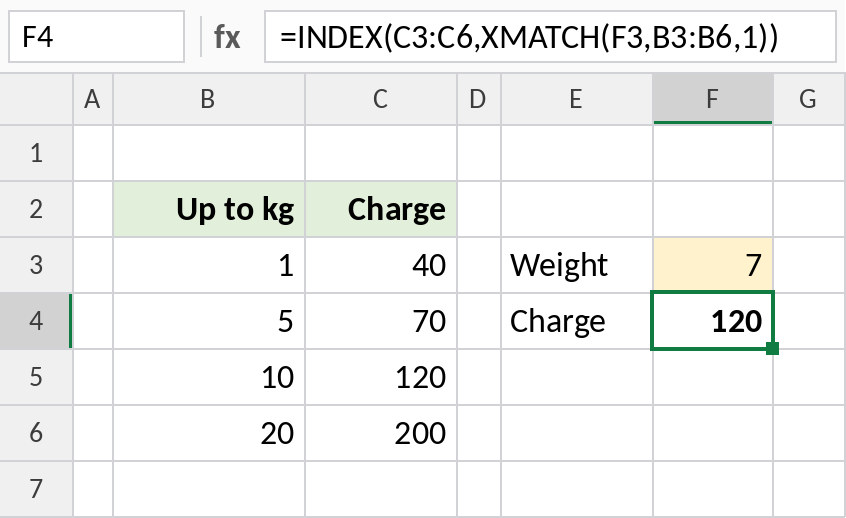
7 isn’t in the list, so XMATCH returns the position of the next larger value, 10, and INDEX returns its charge: 120. Unlike MATCH, XMATCH doesn’t need the list to be sorted for this.
Wildcard match
Wildcards only work in XMATCH when match_mode is 2. This finds the first product ending in “er”:
=XMATCH(H3,C3:C8,2) 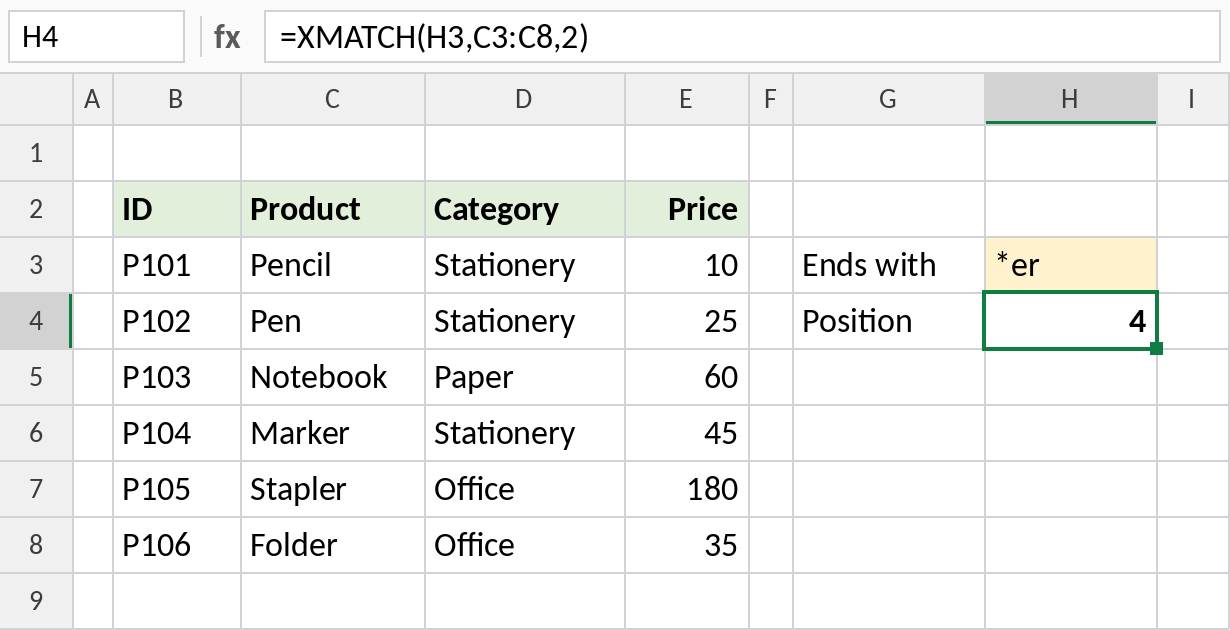
Marker, Stapler and Folder all end in “er”. XMATCH returns the first one, 4 for Marker.
XMATCH vs MATCH
| MATCH | XMATCH | |
|---|---|---|
| Default match | Approximate (1) | Exact (0) |
| Search from the end | No | Yes, search_mode -1 |
| Next larger without sorting | No | Yes |
| Wildcards | With 0 | With 2 |
| Available in | All versions | 2021 and later, 365 |
For a basic exact-match position, see the MATCH page. XMATCH is worth it when you need the extra options.
Notes
- XMATCH defaults to an exact match, so you can’t get wrong answers from leaving out the third argument.
- With
match_mode-1 or 1, the list doesn’t need to be sorted. - Use XMATCH inside INDEX for lookups, or use XLOOKUP directly.
- Sharing with Excel 2019 or earlier? Use MATCH instead.
Common errors
| Problem | Cause | Fix |
|---|---|---|
#N/A |
No match found | Check the value, or use match_mode -1 or 1 |
| Wildcards don’t work | match_mode isn’t 2 |
Set it to 2 |
#NAME? |
Excel 2019 or earlier | Use MATCH |
Practice file
All three examples with working formulas (Excel 2021 or 365).