To look up a value on a different sheet, add the sheet name and an exclamation mark before the range: Prices!B3:C7. The easiest way is to start the formula and simply click across to the other sheet.
VLOOKUP from another sheet
The order sheet needs each product’s price, which is on a sheet called *3 Prices*. Type =VLOOKUP(B3,, click the Prices tab, select the range, and Excel writes the sheet name for you:
=VLOOKUP(B3,'3 Prices'!$B$3:$C$7,2,FALSE)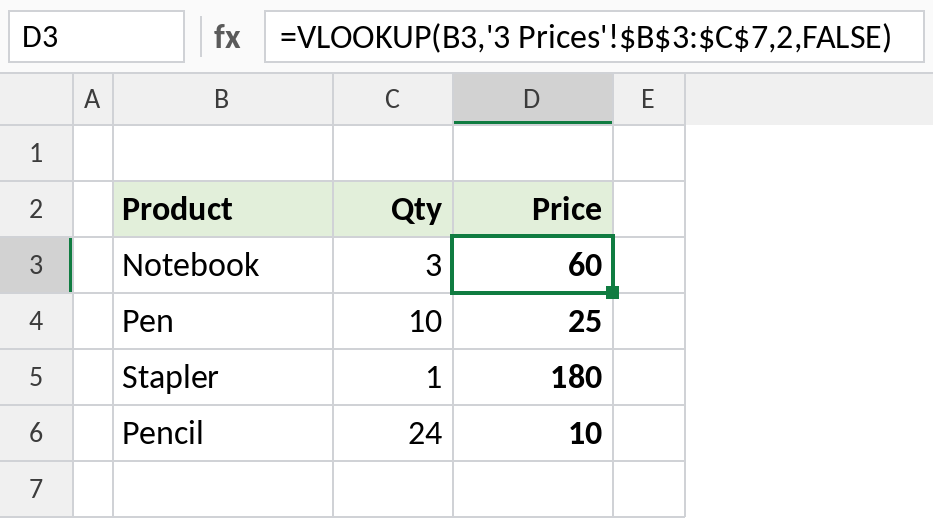
Notebook’s price, 60, comes from the Prices sheet. The sheet name is in single quotes because it contains a space.
How the formula works
'3 Prices'!tells Excel the range is on the sheet named *3 Prices*.- The quotes are needed because the name has a space. A sheet named
Priceswould be justPrices!$B$3:$C$7. - The
$signs lock the range, so it doesn’t move when you copy the formula down.
XLOOKUP from another sheet
In Excel 365, XLOOKUP does the same with separate lookup and return ranges, both on the Prices sheet:
=XLOOKUP(B3,'3 Prices'!$B$3:$B$7,'3 Prices'!$C$3:$C$7)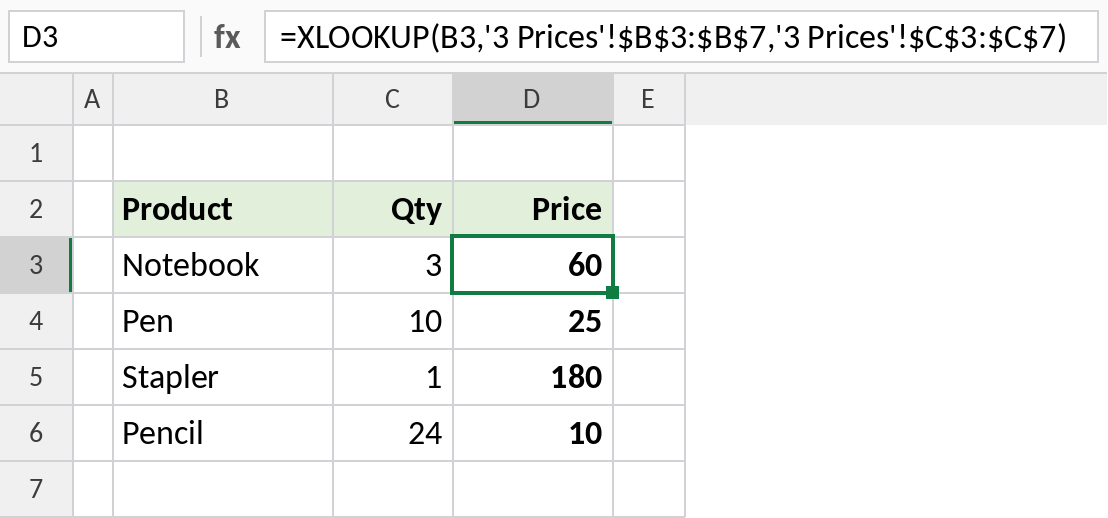
Same results, and no column number to keep track of.
The Prices sheet
This is the sheet both formulas read from. Keep lookup tables like this on their own sheet, and turn them into an Excel Table so new products are included automatically.
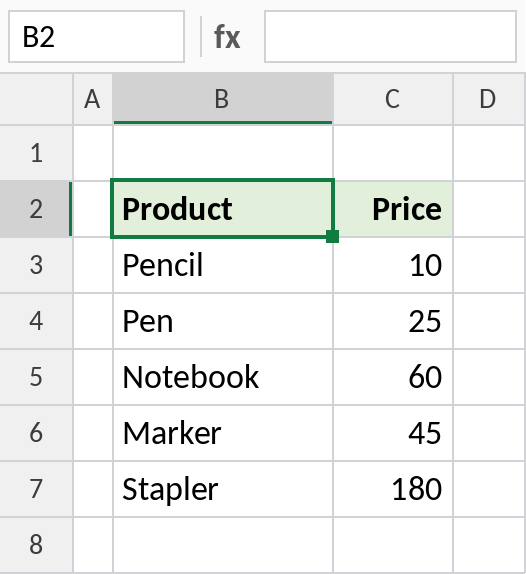
If you rename this sheet, the formulas update automatically.
References to other sheets and files
| Reference | Points to |
|---|---|
Prices!B3:C7 |
Sheet Prices in this workbook |
'Price List'!B3:C7 |
A sheet name with spaces |
'[Prices.xlsx]Sheet1'!$B$3:$C$7 |
Another workbook, while it’s open |
Prices[#Data] |
An Excel Table named Prices, on any sheet |
Links to another workbook keep working when it’s closed, but they show the full file path and only update when you refresh.
Notes
- The quickest way to get the reference right is to click the other sheet while writing the formula.
- If the sheet name contains spaces or starts with a number, it must be in single quotes.
- Renaming the sheet updates every formula. Deleting it turns them into
#REF!.
Common errors
| Problem | Cause | Fix |
|---|---|---|
#REF! |
The other sheet was deleted | Restore it, or point the formula at the new range |
#N/A |
Product not in the price list | Check spelling, or wrap in IFNA |
| Prompt to update values | Sheet name typed wrongly | Click the sheet instead of typing the name |
Practice file
The Orders and Prices sheets, with both formulas.