A two-way lookup finds the value where a row and a column meet, such as Marker’s sales in February. Nest one XLOOKUP inside another, or use INDEX with two MATCH functions.
ProblemFind the value at a row and column intersection
Functions usedXLOOKUP, or INDEX and MATCH
Works inAll versions (XLOOKUP needs 2021 or 365)
Excel 365: XLOOKUP inside XLOOKUP
The inner XLOOKUP finds the Feb column. The outer one finds the Marker row within it:
=XLOOKUP(H2,B3:B8,XLOOKUP(H3,C2:E2,C3:E8))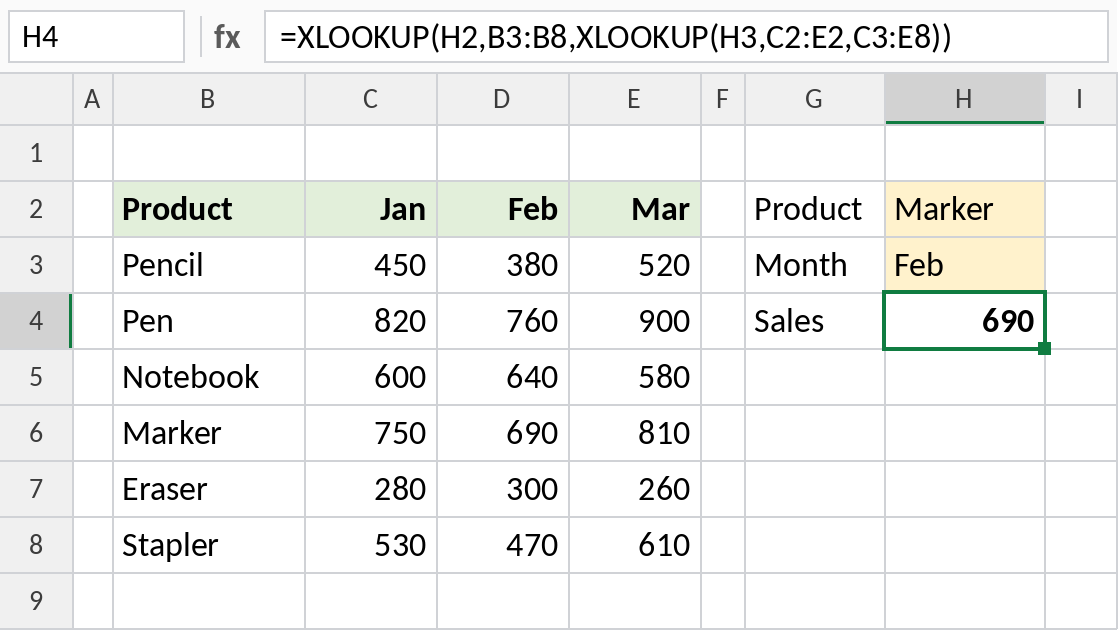
Marker in February is 690. Change H2 or H3 and the result follows.
How the formula works
XLOOKUP(H3,C2:E2,C3:E8)finds Feb in the header row and returns the whole Feb column, D3:D8.- The outer XLOOKUP looks for Marker in B3:B8 and returns the matching value from that column.
- So the inner formula picks the column, and the outer one picks the row.
Any version: INDEX with two MATCH functions
The first MATCH gives the row number and the second the column number. INDEX returns the value where they meet:
=INDEX(C3:E8,MATCH(H2,B3:B8,0),MATCH(H3,C2:E2,0))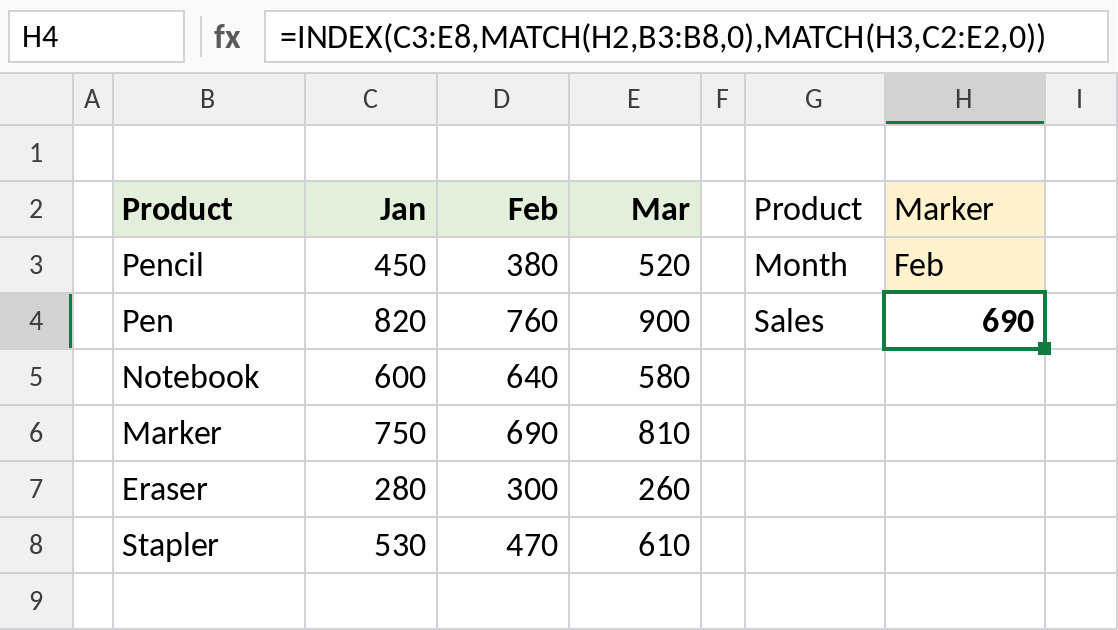
Marker is row 4 and Feb is column 2 of the table, so INDEX returns the same value.
Other two-way lookup formulas
| Formula | Notes |
|---|---|
=INDEX(C3:E8,XMATCH(H2,B3:B8),XMATCH(H3,C2:E2)) |
Excel 365, exact match by default |
=VLOOKUP(H2,B3:E8,MATCH(H3,B2:E2,0),FALSE) |
Works everywhere; the MATCH range must start at column B |
=SUMIFS(D3:D8,B3:B8,H2) |
Only when the month column is fixed |
Notes
- Both lookups use exact matches, so the table doesn’t need sorting.
- If either the row or the column isn’t found, the formula returns
#N/A. - A drop-down list in H2 and H3 turns this into a simple lookup tool.
Common errors
| Problem | Cause | Fix |
|---|---|---|
#N/A |
Row or column label not found | Check spelling and extra spaces |
| Off-by-one result in VLOOKUP version | MATCH range doesn’t start at the table’s first column | Match against B2:E2, not C2:E2 |
Practice file
Both formulas, ready to try with different products and months.