The Excel SWITCH function compares one value against a list of options and returns the result for the first exact match. It’s a tidy replacement for nested IFs that test the same cell.
expression |
The value to test, such as a cell or a formula. |
|---|---|
value1, result1 |
The first value to compare against, and what to return if it matches. |
value2, result2, ... optional |
More value and result pairs, up to 126. |
default optional |
What to return if nothing matches. Without it, SWITCH returns #N/A. |
Table of Contents
Basic example
To turn region codes into names, list each code with its name. The last argument is the default:
=SWITCH(B3,"N","North","S","South","E","East","W","West","Unknown") 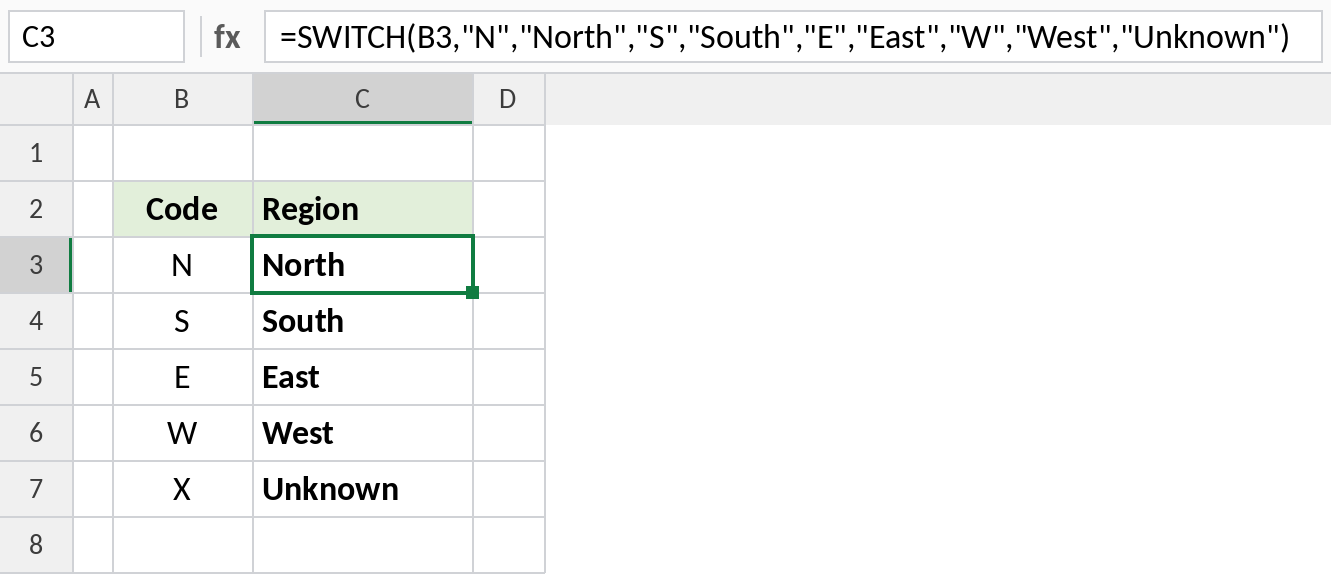
N becomes North, S becomes South, and so on. X doesn’t match any code, so it gets the default, Unknown.
Test the result of a formula
The expression can be a formula. Here, WEEKDAY returns 1 for Sunday and 7 for Saturday, and everything else is a weekday:
=SWITCH(WEEKDAY(B3),1,"Sun",7,"Sat","Weekday") 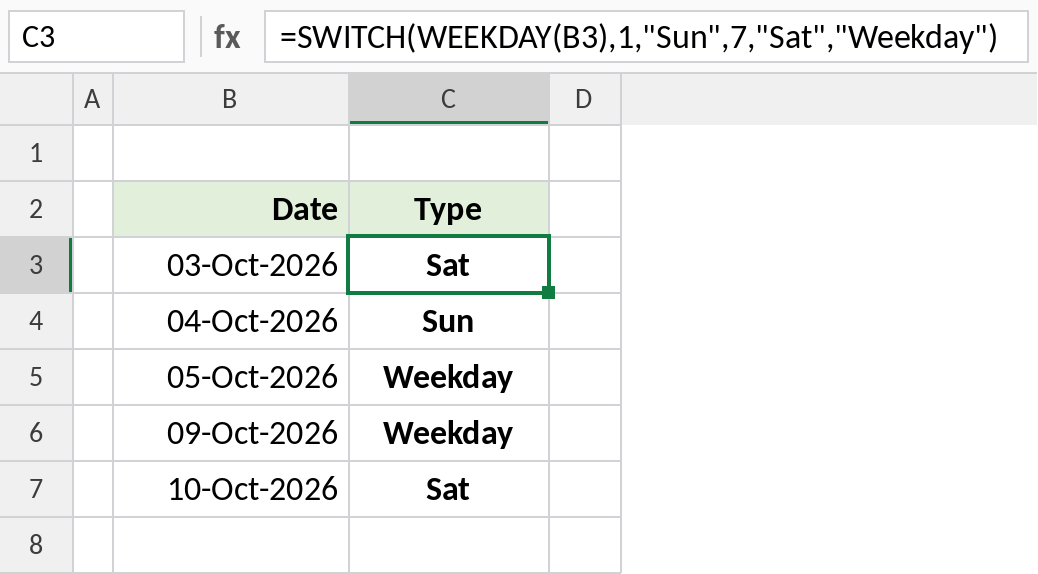
03-Oct-2026 is a Saturday, so SWITCH returns Sat. WEEKDAY is calculated once, which makes SWITCH shorter than a nested IF that repeats it.
Return numbers
SWITCH can return numbers as well as text. This picks a GST rate for each category:
=SWITCH(C4,"Food",5%,"Electronics",18%,"Clothing",12%,"Books",0%) 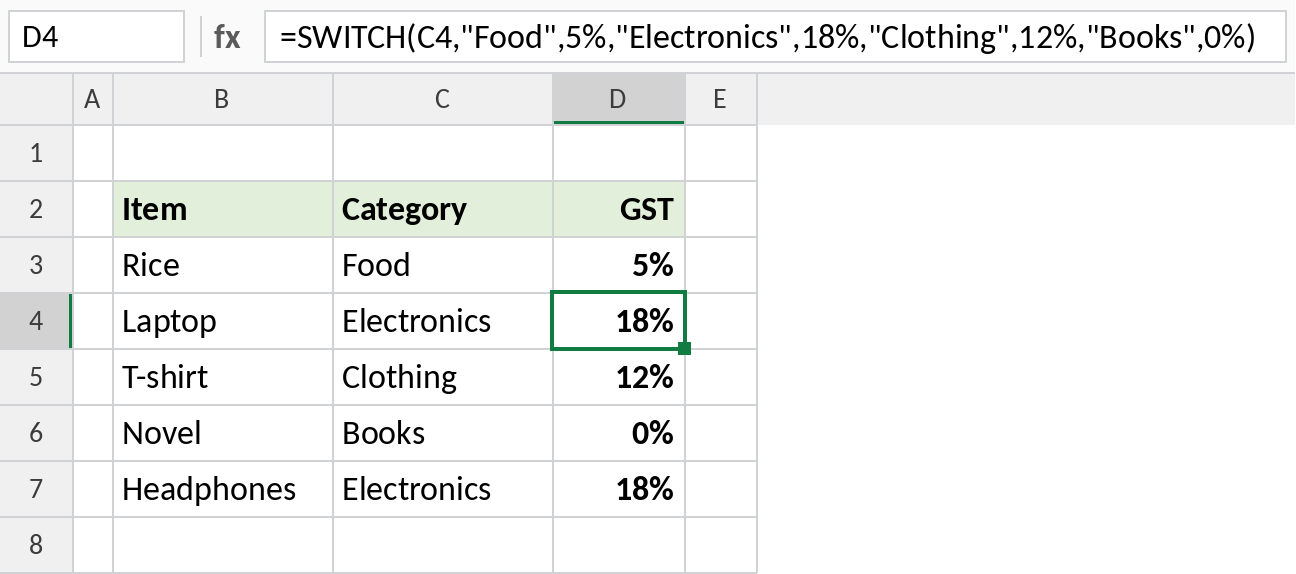
Electronics gets 18%, Food 5% and Books 0%. Multiply by the price to get the tax amount. For a long or changing list of rates, keep them in a table and use XLOOKUP instead.
SWITCH vs nested IF vs IFS
| Approach | Region formula |
|---|---|
| Nested IF | =IF(B3="N","North",IF(B3="S","South","Other")) |
| IFS | =IFS(B3="N","North",B3="S","South",TRUE,"Other") |
| SWITCH | =SWITCH(B3,"N","North","S","South","Other") |
SWITCH is shortest when every test checks the same value for an exact match. For ranges such as “90 or more”, use IFS.
Notes
- SWITCH only does exact matches. It’s not case-sensitive for text.
- Always add a default as the last argument, or unmatched values return
#N/A. - If the arguments after
expressionare an odd number, the last one is the default. - SWITCH isn’t available in Excel 2016. Use nested IF or a lookup table there.
Common errors
| Problem | Cause | Fix |
|---|---|---|
#N/A |
No match and no default | Add a default value at the end |
| Wrong result for numbers | Numbers stored as text, so “5” doesn’t match 5 | Make the types match |
#NAME? |
Excel 2016 or earlier | Use nested IF or XLOOKUP |
Practice file
All three examples plus the SWITCH checks in a cheat sheet.