The Excel CLEAN function removes non-printing characters, such as tabs and line breaks, from text. They often come with data copied from other systems and break lookups and comparisons without being visible.
text |
The text or cell to clean. |
|---|
Table of Contents
Basic example
These cells look normal, but some contain a hidden tab or line break. CLEAN removes them:
=CLEAN(B3)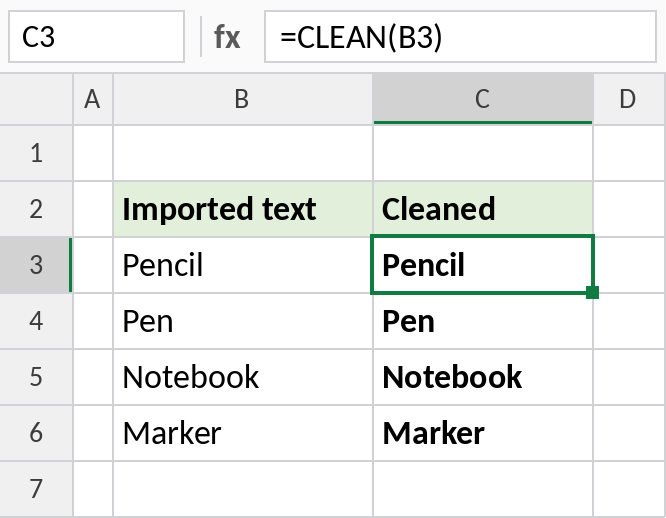
Pencil loses its hidden tab, and Note book with a line break becomes Notebook. Marker had nothing to remove.
Prove the characters are there
Compare the length before and after cleaning to see which cells had hidden characters:
=LEN(CLEAN(B3))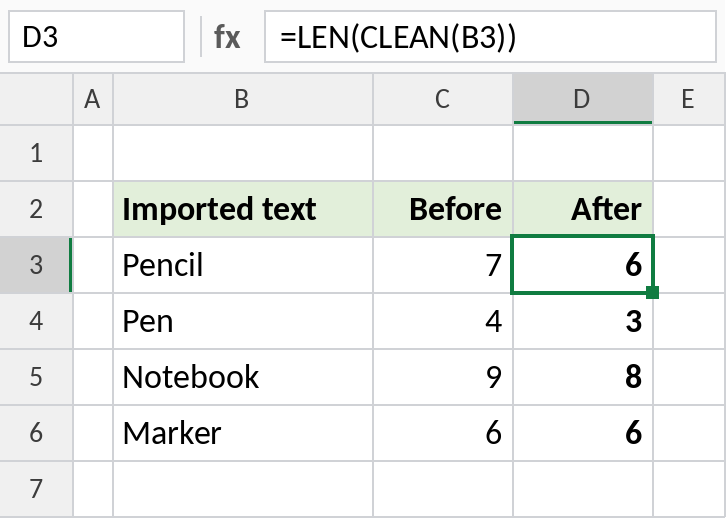
Pencil has 7 characters but only 6 letters. After CLEAN it’s 6. Where the two numbers match, the cell was already clean.
CLEAN and TRIM together
Imported data often has extra spaces as well. CLEAN doesn’t remove spaces, so wrap it in TRIM:
=TRIM(CLEAN(B3))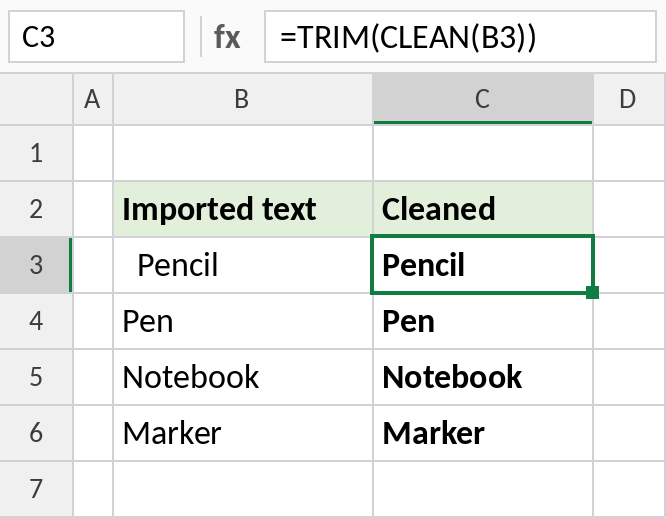
Every value comes out as plain text: Pencil, Pen, Notebook, Marker. This combination fixes most messy imports.
What each cleaning function removes
| Function | Removes |
|---|---|
| CLEAN | Characters with codes 0 to 31: tabs, line breaks and other control characters |
| TRIM | Extra spaces (code 32) |
SUBSTITUTE(B3,CHAR(160)," ") |
Non-breaking spaces (code 160) from web pages |
Notes
- CLEAN removes the first 32 ASCII characters, codes 0 to 31. It doesn’t remove spaces or non-breaking spaces.
- A line break between two words is removed completely, so the words join. To keep a space, use
SUBSTITUTE(B3,CHAR(10)," ")instead. - For big or regular imports, Power Query’s Transform → Format → Clean does the same for a whole column.
Common errors
| Problem | Cause | Fix |
|---|---|---|
| Words joined together | Line break removed between words | Replace CHAR(10) with a space using SUBSTITUTE |
| Lookup still fails | Non-breaking spaces left | Also replace CHAR(160) |
| Extra spaces remain | CLEAN doesn’t remove spaces | Wrap in TRIM |
Practice file
All three examples, with the hidden characters really in the cells.