The Excel MROUND function rounds a number to the nearest multiple you choose: the nearest 5, 10, 0.05 or pack size.
number |
The number to round. |
|---|---|
multiple |
The multiple to round to. Must have the same sign as number. |
Table of Contents
Basic example
To round prices to the nearest 5:
=MROUND(B4,5)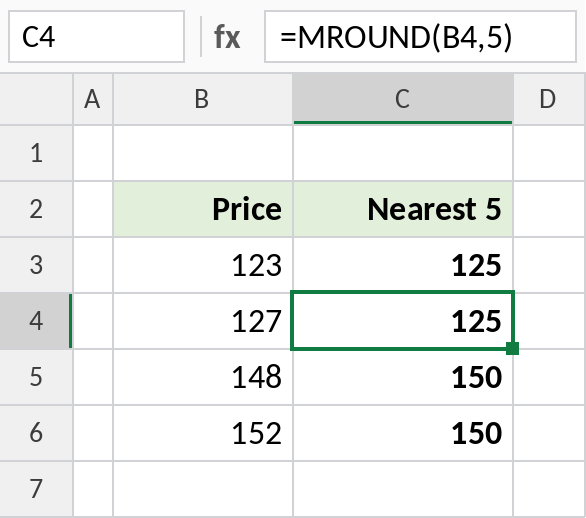
127 is closer to 125 than to 130, so it becomes 125. 148 rounds up to 150. Halfway values like 125.5 round away from zero.
Round to the nearest 0.05
The multiple can be a decimal. This rounds amounts to the nearest 5 paise:
=MROUND(B3,0.05)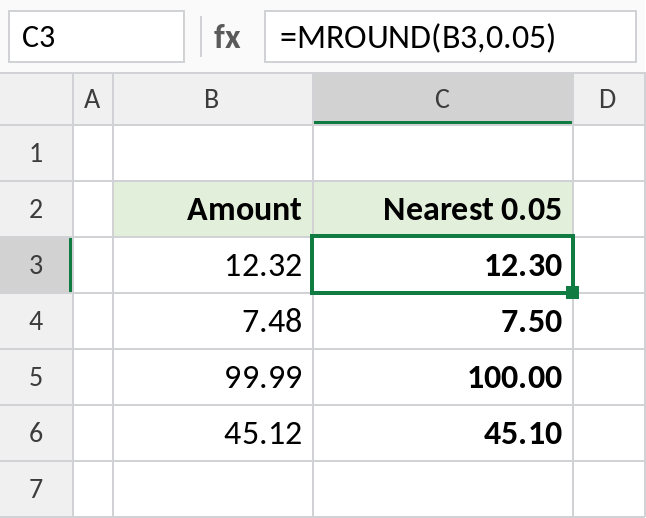
12.32 becomes 12.30 and 99.99 becomes 100.00.
Round to a pack size
Items come in boxes of 12. MROUND goes to the nearest full box, while CEILING.MATH always goes up:
=MROUND(B3,12)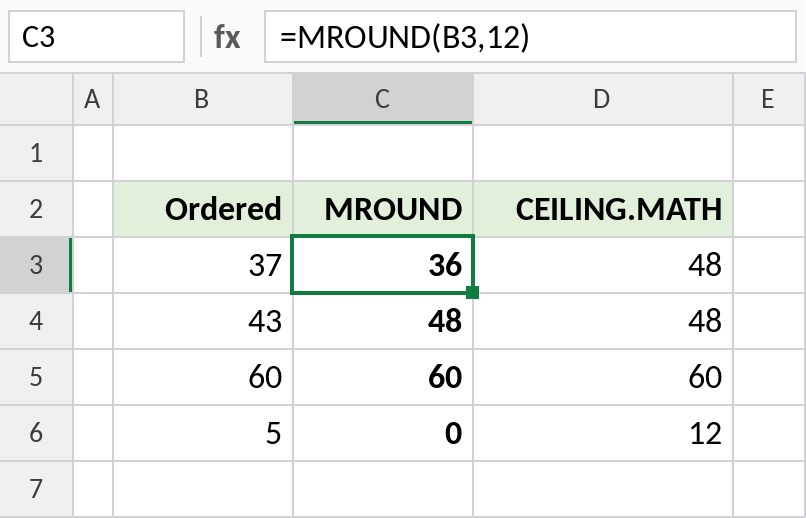
An order of 37 rounds to 36 with MROUND, which would leave the customer one short. CEILING.MATH gives 48. An order of 5 rounds to 0 with MROUND, so pick CEILING.MATH when you can’t round down.
MROUND vs CEILING.MATH vs FLOOR.MATH
Rounding 37 to a multiple of 12:
| Formula | Result | Direction |
|---|---|---|
=MROUND(37,12) |
36 | Nearest |
=CEILING.MATH(37,12) |
48 | Always up |
=FLOOR.MATH(37,12) |
36 | Always down |
For rounding to decimal places rather than multiples, use ROUND.
Notes
numberandmultiplemust have the same sign.MROUND(-7,5)returns#NUM!; useMROUND(-7,-5).- Halfway values round away from zero.
- A multiple of 0 returns 0.
- To round time to the nearest 15 minutes, see the formula page linked below.
Common errors
| Problem | Cause | Fix |
|---|---|---|
#NUM! |
number and multiple have different signs |
Make both positive or both negative |
| Rounded down when you needed up | MROUND goes to the nearest multiple | Use CEILING.MATH |
#VALUE! |
A text value | Convert it to a number |
Practice file
All three examples plus the rounding comparison in a cheat sheet.