The Excel RANDBETWEEN function returns a random whole number between two limits. It’s perfect for dice, test data and quick simulations.
bottom |
The smallest number it can return. |
|---|---|
top |
The largest number it can return. |
Table of Contents
Basic example
To roll a dice, ask for a random number from 1 to 6:
=RANDBETWEEN(1,6)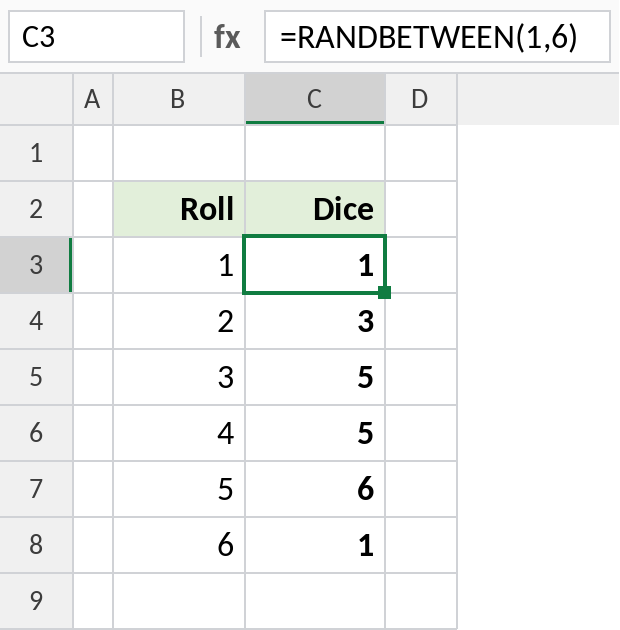
Each cell gets a random number from 1 to 6, including both limits. Your numbers will differ, and they change every time the sheet recalculates.
Random dates
Dates are numbers, so you can use them as the limits. Format the results as dates:
=RANDBETWEEN(DATE(2026,1,1),DATE(2026,12,31))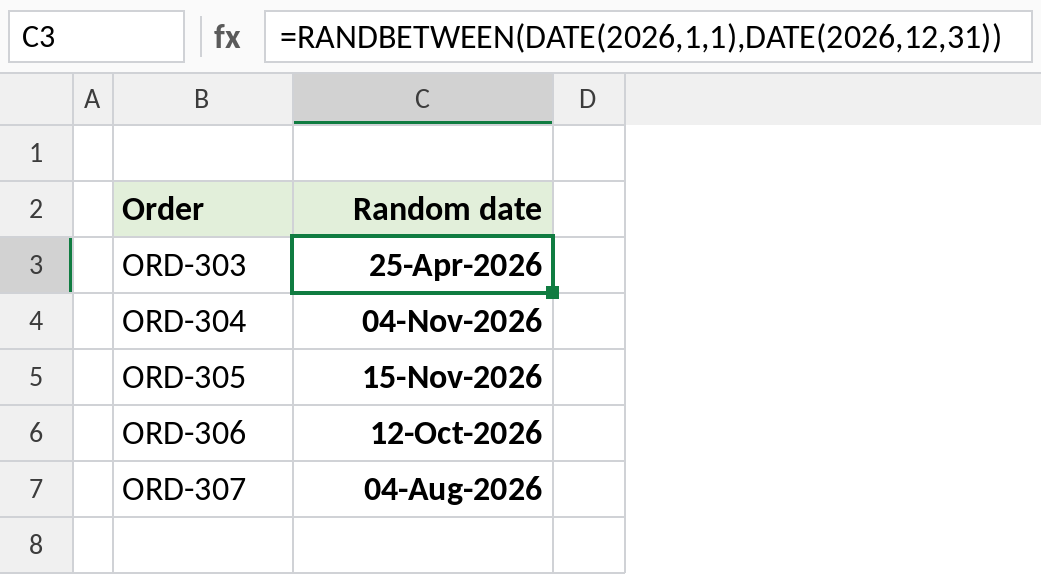
Each order gets a random 2026 date. This is handy for building practice data for date formulas and PivotTables.
Test data that stays put
Fill a block with random marks to create a practice data set. Then freeze them so they stop changing:
=RANDBETWEEN(35,100)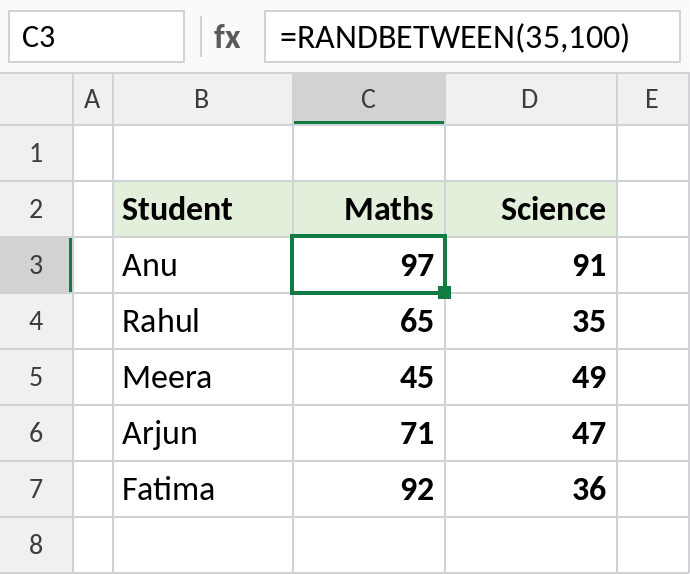
Select the cells, copy, then Paste Special → Values (Ctrl+Alt+V, V). The formulas become fixed numbers you can work with.
Random number formulas
| Formula | Returns |
|---|---|
=RANDBETWEEN(1,100) |
Whole number 1 to 100 |
=RAND() |
Decimal from 0 up to, but not including, 1 |
=RANDBETWEEN(1,100)/100 |
Two-decimal number 0.01 to 1 |
=RANDARRAY(5,1,1,100,TRUE) |
5 random whole numbers at once (365) |
Notes
- RANDBETWEEN recalculates every time anything in the workbook changes, and when you press F9.
- Both limits are included:
RANDBETWEEN(1,6)can return 1 and 6. - Numbers can repeat. For random numbers without repeats, see the random sample formula page.
- To keep the values, paste them as values.
Common errors
| Problem | Cause | Fix |
|---|---|---|
| Numbers keep changing | RANDBETWEEN is volatile | Paste Special → Values to freeze them |
#NUM! |
bottom is larger than top | Swap the limits |
| Decimals expected | RANDBETWEEN only returns whole numbers | Divide the result, or use RAND |
Practice file
All three examples. Press F9 to see new random values.