The Excel SEQUENCE function generates a list of numbers: down a column, across a row, or as a grid. Combine it with dates and text to build lists that would otherwise take a lot of typing.
rows |
How many rows of numbers. |
|---|---|
columns optional |
How many columns. Default is 1. |
start optional |
The first number. Default is 1. |
step optional |
How much each number increases by. Default is 1. |
Table of Contents
Basic example
Give SEQUENCE a number of rows and it counts from 1:
=SEQUENCE(5)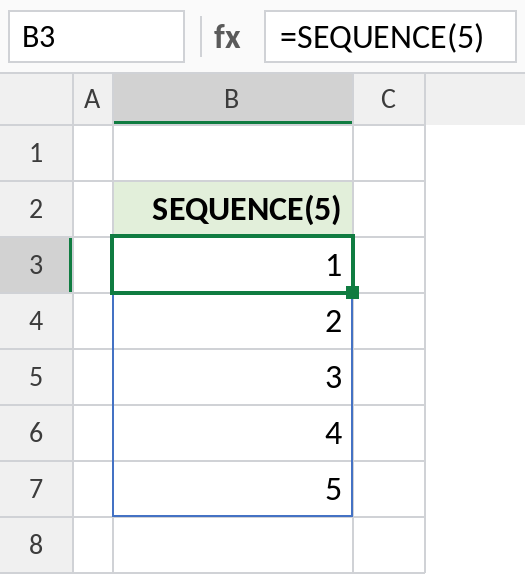
One formula in B3 fills 1 to 5 down the column. Change 5 to 100 and you get 100 rows.
A grid with a start and step
Add columns, a start and a step. This builds 4 rows by 3 columns, starting at 10 and going up by 10:
=SEQUENCE(4,3,10,10)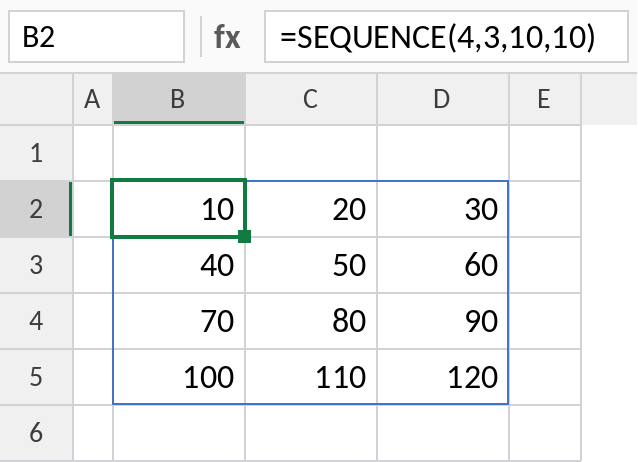
The numbers fill across each row first: 10, 20, 30, then 40, 50, 60, up to 120.
A list of dates
Dates are numbers, so a date can be the start. This lists 7 days from the date in B3:
=SEQUENCE(7,1,B3)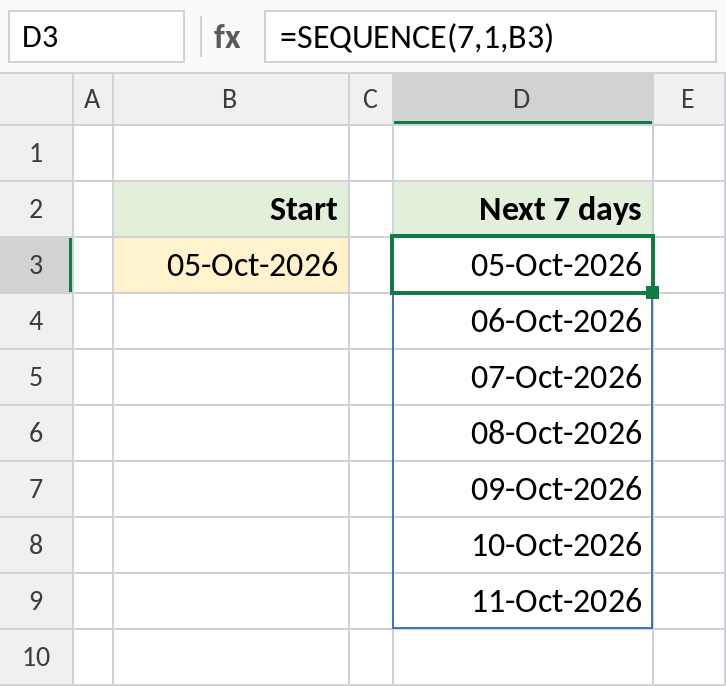
The list runs from 05-Oct-2026 to 11-Oct-2026. Format the spill as dates. Use a step of 7 to get one date per week.
Month names
SEQUENCE(12) gives the month numbers 1 to 12. DATE turns them into dates, and TEXT into names:
=TEXT(DATE(2026,SEQUENCE(12),1),"mmm")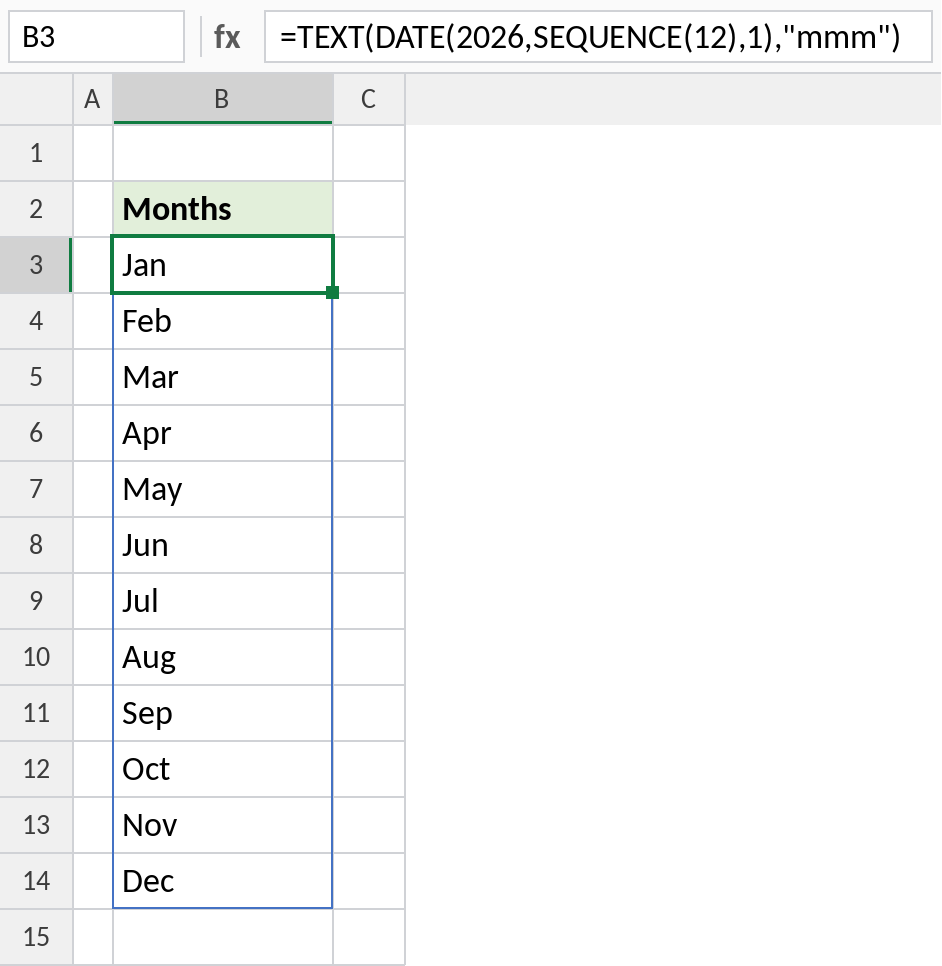
One formula lists Jan to Dec. Use "mmmm" for full names.
SEQUENCE patterns
| Formula | Returns |
|---|---|
=SEQUENCE(1,5) |
1 to 5 across a row |
=SEQUENCE(5,1,10,-2) |
10, 8, 6, 4, 2 |
=SEQUENCE(10,1,0,0.1) |
0, 0.1 … 0.9 |
=SEQUENCE(ROWS(B3:B20)) |
One number per row of a range |
Notes
- SEQUENCE fills rows first, then columns.
- The step can be negative to count down, or a decimal.
- The result spills, so keep the cells it needs empty.
- Not available in Excel 2019 or earlier. Use ROW() or fill handles there.
Common errors
| Problem | Cause | Fix |
|---|---|---|
#SPILL! |
Cells in the spill range aren’t empty | Clear them |
#VALUE! |
rows or columns is 0 or negative | Use 1 or more |
#NAME? |
Excel 2019 or earlier | Drag the fill handle instead |
Practice file
All four examples with working formulas (Excel 2021 or 365).