To add up values only where another cell isn’t blank, such as the invoices that have a payment date, use SUMIF with the criteria "<>", which means “not empty”.
ProblemSum values where another column is filled in
Functions usedSUMIF, SUMIFS, COUNTIF
Works inAll Excel versions
Sum where a cell is not blank
Only invoices with a date in *Paid on* have been paid. Sum their amounts:
=SUMIF(C3:C7,"<>",D3:D7)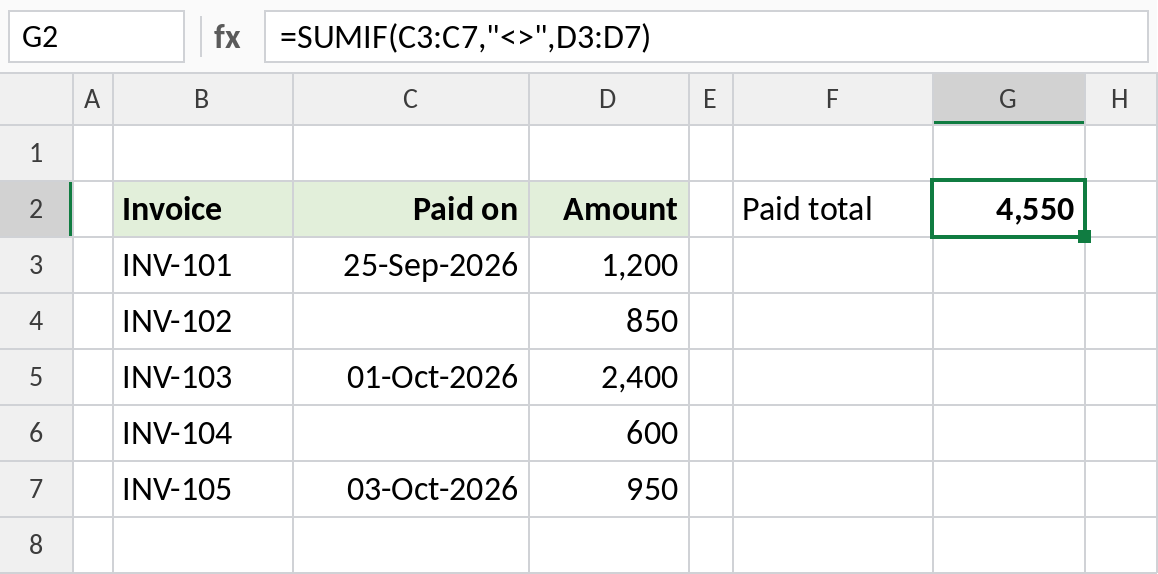
Three invoices have a payment date, totalling 4,550.
How the formula works
"<>"means “not equal to nothing”, in other words, not empty.- SUMIF checks each cell in C3:C7 against that test.
- Where the test passes, it adds the matching amount from D3:D7.
Sum where a cell is blank
Use empty quotes for the opposite: the amounts still unpaid:
=SUMIF(C3:C7,"",D3:D7)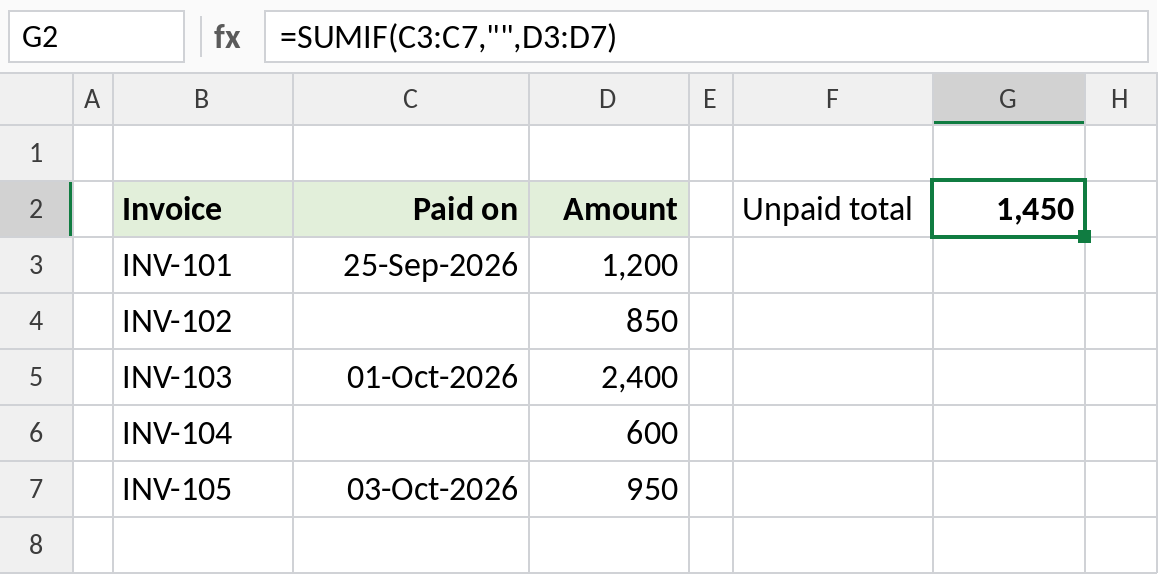
INV-102 and INV-104 have no payment date: 1,450 outstanding.
Count the non-blank cells
The same criteria work with COUNTIF to count how many invoices are paid:
=COUNTIF(C3:C7,"<>")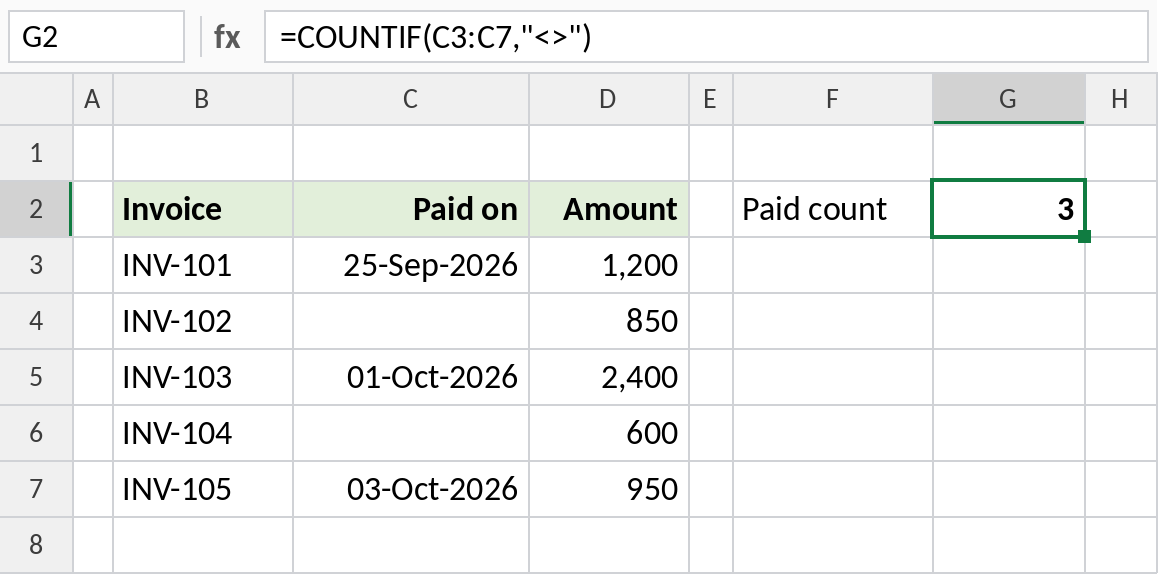
3 invoices are paid. COUNTA also counts non-blank cells.
Blank and not-blank criteria
| Criteria | Matches |
|---|---|
"<>" |
Cells that aren’t empty |
"" |
Empty cells |
"=" |
Truly empty cells only, not ones with a formula returning “” |
SUMIFS with two "<>" |
Rows where two columns are both filled |
For several conditions, use SUMIFS: =SUMIFS(D3:D7,C3:C7,"<>",B3:B7,"INV-1*").
Notes
- A cell with a space looks blank but isn’t. Clean the column with TRIM if results look wrong.
- A formula that returns
""counts as blank for""but not for"=". - These criteria work the same way in SUMIFS, COUNTIF, COUNTIFS and AVERAGEIF.
Common errors
| Problem | Cause | Fix |
|---|---|---|
| A blank-looking cell is counted | It contains a space or a formula | Clean the data, or test with LEN |
| Result is 0 | Sum range and criteria range swapped | SUMIF(criteria_range, criteria, sum_range) |
Practice file
All three examples in one workbook.