The Excel FIND function returns the position of one piece of text inside another, counting from the left. It’s case-sensitive.
find_text |
The text to look for. |
|---|---|
within_text |
The text or cell to search in. |
start_num optional |
The character to start searching from. Default is 1. |
Basic example
To find where the first dash is in each order code:
=FIND("-",B3) 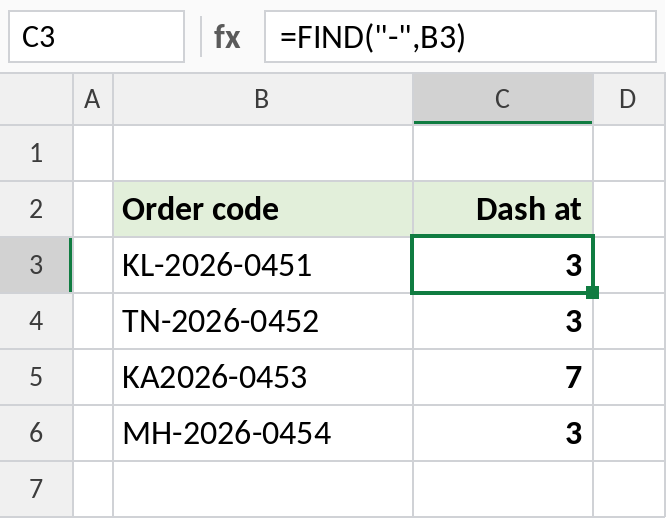
In KL-2026-0451 the dash is the 3rd character. KA2026-0453 is missing the first dash, so FIND returns 7. That’s how FIND can spot inconsistent data.
FIND is case-sensitive, SEARCH isn't
Searching for a capital E. FIND only matches the exact case, while SEARCH matches either:
=FIND("E",B5) 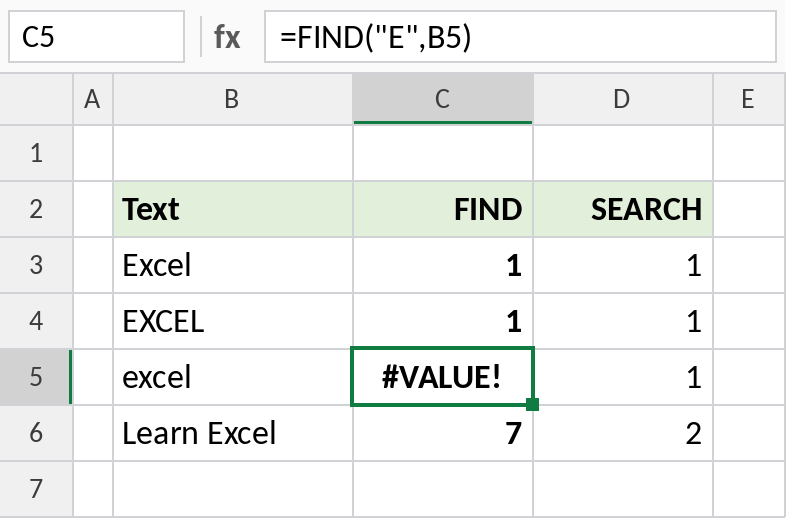
In “excel”, there’s no capital E, so FIND returns #VALUE!. SEARCH finds the lowercase e at position 1. In “Learn Excel”, FIND skips the lowercase e in Learn and finds the capital E at 7.
Check for exact-case text
FIND returns a number when it finds the text and an error when it doesn’t. ISNUMBER turns that into TRUE or FALSE:
=ISNUMBER(FIND("PRO",B4)) 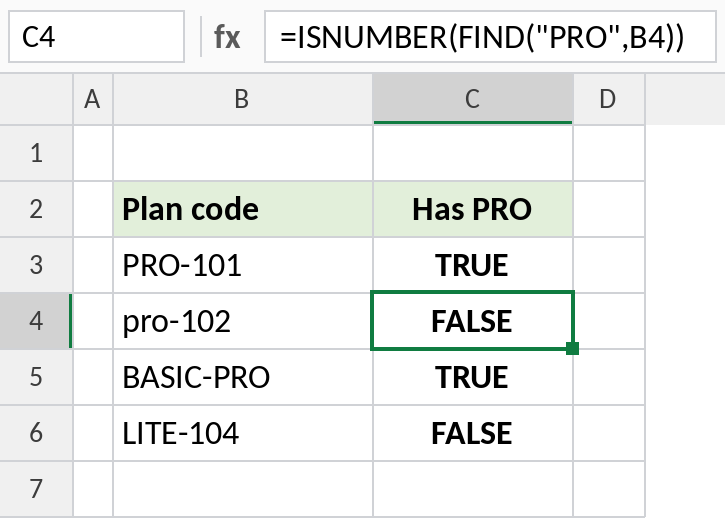
pro-102 is lowercase, so FIND fails and the result is FALSE. Use this when case matters, such as codes. When it doesn’t, use SEARCH.
More FIND formulas
Using the code KL-2026-0451:
| Formula | Result | Does |
|---|---|---|
=FIND("-",B3,FIND("-",B3)+1) |
8 | Position of the second dash |
=FIND("2026",B3) |
4 | Finds a whole word or number |
=FIND("x",B3) |
#VALUE! |
Not found |
=IFERROR(FIND("x",B3),0) |
0 | 0 instead of an error |
Notes
- FIND is case-sensitive and doesn’t allow wildcards. SEARCH is the case-insensitive version and allows them.
- If the text isn’t found, FIND returns
#VALUE!. - FIND is usually combined with LEFT, MID or RIGHT to extract part of a text.
- Use
start_numto find the second or third occurrence.
Common errors
| Problem | Cause | Fix |
|---|---|---|
#VALUE! |
The text wasn’t found, often because of a different case | Check the case, or use SEARCH |
#VALUE! with start_num |
start_num is 0 or longer than the text |
Use a start between 1 and the text length |
| Wrong position | Leading spaces in the text | Use =FIND("-",TRIM(B3)) |
Practice file
All three examples plus extra formulas in a cheat sheet.