The Excel INT function rounds a number down to the nearest whole number. It drops the decimal part of positive numbers.
number |
The number to round down. |
|---|
Table of Contents
Basic example
INT keeps the whole-number part and drops the rest:
=INT(B3)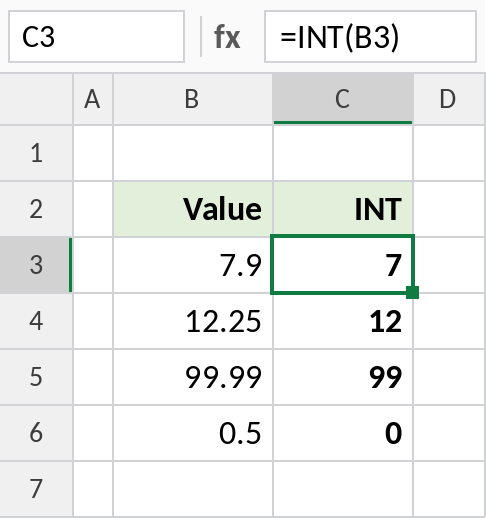
7.9 becomes 7, not 8. INT never rounds up. Use ROUND if you want the nearest whole number.
Split date and time
Excel stores a date and time as one number: the whole part is the date, and the decimal part is the time. INT keeps just the date:
=INT(B3)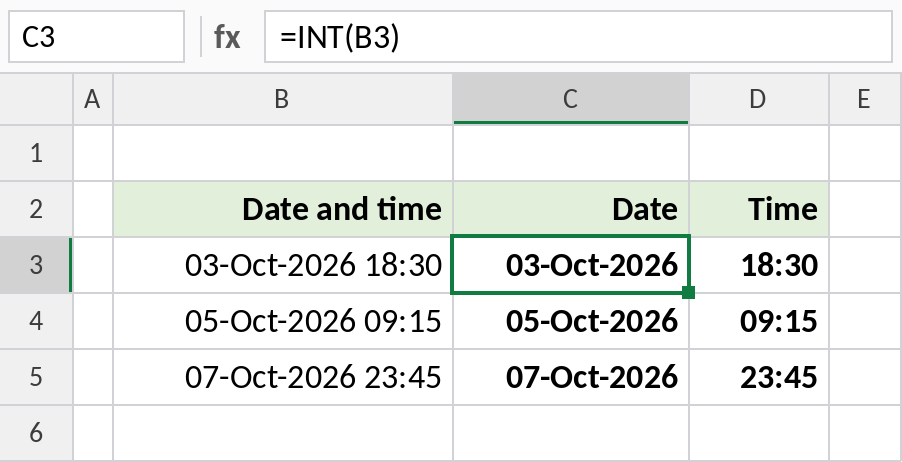
03-Oct-2026 18:30 becomes 03-Oct-2026. Subtracting that from the original, =B3-INT(B3), leaves the time: 18:30. Format column C as a date and column D as time.
Negative numbers: INT vs TRUNC
INT rounds down, so negative numbers become more negative. TRUNC just cuts off the decimals:
=INT(B4)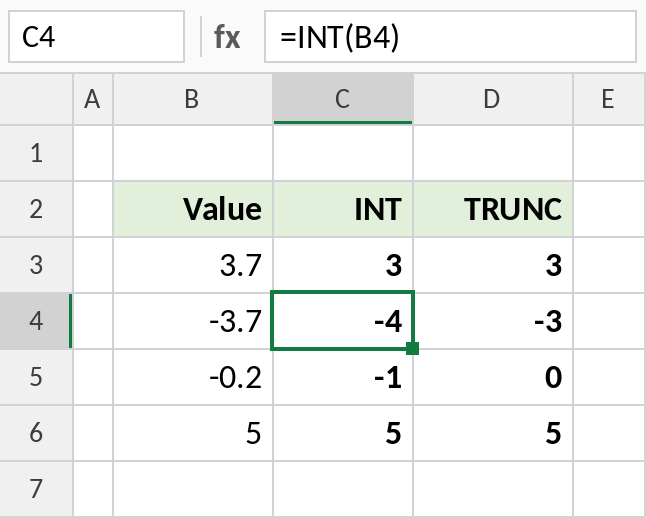
-3.7 becomes -4 with INT but -3 with TRUNC. Even -0.2 becomes -1 with INT. For positive numbers, the two are identical.
INT and its relatives
| Formula | Result |
|---|---|
=INT(7.9) |
7 |
=TRUNC(7.9) |
7 |
=ROUND(7.9,0) |
8 |
=ROUNDDOWN(-7.9,0) |
-7 |
=INT(-7.9) |
-8 |
=7.9-INT(7.9) |
0.9 (the decimal part) |
Notes
- INT always rounds down, toward negative infinity.
=B3-INT(B3)gives the decimal part of a positive number, which is the time part of a date-time.- To get whole years, hours or units from a division,
=INT(total/size)works for positive numbers. - For negative numbers where you just want to drop the decimals, use TRUNC.
Common errors
| Problem | Cause | Fix |
|---|---|---|
| Negative result one lower than expected | INT rounds down, not toward zero | Use TRUNC |
| Date shows as a number | The INT result cell is formatted as General | Format it as a date |
#VALUE! |
Text instead of a number | Convert the text to a number |
Practice file
All three examples plus INT and its relatives in a cheat sheet.