To find the names, codes or items that appear in both lists, test each value with COUNTIF, pull out the matches with FILTER, or highlight them with conditional formatting. Power Query’s inner join does the same for large tables.
Table of Contents
1. Mark each value: COUNTIF
COUNTIF counts how many times each name from the 2025 list appears in the 2026 list. Any count above zero means it’s in both:
=IF(COUNTIF($D$3:$D$9,B3),"Yes","No")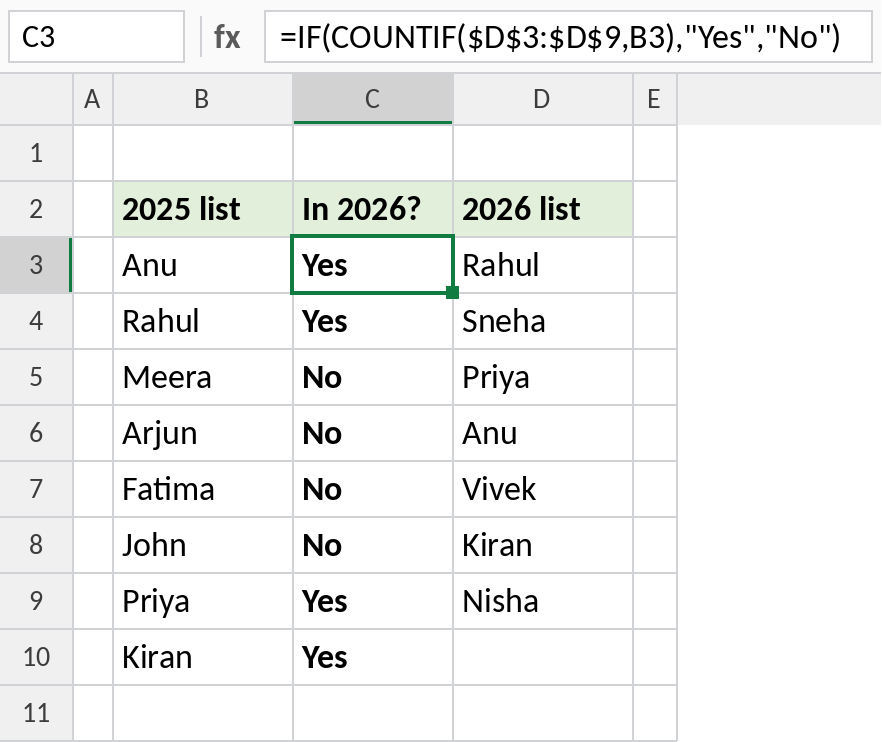
4 of the 8 names are in both lists: Anu, Rahul, Priya, Kiran. MATCH works too: =ISNUMBER(MATCH(B3,$D$3:$D$9,0)) returns TRUE or FALSE.
How the formula works
COUNTIF($D$3:$D$9,B3)returns how many times B3 appears in the other list: 0 means no match.- Inside IF or FILTER, any number above 0 counts as TRUE.
- Given the whole range
B3:B10, COUNTIF returns one count per name, so FILTER can test all of them at once.
2. List the common values: FILTER (Excel 365)
FILTER keeps only the names whose count is above zero, giving a clean list of the matches:
=FILTER(B3:B10,COUNTIF(D3:D9,B3:B10))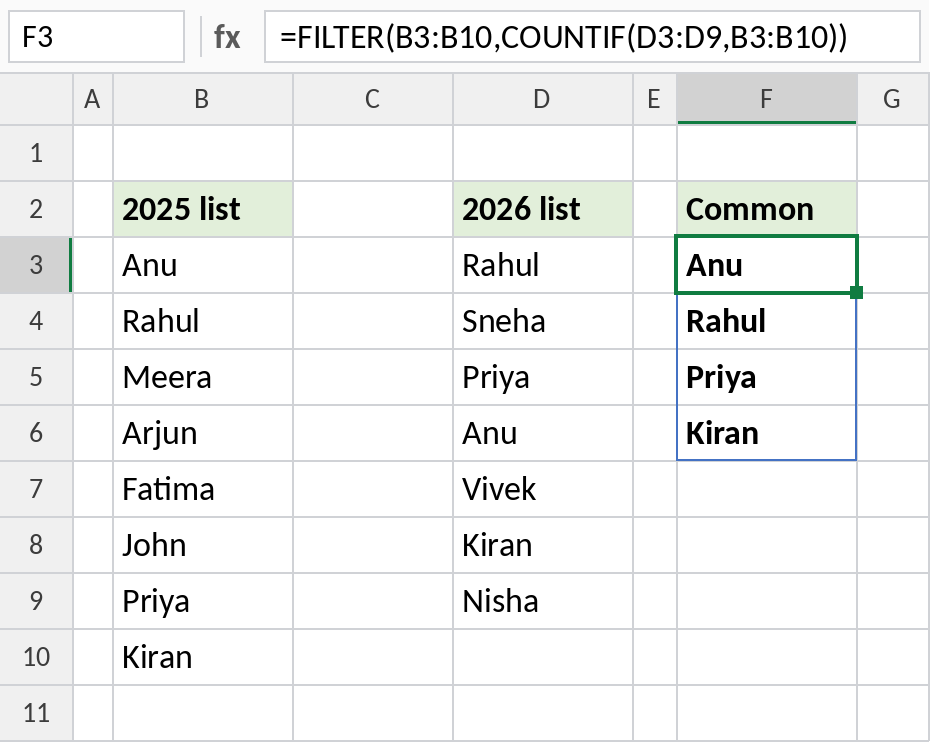
Swap the lists round to keep the 2026 order. To find names that are missing instead, change the condition: =FILTER(B3:B10,COUNTIF(D3:D9,B3:B10)=0).
3. Highlight common values
Select B3:B10, go to Home → Conditional Formatting → New Rule → Use a formula, and enter:
=COUNTIF($D$3:$D$9,B3)>0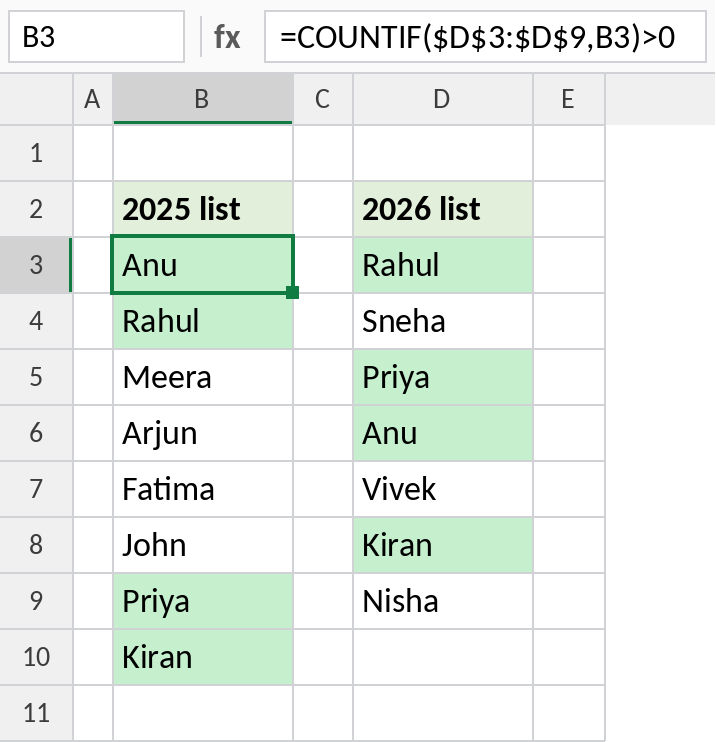
Add the same rule to the second list with the ranges swapped, so matches are green in both lists.
4. Power Query: inner join
For big tables, or lists you update every month:
| Step | Do this |
|---|---|
| 1 | Turn both lists into Tables (Ctrl + T) and load each with Data → From Table/Range → Close & Load To → Only Create Connection. |
| 2 | Go to Data → Get Data → Combine Queries → Merge. |
| 3 | Pick both tables, click the name column in each, choose Inner as the join kind and click OK. |
| 4 | Remove the extra column and Close & Load. Refresh next time the lists change. |
Learn more in the Power Query Editor guide.
Notes
- COUNTIF ignores case, so ANU matches Anu. For an exact-case match, use
=SUMPRODUCT(--EXACT(B3,$D$3:$D$9))>0. - Extra spaces stop matches. Clean both lists with TRIM first.
- For a quick one-off comparison without formulas, paste both lists into the free Compare Two Lists tool.
Common errors
| Problem | Cause | Fix |
|---|---|---|
| No matches found | Extra spaces or numbers stored as text | Use TRIM; convert text numbers with VALUE |
#CALC! |
FILTER found no common values | Add a third argument: "None" |
| Highlighting shifts | Missing $ in the rule |
Use $D$3:$D$9 for the other list |
Practice file
Two name lists with the COUNTIF, FILTER and highlighting methods.