The Excel ROUNDUP function always rounds a number up, away from zero, to the number of digits you choose. 2.1 becomes 3, never 2.
number |
The number to round up. |
|---|---|
num_digits |
Decimal places to keep. 0 for a whole number, negative for tens, hundreds and so on. |
Table of Contents
Basic example
When you pack items 24 to a box, even a few leftover items need one more box. ROUNDUP with 0 always goes to the next whole number:
=ROUNDUP(B3/C3,0) 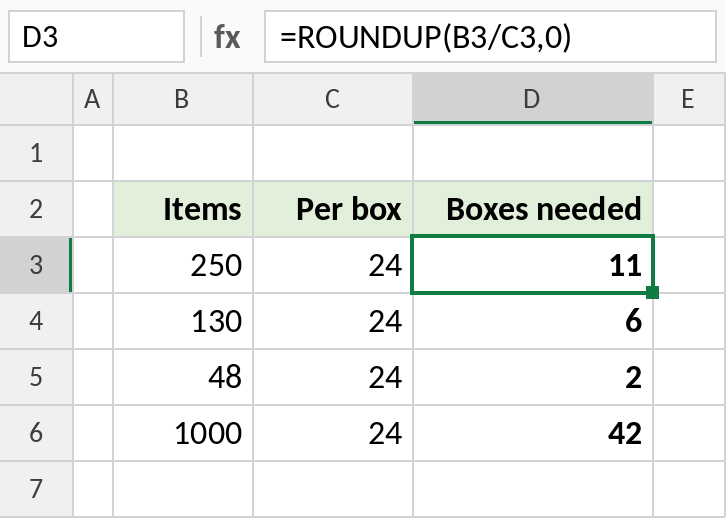
250 ÷ 24 = 10.42, and ROUNDUP returns 11 boxes. ROUND would give 10, leaving 10 items without a box. 48 ÷ 24 is exactly 2, so it stays 2.
How num_digits works
The same number, 1234.5612, rounded up with different values of num_digits:
=ROUNDUP($E$3,B3) 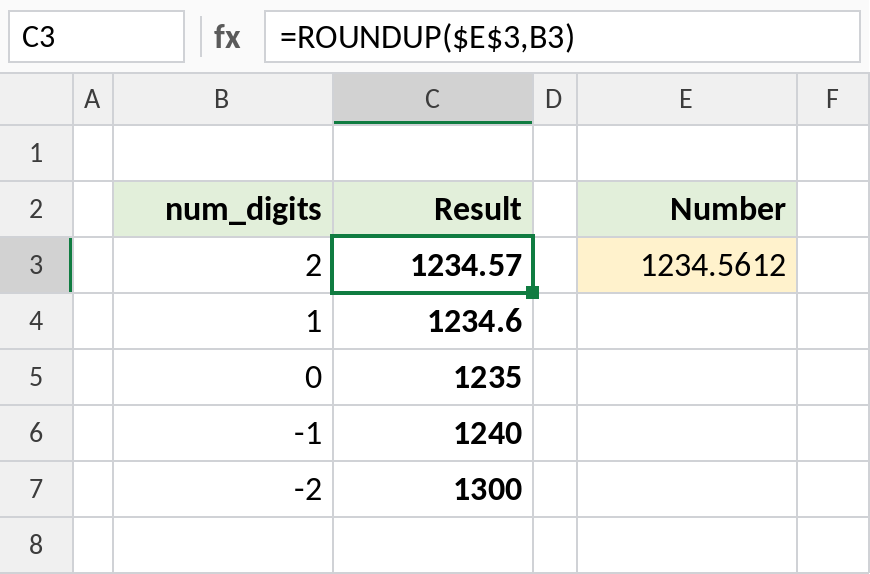
With 2 it becomes 1234.57, even though the next digit is only 1. With -1 it rounds up to the next ten, 1240, and with -2 to the next hundred, 1300.
Negative numbers
ROUNDUP moves away from zero. For negative numbers, that means more negative. CEILING.MATH always goes toward positive infinity instead:
=ROUNDUP(B4,0) 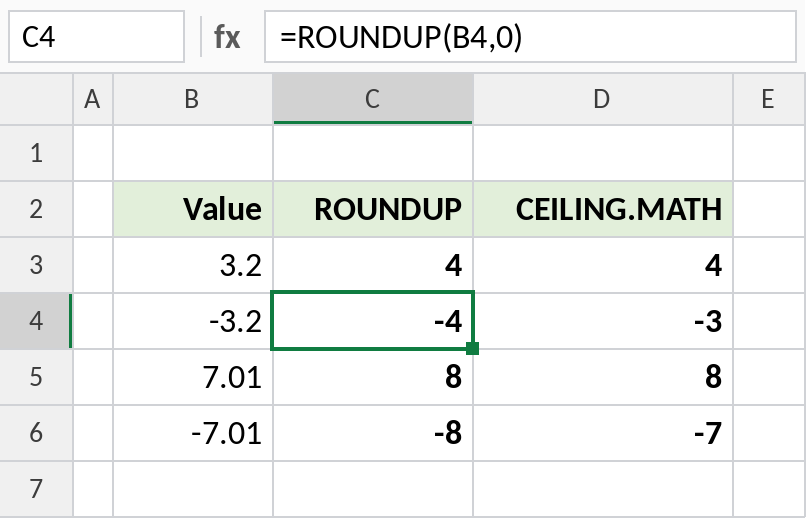
-3.2 becomes -4 with ROUNDUP, but -3 with CEILING.MATH. For positive numbers, both give the same result.
Rounding up: which function
| Formula | Result | Does |
|---|---|---|
=ROUNDUP(7.21,1) |
7.3 | Up to 1 decimal |
=CEILING.MATH(7.21,0.5) |
7.5 | Up to the next multiple of 0.5 |
=CEILING.MATH(123,10) |
130 | Up to the next 10 |
=ROUNDUP(-7.21,0) |
-8 | Away from zero |
Notes
- ROUNDUP rounds up even when the next digit is 0 followed by anything: 7.01 becomes 8 with
num_digits0. - A number that’s already exact doesn’t change:
ROUNDUP(2,0)is 2. - To round up to a multiple such as 5 or 0.25, use CEILING.MATH.
- Use ROUNDUP for things that can’t be split: boxes, trips, people, pages.
Common errors
| Problem | Cause | Fix |
|---|---|---|
| Result is one too high | The division isn’t exact because of hidden decimals | Round the inputs first, or check them with more decimals shown |
| Negative numbers go the wrong way | ROUNDUP moves away from zero | Use CEILING.MATH for toward-positive rounding |
#VALUE! |
Text instead of a number | Convert the text to a number |
Practice file
All three examples plus the rounding-up formulas in a cheat sheet.