The Excel WORKDAY function returns the date a set number of working days after a start date. It skips weekends and any holidays you list.
PurposeDate after N working days
ReturnsA date
Available inAll Excel versions, Excel for the web, Google Sheets
start_date |
The starting date. It isn’t counted. |
|---|---|
days |
How many working days to add. Negative goes back. |
holidays optional |
A range of dates to skip as well. |
Table of Contents
Basic example
To find when each order will be delivered after its working-day lead time:
=WORKDAY(C3,D3)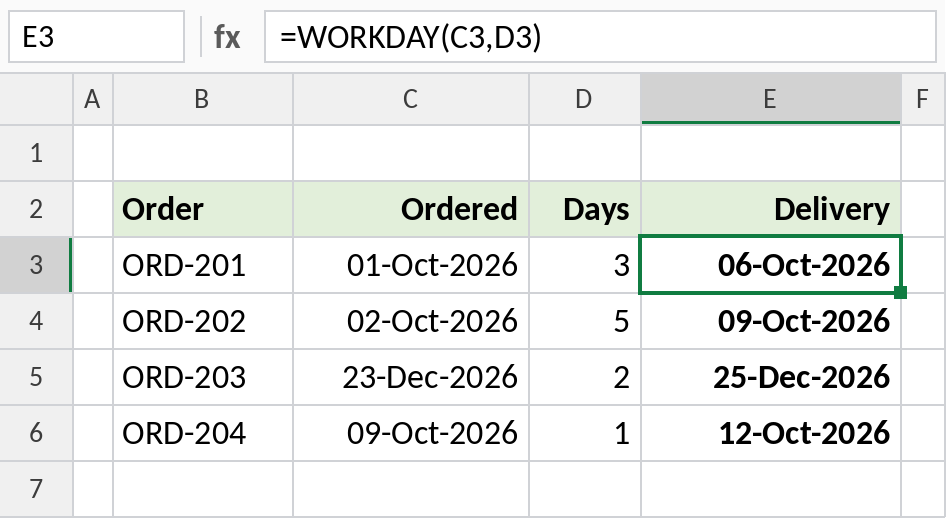
An order on Thursday 01-Oct with 3 working days arrives on 06-Oct-2026, skipping the weekend.
Skip holidays
Add a holiday list as the third argument:
=WORKDAY(C3,D3,$G$3:$G$6)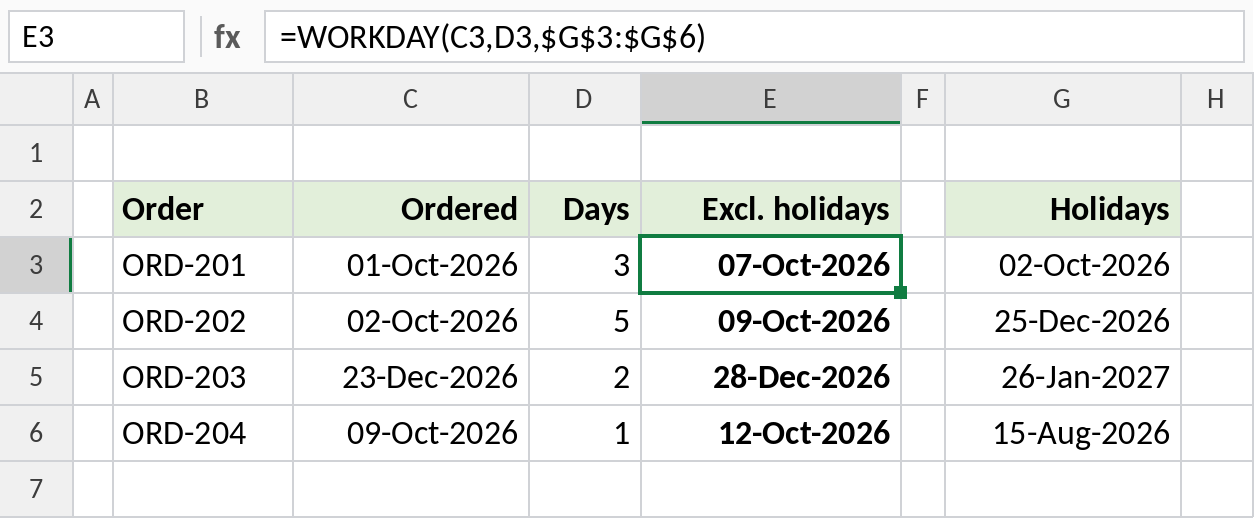
Gandhi Jayanti on 02-Oct is skipped, so the first order now arrives on 07-Oct-2026. The 23-Dec order skips Christmas Day.
A six-day working week
WORKDAY.INTL takes a weekend code. 11 means only Sunday is off:
=WORKDAY.INTL(C3,D3,11)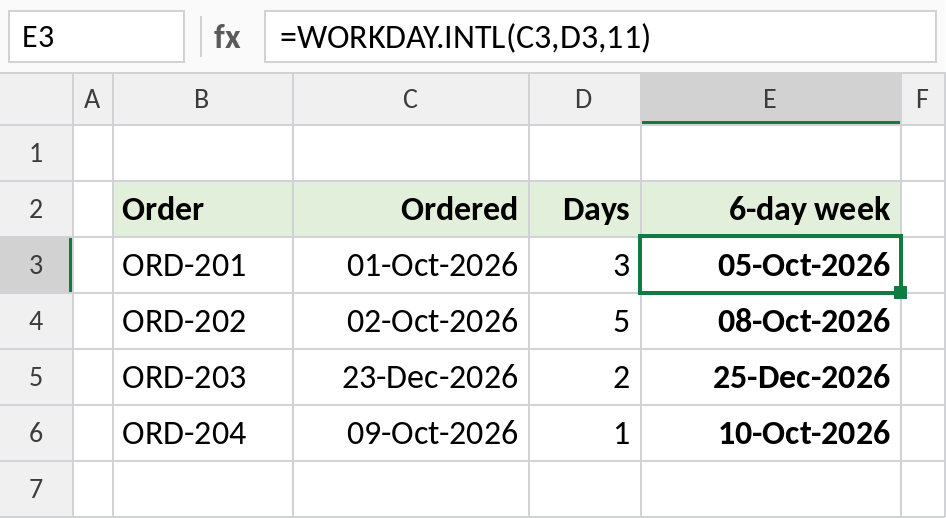
Counting Saturdays as working days, the first order arrives on 05-Oct-2026.
Handy WORKDAY formulas
| Formula | Returns |
|---|---|
=WORKDAY(TODAY(),10) |
10 working days from today |
=WORKDAY(B3,-5) |
5 working days before B3 |
=WORKDAY(B3-1,1) |
B3 itself if it’s a working day, otherwise the next one |
=WORKDAY(EOMONTH(B3,-1),1) |
First working day of the month |
To count working days between two dates, use NETWORKDAYS.
Notes
- The start date itself is never counted.
- WORKDAY returns a date serial number. Format the cell as a date.
- Use a negative number of days to count backwards, for example to find a start date from a deadline.
- The weekend codes for WORKDAY.INTL are the same as for NETWORKDAYS.INTL.
Common errors
| Problem | Cause | Fix |
|---|---|---|
| Shows a number | The cell isn’t formatted as a date | Format it as a date |
| Holidays not skipped | Holidays stored as text | Use real dates |
#NUM! |
A weekend code that doesn’t exist | Use the codes listed on the NETWORKDAYS page |
Practice file
All three examples plus handy formulas in a cheat sheet.