The Excel NETWORKDAYS function counts the working days between two dates. It skips Saturdays and Sundays, and any holidays you list.
start_date |
The first date. |
|---|---|
end_date |
The last date. Both dates are included in the count. |
holidays optional |
A range of dates to skip as well. |
Table of Contents
Basic example
To count the working days in each project, give NETWORKDAYS the start and end dates:
=NETWORKDAYS(C3,D3)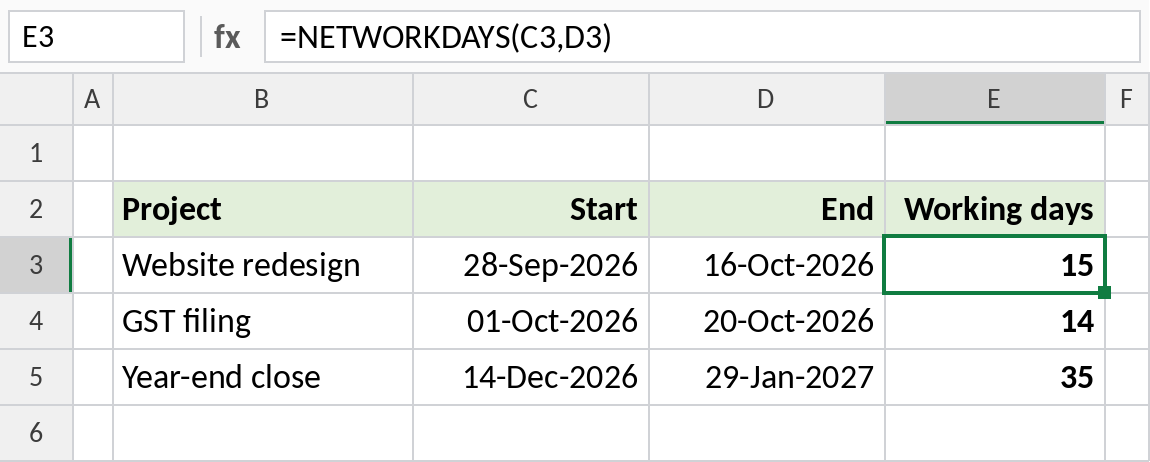
28-Sep-2026 to 16-Oct-2026 spans 3 weeks, so there are 15 working days. Both the start and end dates count.
Skip holidays
List holidays in a range and add it as the third argument. Lock it with $ before filling down:
=NETWORKDAYS(C3,D3,$G$3:$G$6)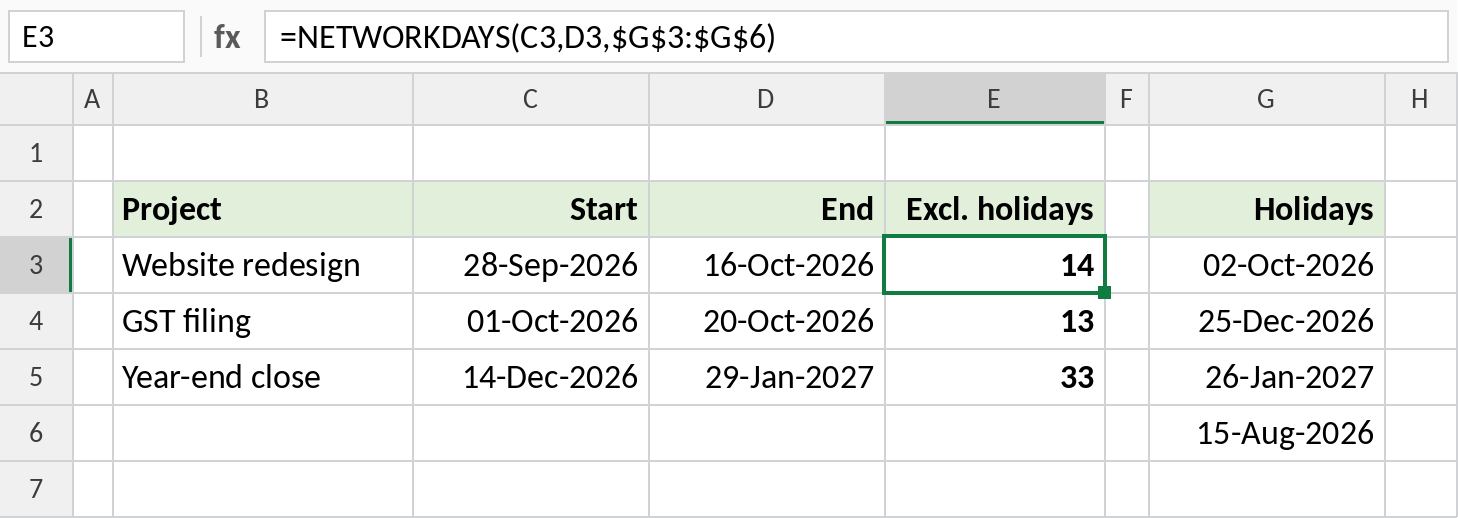
Gandhi Jayanti, on Friday 02-Oct, falls inside the first project, so it drops to 14 days. 15-Aug-2026 is a Saturday, so it doesn’t change anything.
A six-day working week
Many offices work Monday to Saturday. NETWORKDAYS.INTL takes a weekend code, and 11 means Sunday only:
=NETWORKDAYS.INTL(C3,D3,11)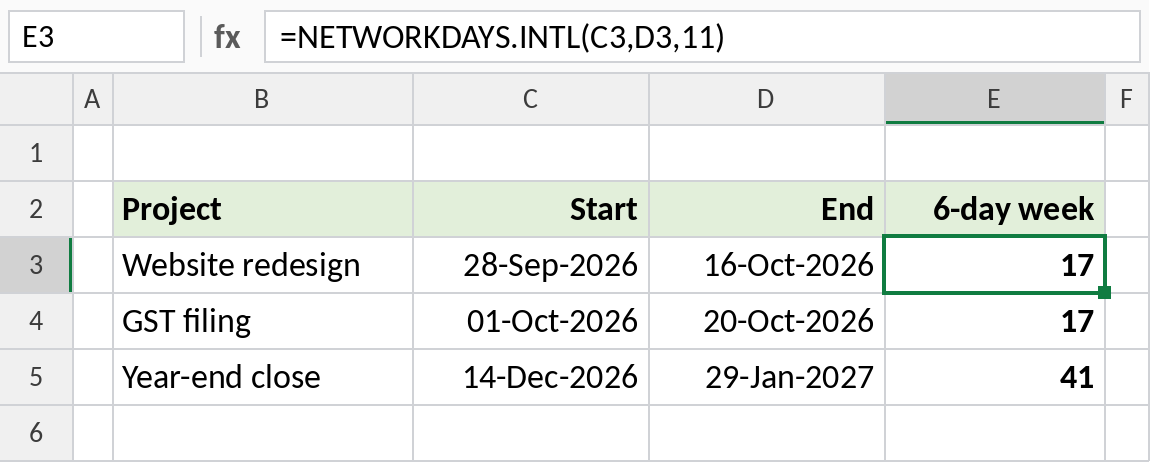
With Saturdays counted as working days, the first project has 17 working days instead of 15.
NETWORKDAYS.INTL weekend codes
| Code | Weekend |
|---|---|
| 1 or omitted | Saturday and Sunday |
| 2 | Sunday and Monday |
| 7 | Friday and Saturday |
| 11 | Sunday only |
| 17 | Saturday only |
| “0000011” | Text pattern Monday→Sunday, 1 = weekend (same as 1) |
Notes
- Both the start and end dates are counted if they’re working days.
- If the end date is before the start date, the result is negative.
- Keep holidays in one range and lock it with
$, so every formula uses the same list. - To find a date a set number of working days ahead, use WORKDAY.
Common errors
| Problem | Cause | Fix |
|---|---|---|
| One day more than expected | Both dates are included | Subtract 1 if you only want the days in between |
| Holidays not skipped | Holidays stored as text, or the range not locked | Use real dates and $G$3:$G$6 |
#VALUE! |
A date is text | Use real dates |
Practice file
All three examples plus weekend codes in a cheat sheet.