To combine a first and last name into one cell, join them with the & operator and a space. For middle names that are sometimes missing, TEXTJOIN skips the blanks for you.
First name, space, last name
Join the two cells with &, and put a space in quotes between them:
=B3&" "&C3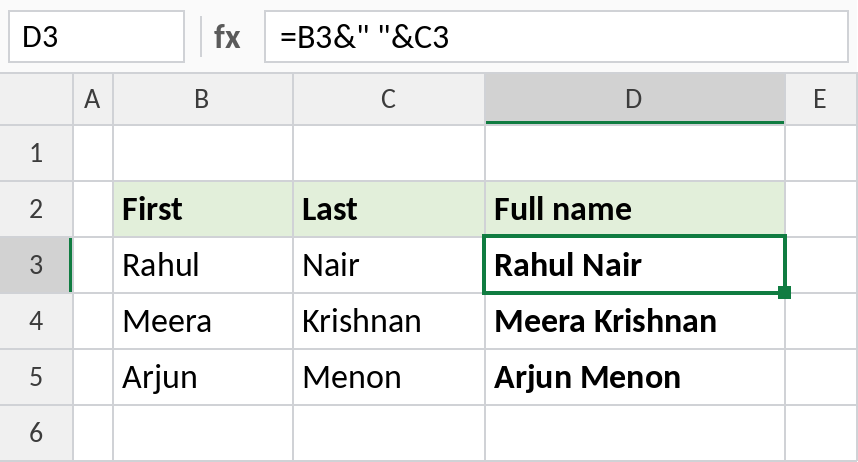
Rahul and Nair become Rahul Nair. =CONCAT(B3," ",C3) gives the same result.
How the formula works
B3is the first name." "adds a space. Anything in quotes is added as text.&joins the pieces in order: first name, space, last name.
With an optional middle name
With &, a blank middle name leaves a double space. TEXTJOIN adds the space only between cells that have something in them:
=TEXTJOIN(" ",TRUE,B3:D3)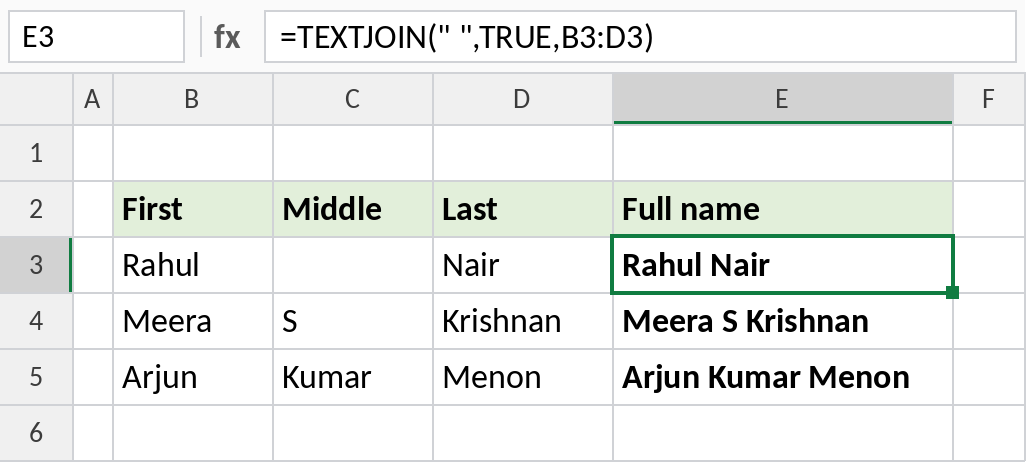
Rahul has no middle name and still gets Rahul Nair, with a single space. Meera becomes Meera S Krishnan.
Last name first, in proper case
For a sorted list, put the last name first. PROPER also fixes names typed in lowercase:
=PROPER(C3&", "&B3)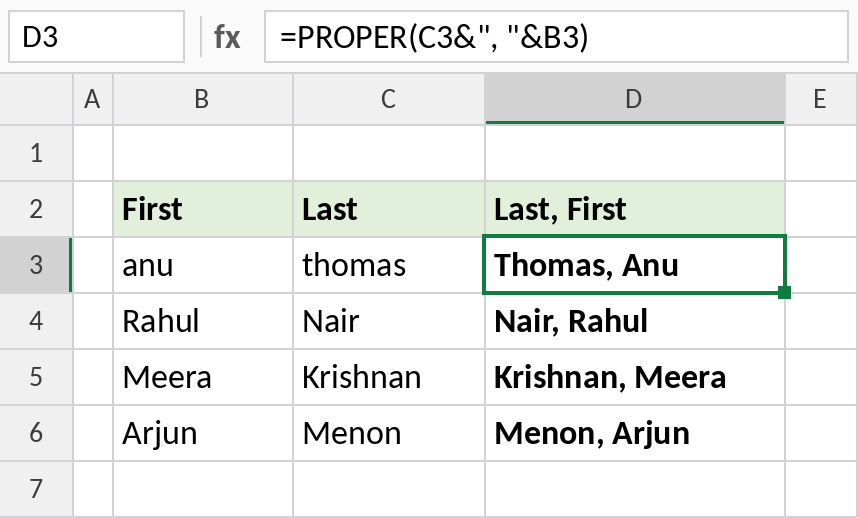
anu thomas becomes Thomas, Anu.
Other ways to combine names
| Method | Example |
|---|---|
| & operator | =B3&" "&C3 |
| CONCAT | =CONCAT(B3," ",C3) |
| CONCATENATE | =CONCATENATE(B3," ",C3) |
| Initial and last name | =LEFT(B3,1)&". "&C3 → R. Nair |
| Flash Fill | Type the first full name, then press Ctrl+E |
Flash Fill is quickest for a one-off job. Formulas update automatically when the names change.
Notes
- The result is text that depends on the original cells. To keep only the combined names, copy and Paste Special → Values.
- Extra spaces in the source cells carry into the result. Wrap the formula in TRIM if needed.
- To split a full name back into parts, use TEXTBEFORE and TEXTAFTER.
Common errors
| Problem | Cause | Fix |
|---|---|---|
| Names run together | No space added | Add " " between the cells |
| Double spaces | Blank middle name with & | Use TEXTJOIN with TRUE |
#NAME? |
TEXTJOIN in Excel 2016 or earlier | Use & instead |
Practice file
All three examples in one workbook.