The Excel CONCATENATE function joins two or more pieces of text into one, such as a first and last name. In newer Excel it has been replaced by CONCAT and TEXTJOIN, but it still works everywhere.
PurposeJoin text
ReturnsText
Available inAll Excel versions, Excel for the web, Google Sheets
text1 |
The first text, number or cell to join. |
|---|---|
text2, ... optional |
More items to join, up to 255. |
Table of Contents
Basic example
To join a first and last name, add a space in quotes between them:
=CONCATENATE(B3," ",C3)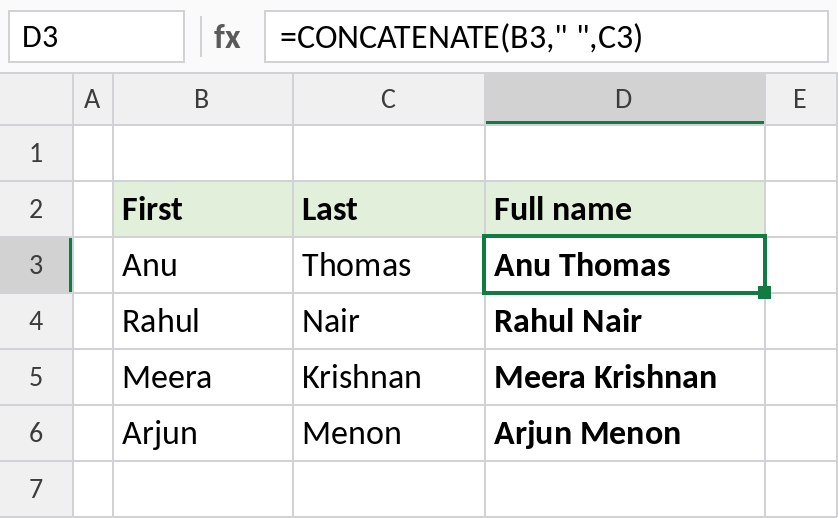
Anu and Thomas become Anu Thomas. Without the " ", you’d get AnuThomas.
Join text with a formatted date
Dates are numbers, so joining one directly shows a serial number like 46296. Format it with TEXT first:
=CONCATENATE(B3," dated ",TEXT(C3,"dd-mmm-yyyy"))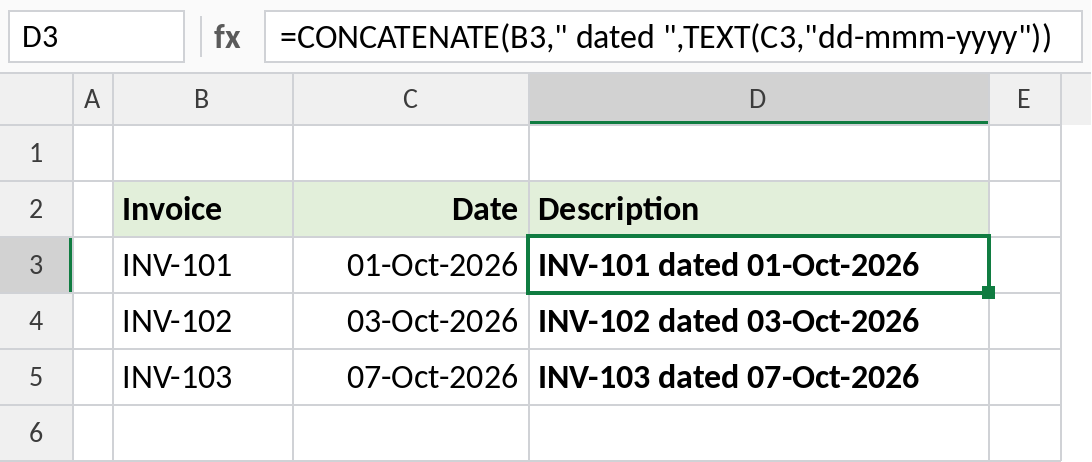
The result reads INV-101 dated 01-Oct-2026.
Build email addresses
Join the names with a dot and the domain, then wrap in LOWER:
=LOWER(CONCATENATE(B3,".",C3,"@xlncad.com"))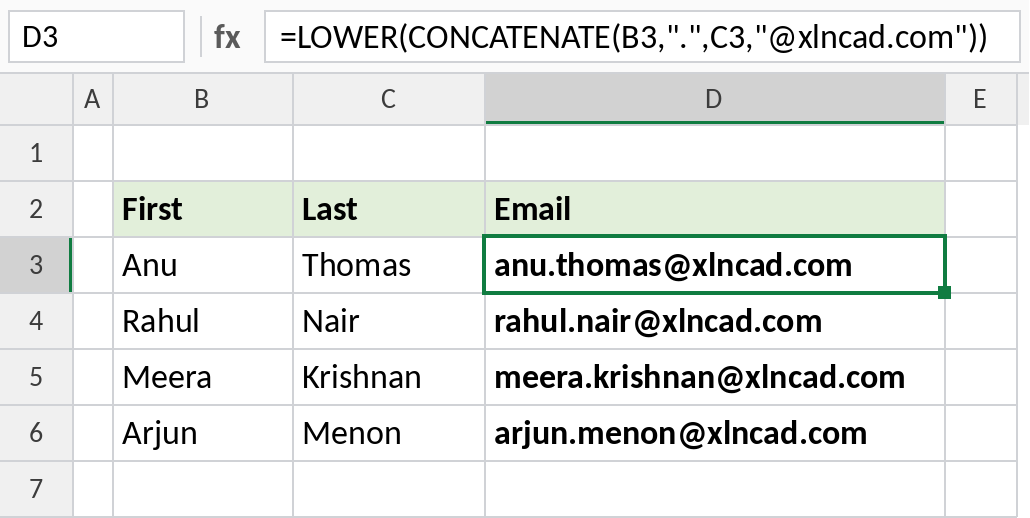
The result is anu.thomas@xlncad.com.
CONCATENATE vs & vs CONCAT vs TEXTJOIN
| Method | Example | Ranges? | Separator? |
|---|---|---|---|
| CONCATENATE | =CONCATENATE(B3," ",C3) |
No | Typed each time |
| & operator | =B3&" "&C3 |
No | Typed each time |
| CONCAT | =CONCAT(B3:D3) |
Yes | No |
| TEXTJOIN | =TEXTJOIN(" ",TRUE,B3:D3) |
Yes | Yes, once |
For a few cells, & is shortest. For a range or a list with separators, use TEXTJOIN.
Notes
- CONCATENATE can’t join a whole range such as B3:D3 in one argument. List each cell, or use CONCAT or TEXTJOIN.
- Spaces and punctuation must be added as text in quotes.
- The result is always text, even when you join numbers.
- CONCATENATE is kept for compatibility. In Excel 2019 and later, CONCAT does the same and accepts ranges.
Common errors
| Problem | Cause | Fix |
|---|---|---|
| Words run together | No space between items | Add " " between them |
| Date shows as a number | Dates are stored as numbers | Wrap the date in TEXT |
#VALUE! |
More than 255 items | Use TEXTJOIN with a range |
Practice file
All three examples plus the comparison in a cheat sheet.