To highlight overdue dates, compare each date with TODAY() in a conditional formatting rule. The colours update by themselves every day.
Highlight past-due dates
Select C3:C7 → Conditional Formatting → New Rule → Use a formula. C3<>"" stops empty cells from being coloured:
=AND(C3<>"",C3<TODAY())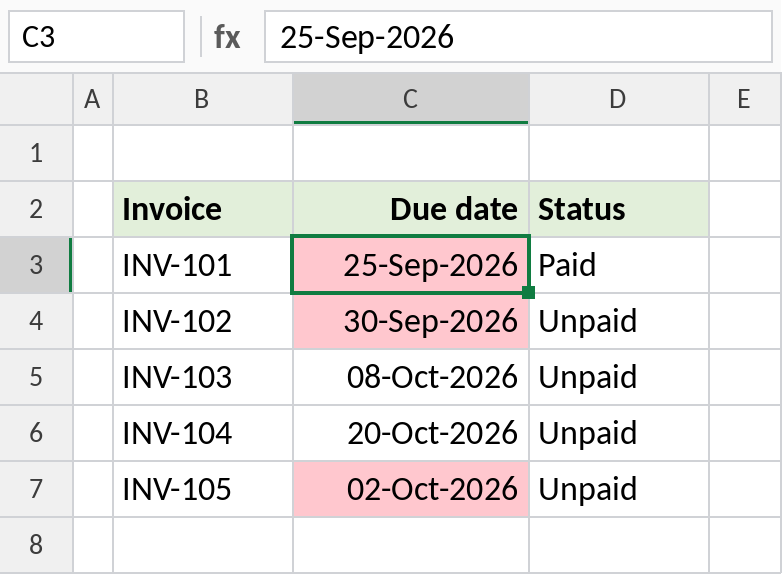
This screenshot was taken on 5 October 2026, so the three dates before then are red. In your file, the colours follow today’s date.
How the formula works
TODAY()returns today’s date, and changes every day.C3<TODAY()is TRUE when the due date is earlier than today.- Conditional formatting colours the cell whenever the rule is TRUE, so the highlights move forward on their own.
Highlight dates due in the next 7 days
For a warning before the due date, colour dates from today up to 7 days ahead:
=AND(C3>=TODAY(),C3<=TODAY()+7)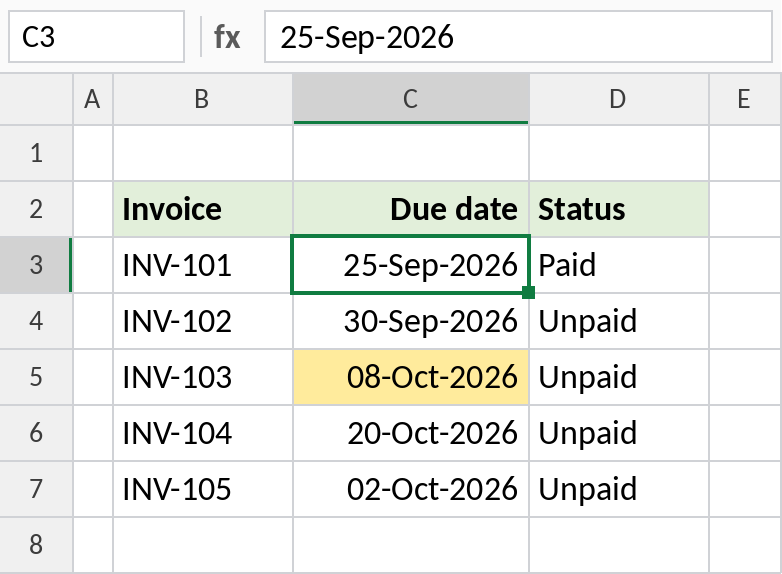
On 5 October, only INV-103, due 8 October, is in the next week.
Overdue and not paid, whole row
A paid invoice isn’t overdue, even if its date has passed. Add the status as a second condition and colour the whole row:
=AND($C3<TODAY(),$D3<>"Paid")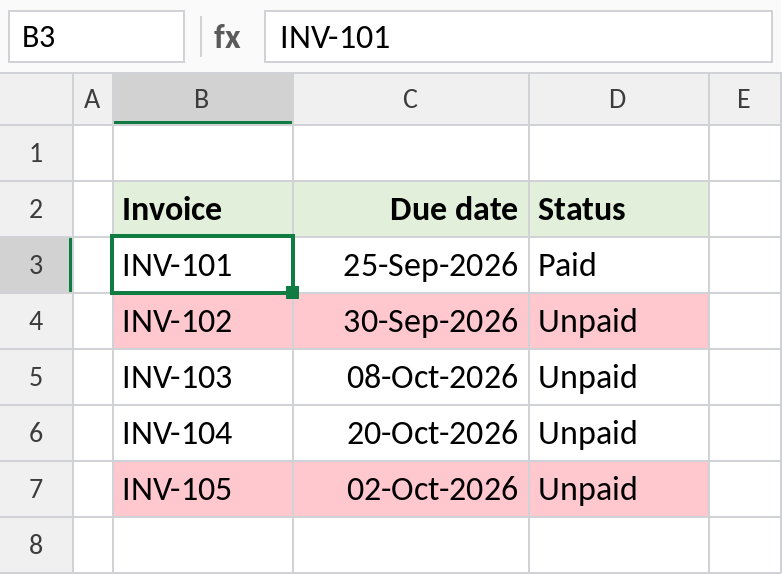
INV-101 is past its date but paid, so it stays plain. INV-102 and INV-105 are overdue and unpaid.
More date rules
| To highlight | Rule |
|---|---|
| Due today | =C3=TODAY() |
| More than 30 days overdue | =TODAY()-C3>30 |
| Due this month | =AND(MONTH(C3)=MONTH(TODAY()),YEAR(C3)=YEAR(TODAY())) |
| Weekend dates | =WEEKDAY(C3,2)>5 |
Use two rules, red for overdue and amber for due soon, for a simple traffic-light view.
Notes
- Dates must be real dates, not text. If a rule doesn’t work, check with
=ISNUMBER(C3). - For whole-row rules, put
$before the column letters:$C3,$D3. - To count overdue invoices too, use
=COUNTIFS(C3:C7,"<"&TODAY(),D3:D7,"<>Paid").
Common errors
| Problem | Cause | Fix |
|---|---|---|
| Empty cells turn red | Blank cells count as a very old date | Add C3<>"" to the rule |
| Nothing changes | Dates stored as text | Convert them with DATEVALUE or Text to Columns |
| Only one column of the row is coloured | No $ before the column letter | Use $C3 |
Practice file
All three rules, using TODAY(), so the colours follow the date you open the file.