To add GST to a price, multiply by 1 plus the rate. To remove GST from a price that already includes it, divide by 1 plus the rate. These formulas work for any GST rate, and split easily into CGST and SGST.
Add GST to a price (GST exclusive)
The GST amount is the price times the rate. The total is the price times 1 plus the rate:
=C3*(1+D3)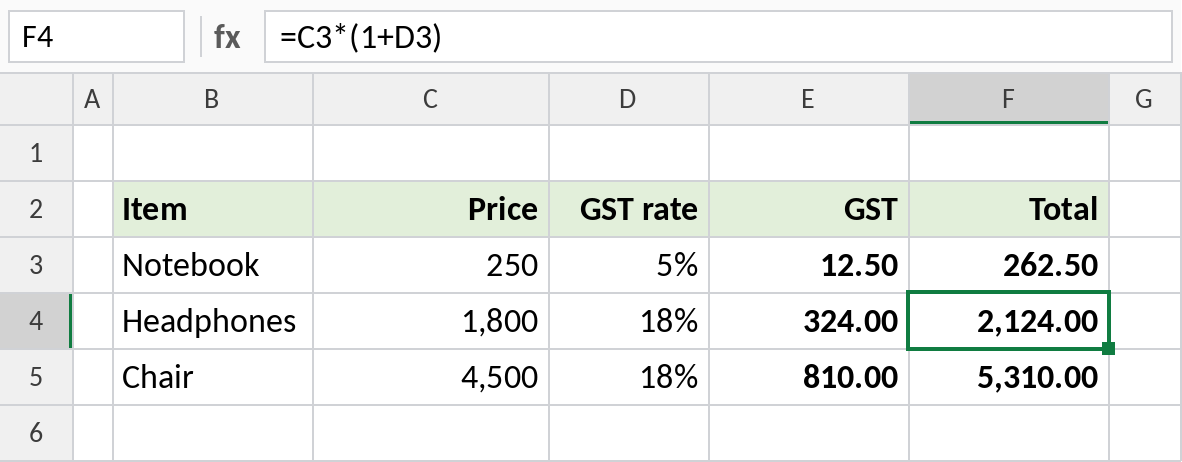
Headphones at ₹1,800 with 18% GST: GST is =C4*D4 = ₹324, and the total is ₹2,124.
How the formula works
D3holds the rate as a percentage, such as 18%, which Excel stores as 0.18.1+D3is 1.18: the original price plus 18%.- Multiplying the price by 1.18 adds GST. Dividing an inclusive price by 1.18 takes it back out.
Remove GST from a price (GST inclusive)
When the price already includes GST, divide by 1 plus the rate to get the base price. Don’t subtract 18%: that gives the wrong answer.
=C3/(1+D3)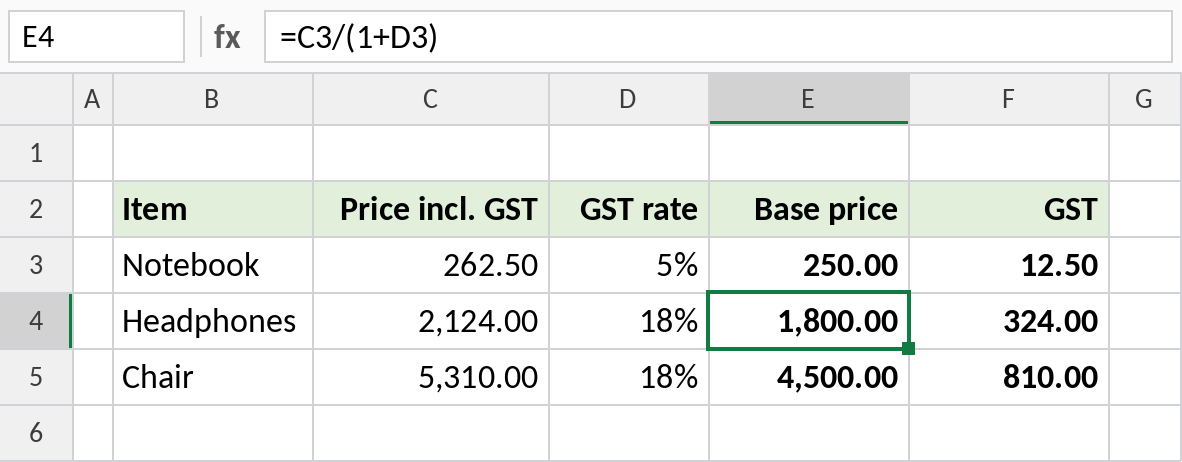
₹2,124 including 18% GST is a base price of ₹1,800, plus ₹324 GST. Subtracting 18% of ₹2,124 would give ₹1,741.68, which is wrong.
Split GST into CGST and SGST
For sales within a state, GST is split equally between CGST and SGST:
=C3*D3/2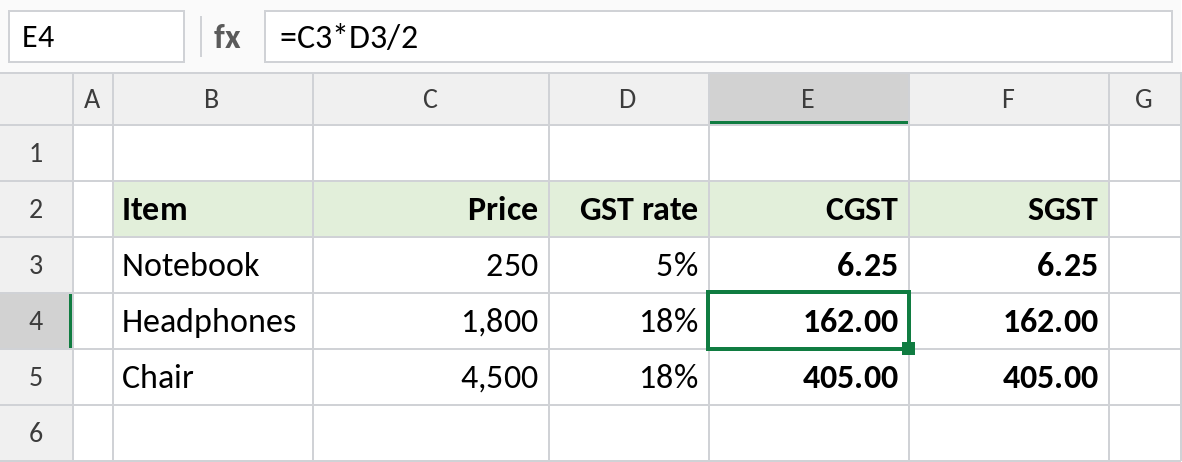
18% GST on ₹1,800 is ₹162 CGST plus ₹162 SGST. For sales between states, the whole amount is IGST.
GST formulas
| To calculate | Formula |
|---|---|
| GST amount on a price | =Price*Rate |
| Price including GST | =Price*(1+Rate) |
| Base price from an inclusive price | =Inclusive/(1+Rate) |
| GST inside an inclusive price | =Inclusive*Rate/(1+Rate) |
| CGST or SGST | =Price*Rate/2 |
| Round to the nearest rupee | =ROUND(Price*(1+Rate),0) |
Notes
- Keep the rate in its own column, so items with different GST rates calculate correctly.
- Since 22 September 2025, most goods and services fall in the 5% or 18% GST slab, with 40% for a few luxury and sin goods. Always check the current rate for your item.
- Round the GST amount on invoices with ROUND, as required for your billing.
Common errors
| Problem | Cause | Fix |
|---|---|---|
| Base price slightly wrong | Subtracted the rate instead of dividing | Use =Inclusive/(1+Rate) |
| Totals 100 times too big | Rate typed as 18 instead of 18% | Type 18% or 0.18 |
| Paise differences on invoices | No rounding | Wrap amounts in ROUND |
Practice file
All three examples, ready for your own items and rates.