The Excel IF function tests a condition and returns one value if it’s TRUE and another if it’s FALSE. It’s how you make a formula decide.
logical_test |
A condition that is TRUE or FALSE, such as D3>=600. |
|---|---|
value_if_true |
What to return when the test is TRUE. |
value_if_false optional |
What to return when the test is FALSE. If you leave it out, IF returns FALSE. |
Table of Contents
Basic example
To label each sale against a target of 600, test the Sales value and return one of two labels:
=IF(D3>=600,"Target met","Below target")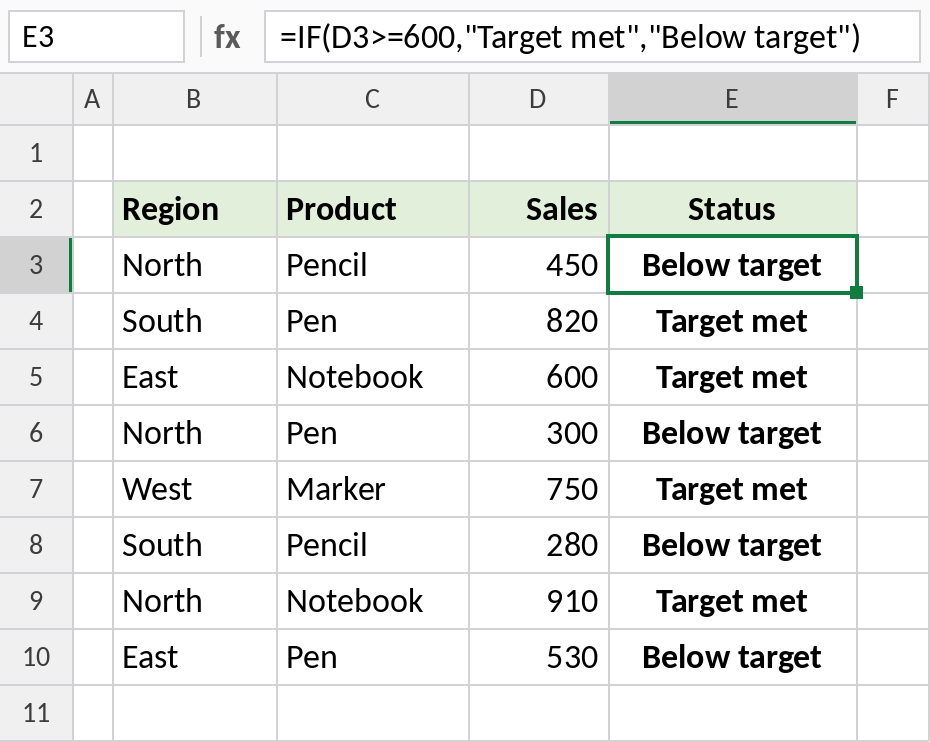
450 is less than 600, so E3 shows Below target. 820 passes the test, so E4 shows Target met. Text results must be in double quotes.
Return a calculation
IF can return a calculation as well as text. Here, sales of 600 or more earn a 5% bonus, and the rest earn nothing:
=IF(D4>=600,D4*5%,0)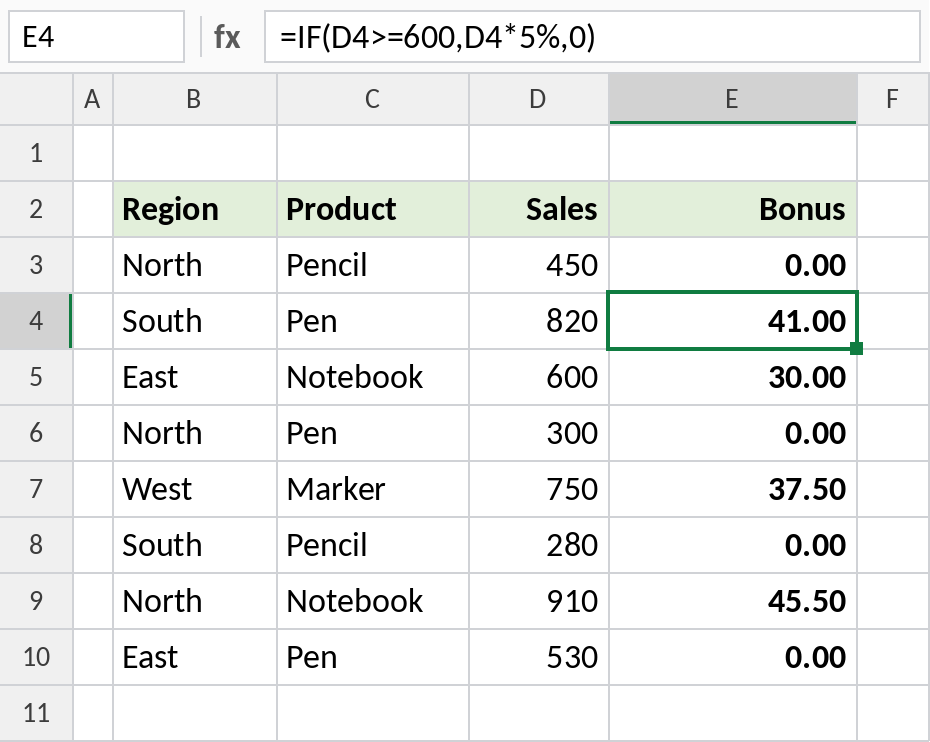
820 × 5% gives a bonus of 41.00, while 450 gets 0.00. Change the test or the rate and every row updates.
Nested IF for more than two results
To return three results, put a second IF in the value_if_false part of the first:
=IF(D3>=800,"High",IF(D3>=500,"Medium","Low"))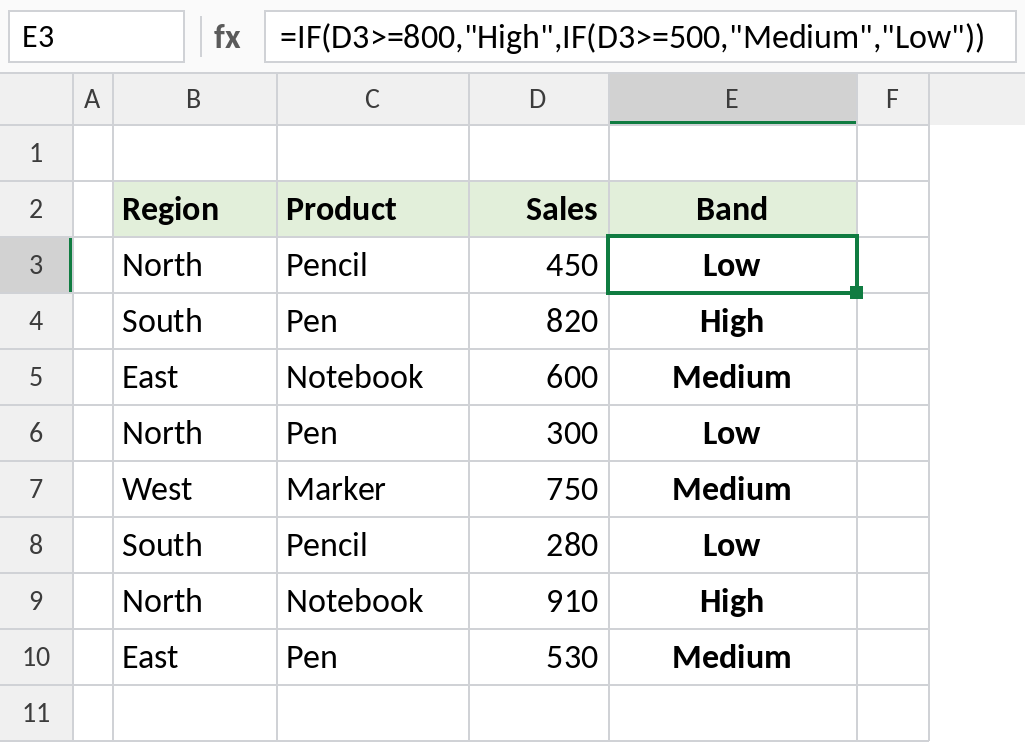
Excel tests 800 first, then 500. 910 is High, 600 is Medium and 450 is Low. Always test the largest limit first. For more than three results, IFS is easier to read.
Comparison operators
| Operator | Meaning | Example test |
|---|---|---|
= |
equal to | B3="North" |
<> |
not equal to | B3<>"North" |
> |
greater than | D3>500 |
< |
less than | D3<500 |
>= |
greater than or equal to | D3>=600 |
<= |
less than or equal to | D3<=600 |
To test two conditions at once, combine IF with AND or OR: =IF(AND(B3="North",D3>=600),"Yes","No").
Notes
- Text in the test or the results must be in double quotes. Numbers and cell references don’t need them.
- Text tests are not case-sensitive:
B3="north"matches North. - Use
""to return an empty-looking cell, as in=IF(D3>=600,"Met",""). - You can nest up to 64 IFs, but past two or three, IFS or XLOOKUP is clearer.
Common errors
| Problem | Cause | Fix |
|---|---|---|
#NAME? |
Text typed without quotes, such as Target met |
Put text results in quotes |
| Result shows FALSE | value_if_false left out |
Add the third argument, even if it’s "" |
| Nested IF gives wrong bands | Smaller limits tested first, so they catch everything | Test from the largest limit down |
| Test fails on numbers | Numbers stored as text, such as "600" |
Convert to real numbers, and don’t put numbers in quotes in the test |
Practice file
All three examples with working formulas.